
Stop paying for bounced emails—build your own Google Maps lead scraper. Local business outreach depends on quality leads, but most marketers face the same frustrating cycle: purchase scraped email lists, send campaigns, watch bounce rates climb, and repeat. Pre-made lead databases promise thousands of contacts but deliver outdated information, invalid emails, and wasted ad spend. The alternative is paying monthly for scraping tools that lock you into subscriptions while giving you limited control over your data collection workflows.
This guide focuses on practical execution details, infrastructure constraints, and automation choices around Build a Google Maps Lead Scraper in n8n (Free). It preserves the core workflow from the source article while repairing structure for clean publication.
For direct product context and implementation ideas, compare LycheeIP proxy infrastructure, Static residential proxies, Rotating residential proxies, Datacenter proxies.
Stop paying for bounced emails—build your own Google Maps lead scraper. Local business outreach depends on quality leads, but most marketers face the same frustrating cycle: purchase scraped email lists, send campaigns, watch bounce rates climb, and repeat. Pre-made lead databases promise thousands of contacts but deliver outdated information, invalid emails, and wasted ad spend. The alternative is paying monthly for scraping tools that lock you into subscriptions while giving you limited control over your data collection workflows.
This tutorial shows you how to build a free, customizable Google Maps lead scraper using n8n, an open-source workflow automation platform. You'll scrape business listings directly from Google Maps, verify email addresses through SMTP checks, and export clean leads to Google Sheets—all without recurring subscription costs. This approach gives freelancers, agency owners, and small business marketers complete control over their lead generation pipeline while ensuring the data they collect is current and verified.
Setting Up n8n Workflow to Scrape Google Maps Business Listings
Before diving into the technical setup, you need to understand what you're building. Google Maps contains millions of local business listings with publicly available information including business names, addresses, phone numbers, websites, and sometimes email addresses. A properly configured scraper collects this public data systematically, respecting rate limits and avoiding patterns that could trigger blocks.
Installing n8n
n8n is a workflow automation tool that connects different services and APIs. You can run it locally on your computer or deploy it to a cloud server. For this tutorial, the local installation works perfectly:
Option 1: Using npx (quickest method)
npx n8nThis command downloads and runs n8n immediately. Access the interface at `localhost:5678` in your browser.
Option 2: Using Docker
docker run -it --rm --name n8n -p 5678:5678 n8nio/n8nDocker provides a contained environment and makes deployment easier if you plan to run this scraper continuously.
Creating Your First Workflow
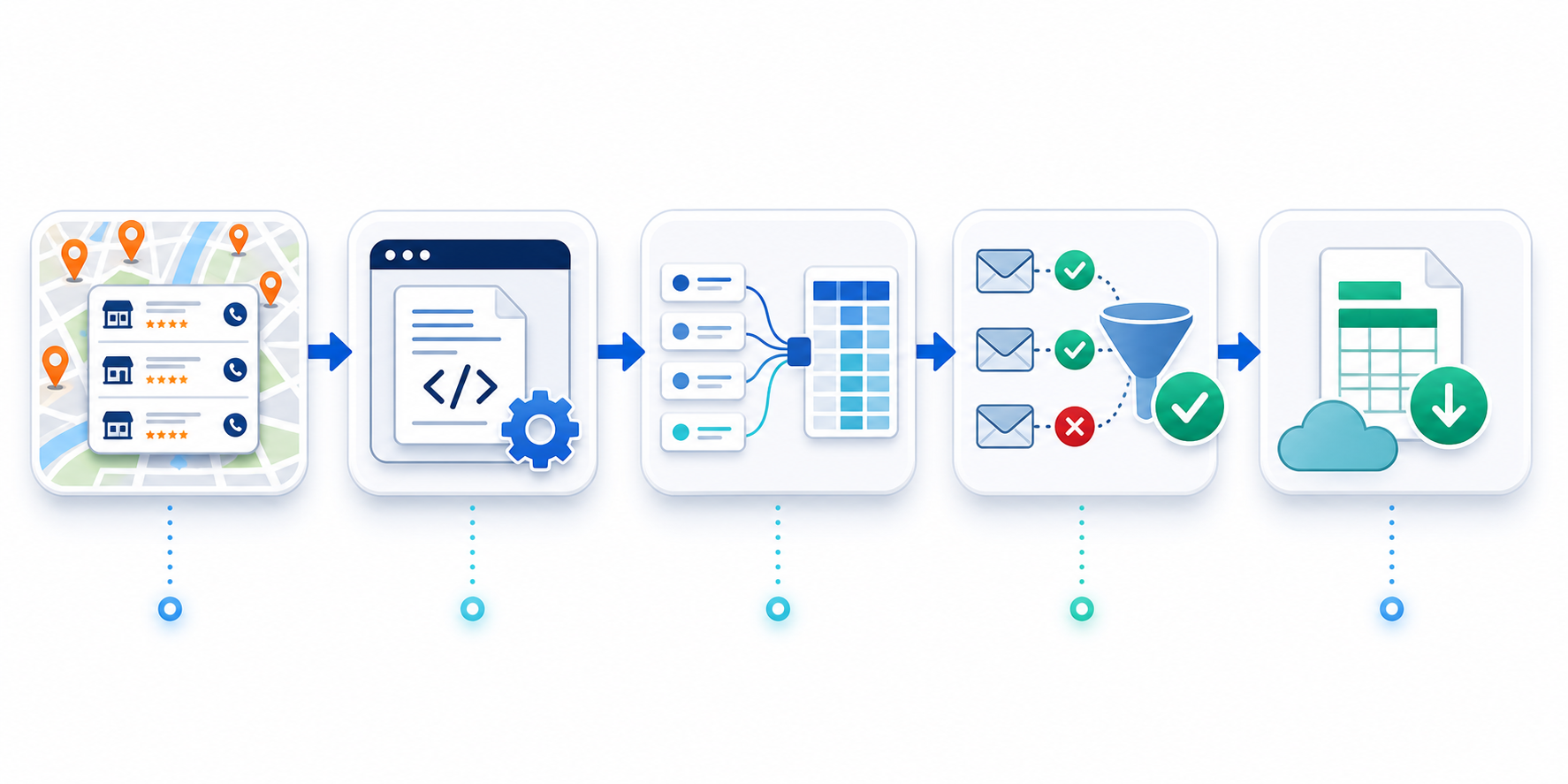
Once n8n is running, create a new workflow. The basic structure for a Google Maps scraper includes these core nodes:
- Manual Trigger or Schedule Trigger: Starts the workflow
- HTTP Request Node: Fetches Google Maps search results
- HTML Extract Node: Parses business data from the response
- Function Node: Cleans and structures the data
- Email Verification Node: Validates email addresses
- Google Sheets Node: Exports verified leads
Configuring the HTTP Request Node
Google Maps doesn't provide a free official API for business listings, so your scraper needs to collect public data from search result pages. This is where the technical challenge begins.
The HTTP Request node should target Google Maps search URLs. A typical search URL looks like:
https://www.google.com/maps/search/restaurants+in+Austin+TXHowever, sending requests directly from your IP address to Google Maps will likely result in blocks after just a few queries. Google's systems detect automated traffic patterns through:
- Request frequency and timing
- Missing browser fingerprints
- Consistent source IP addresses
- Absence of typical user behavior signals
This is where most DIY scraping projects fail. Without proper infrastructure, your scraper will work for the first dozen requests, then start returning CAPTCHAs or blocking your IP entirely.
The Role of Proxy Infrastructure
To scrape Google Maps reliably, you need to route your requests through residential proxy infrastructure. Residential proxies use real IP addresses assigned by internet service providers to actual devices, making your requests appear as legitimate user traffic rather than automated bot activity.
When configuring your HTTP Request node, you'll need to add proxy settings:
- Proxy host and port
- Authentication credentials
- Rotation strategy (per request or session-based)
For Google Maps scraping specifically, residential proxies with proper geolocation targeting work best. If you're collecting leads for businesses in Austin, Texas, routing your requests through Austin-area residential IPs produces more accurate results and reduces the likelihood of geographic inconsistencies that trigger blocks.
Parsing Business Data
Once your HTTP Request node successfully retrieves Google Maps search results, you need to extract specific business information. Google Maps pages use dynamic JavaScript rendering, which complicates traditional HTML parsing.
The HTML Extract node in n8n can pull data using CSS selectors or XPath expressions. You're looking for:
- Business name
- Address
- Phone number
- Website URL
- Category
- Rating and review count
Google frequently changes their HTML structure, so your selectors need periodic updates. A more robust approach involves using a headless browser automation tool like Puppeteer or Playwright, which you can integrate into n8n through custom Function nodes.
Extracting Email Addresses
Google Maps listings rarely display email addresses directly. To collect email contacts, your workflow needs an additional step: visiting each business's website and extracting email addresses from their contact pages.
Add another HTTP Request node that fetches the business website URL you collected earlier. Then use pattern matching to find email addresses:
const emailPattern = /[a-zA-Z0-9._%+-]+@[a-zA-Z0-9.-]+\.[a-zA-Z]{2,}/g;
const emails = htmlContent.match(emailPattern);
This regex pattern identifies most standard email formats. You'll likely find multiple emails per website (info@, contact@, sales@, etc.). Your Function node should prioritize common business email prefixes and filter out generic addresses like noreply@ or abuse@.
Integrating SMTP Verification to Filter Valid Email Addresses
Collecting email addresses is only half the challenge. Without verification, your lead list will include:
- Outdated addresses from old websites
- Typos in published contact information
- Abandoned email accounts
- Fake addresses added to discourage spam
SMTP verification checks whether an email address exists without actually sending a message. This process dramatically improves deliverability when you launch your outreach campaigns.
How SMTP Verification Works
SMTP (Simple Mail Transfer Protocol) is the system email servers use to communicate. SMTP verification simulates the beginning of an email delivery:
- DNS Lookup: Checks if the domain has valid MX (mail exchange) records
- SMTP Connection: Connects to the recipient's mail server
- VRFY Command: Asks if the specific email address exists
- Response Analysis: Interprets the server's response code
Most modern email servers disable the VRFY command for security reasons, but you can still verify addresses using the RCPT TO command, which checks if the server would accept mail for that address.
Explore LycheeIP Proxy Infrastructure
Building an SMTP Verification Node in n8n
n8n doesn't include a native SMTP verification node, but you can build one using a Function node with Node.js libraries. The `email-validator` and `smtp-validation` packages provide the necessary functionality.
Here's a simplified verification approach:
const dns = require('dns');
const net = require('net');
function verifyEmail(email) {
const domain = email.split('@')[1];
return new Promise((resolve, reject) => {
dns.resolveMx(domain, (err, addresses) => {
if (err || !addresses || addresses.length === 0) {
resolve({ email, valid: false, reason: 'No MX records' });
return;
}
const smtp = net.createConnection(25, addresses[0].exchange);
let response = '';
smtp.on('data', (data) => {
response += data.toString();
if (response.includes('250')) {
resolve({ email, valid: true });
smtp.end();
} else if (response.includes('550') || response.includes('551')) {
resolve({ email, valid: false, reason: 'Address rejected' });
smtp.end();
}
});
smtp.write(`HELO yourdomain.com\r\n`);
smtp.write(`MAIL FROM: \r\n`);
smtp.write(`RCPT TO: <${email}>\r\n`);
});
});
}
This code performs basic SMTP verification by connecting to the recipient's mail server and checking if it accepts the address. Real-world implementations need error handling, timeout management, and retry logic.
Verification Best Practices
SMTP verification requires careful implementation to avoid triggering spam filters or getting your verification IP blacklisted:
Rate Limiting: Don't verify hundreds of emails per minute. Space out requests to 2-5 per second maximum.
Proper HELO/EHLO: Always identify your server with a valid domain name. Using fake or suspicious domains increases the likelihood of verification failures.
Handle Greylisting: Some servers temporarily reject connections as an anti-spam measure. Implement retry logic that waits 10-15 minutes before checking again.
Catch-All Detection: Some domains accept all email addresses regardless of whether they exist. Your verification should detect catch-all configurations and flag these addresses as uncertain rather than verified.
Disposable Email Detection: Filter out temporary email services (mailinator, guerrillamail, etc.) that users employ for one-time signups.
Alternative Verification Methods
If building your own SMTP verification proves too complex, several API services offer email verification:
- ZeroBounce
- NeverBounce
- Hunter.io
- EmailListVerify
These services charge per verification (typically $0.001-0.01 per email) but handle all the technical complexity. You can integrate them into n8n using their API nodes or the HTTP Request node.
The decision between DIY SMTP verification and paid API services depends on volume. For scraping 100-500 leads monthly, paid verification costs $1-5. For 10,000+ leads, building your own verification saves significant money but requires more technical maintenance.
Categorizing Verification Results
Your verification node should categorize results into clear statuses:
- Valid: Email exists and accepts mail
- Invalid: Email doesn't exist or server rejected it
- Risky: Catch-all domain or suspicious patterns
- Unknown: Verification inconclusive (server timeout, greylisting, etc.)
For outreach campaigns, send to Valid addresses first, test Risky addresses with a small segment, and exclude Invalid addresses entirely.
Automating Lead Export to Google Sheets for Immediate Use
After scraping and verification, you need organized, accessible lead data. Google Sheets provides the perfect destination: it's free, shareable with team members, integrates with most CRM and email marketing tools, and supports real-time collaboration.
Setting Up Google Sheets Integration
n8n includes a native Google Sheets node that handles authentication and data writing. Configuration requires:
- Google Cloud Project: Create a project in Google Cloud Console
- Enable Google Sheets API: Activate the API for your project
- Create Service Account: Generate credentials for n8n to authenticate
- Share Sheet: Give the service account email address edit permissions on your spreadsheet
The Google Sheets node offers several operations:
- Append: Adds new rows to the bottom of your sheet
- Update: Modifies existing rows based on a lookup value
- Lookup: Searches for rows matching criteria
- Read: Retrieves sheet data
For a lead scraper, the Append operation works best. Each time your workflow runs, it adds newly scraped and verified leads to your master spreadsheet.
Structuring Your Lead Sheet
Organize your Google Sheet with these columns:
- Timestamp (when the lead was scraped)
- Business Name
- Category
- Address
- City
- State
- ZIP Code
- Phone Number
- Website URL
- Email Address
- Email Status (Valid/Invalid/Risky/Unknown)
- Rating
- Review Count
- Source Search Query
This structure supports filtering and segmentation when you launch outreach campaigns. You can sort by rating to target highly-reviewed businesses, filter by category for industry-specific campaigns, or segment by location for geo-targeted offers.
Deduplication Logic
Repeated scraping sessions will collect the same businesses multiple times. Implement deduplication to keep your sheet clean:
Method 1: Pre-check Before Appending
Add a Google Sheets Lookup node before the Append node. Search for the business name or phone number. If found, skip the append operation.
Method 2: Post-processing with IF Node
Use n8n's IF node to check whether a business already exists in your data. Route duplicates to a separate branch that updates existing records instead of creating new ones.
Method 3: Google Sheets Formula
Add a helper column with a formula that flags duplicates:
=COUNTIF($B$2:B2,B2)>1This formula marks rows that have duplicate business names. Manually review and remove duplicates periodically.
Creating Multiple Sheet Workflows
For different lead categories or campaigns, create separate workflows that write to different sheets or tabs:
- Restaurants - Austin
- Dental Clinics - Houston
- Real Estate Agents - Dallas
- HVAC Contractors - San Antonio
Each workflow targets specific search queries and populates industry-specific sheets. This organization makes campaign management cleaner when you're handling multiple clients or market segments.
Automated Sheet Formatting
Google Sheets API supports conditional formatting through n8n's advanced configuration. Set up automatic formatting rules:
- Highlight Valid emails in green
- Highlight Invalid emails in red
- Highlight Risky emails in yellow
- Color-code businesses by rating (5-star in dark green, 3-star in light green, etc.)
Visual formatting helps when manually reviewing leads before importing them into your email marketing platform.
Export Options Beyond Google Sheets
While Google Sheets works well for most users, n8n supports export to:
- Airtable: More powerful database features, better for complex lead management
- HubSpot: Direct CRM integration for immediate lead nurturing
- Mailchimp/SendGrid: Push leads directly into email marketing audiences
- Notion: Combine leads with notes, research, and campaign planning
- PostgreSQL/MySQL: Store leads in a proper database for larger operations
The choice depends on your existing tech stack and workflow preferences.
Understanding Proxy Infrastructure for Reliable Scraping
Building a Google Maps scraper is straightforward in theory, but maintaining consistent operation requires understanding proxy infrastructure. The difference between a scraper that works once and a scraper that reliably produces thousands of leads monthly comes down to how you handle IP rotation and request distribution.
Why Google Maps Blocks Scrapers
Google invests heavily in detecting and blocking automated traffic. Their systems analyze:
Request Patterns: Humans don't visit 100 business listings per minute with perfectly timed intervals. Automated patterns are obvious.
Browser Fingerprinting: Missing or inconsistent browser headers, JavaScript capabilities, canvas fingerprints, and WebGL parameters signal bot activity.
IP Reputation: Datacenter IP ranges are known and often pre-emptively blocked. Multiple requests from the same IP within short timeframes trigger rate limits.
Geographic Consistency: Searching for Austin restaurants from a German IP address looks suspicious.
Challenge Responses: How requests handle CAPTCHAs, JavaScript challenges, and other anti-bot measures reveals automation.
Residential Proxies vs. Datacenter Proxies
The proxy type you choose directly impacts scraping success rates:
Datacenter Proxies
- Faster and cheaper
- IPs come from hosting providers (AWS, DigitalOcean, etc.)
- Easily identified as non-residential
- Higher block rates on Google services
- Best for: Low-sensitivity scraping, price monitoring, availability checks
Residential Proxies
- IPs assigned by ISPs to real residential addresses
- Appear as legitimate user traffic
- Significantly lower block rates
- More expensive (typically $5-15 per GB)
- Best for: Google services, social media, complex scraping workflows
For Google Maps scraping, residential proxies are essentially required. Datacenter proxies might work for a few requests but won't sustain a production scraping workflow.
Proxy Rotation Strategies
Even with residential proxies, you need intelligent rotation:
Per-Request Rotation: Every HTTP request uses a different IP address. This provides maximum anonymity but can cause issues with multi-step scraping workflows that need to maintain session state.
Session-Based Rotation: Use the same IP for a series of related requests (searching, clicking into a listing, extracting details), then rotate to a new IP for the next business. This mimics natural browsing behavior better.
Timed Rotation: Maintain an IP for 5-10 minutes of activity, then rotate. This balances the benefits of both approaches.
For n8n workflows, configure rotation in your proxy provider's settings rather than trying to implement it within n8n itself.
Frequently Asked Questions
What is the core value of Build a Google Maps Lead Scraper in n8n (Free)?
Build a Google Maps Lead Scraper in n8n (Free) matters because it turns a fragmented manual process into a repeatable workflow with clearer inputs, verification steps, and measurable outputs.
Where does proxy infrastructure fit into this workflow?
Proxy infrastructure becomes important when workflows need stable routing, session control, geo-targeting, or protection against rate limits while collecting or validating web data.
Related LycheeIP Guides and Resources
- LycheeIP proxy infrastructure
- Static residential proxies
- Rotating residential proxies
- Datacenter proxies
- Scale lead scraping to 100K+ with n8n
- Email verification in n8n scraping workflows
- Cloud-first network security learning path
- VPN privacy logging reality
- Advanced techniques to unmask anonymous IP addresses
- Free AI browser tools worth using in 2026
- AI browser automation: Tabbit vs traditional setup
- OpenClaw vs Hermes comparison
- TinyFish vs traditional scraping tools comparison