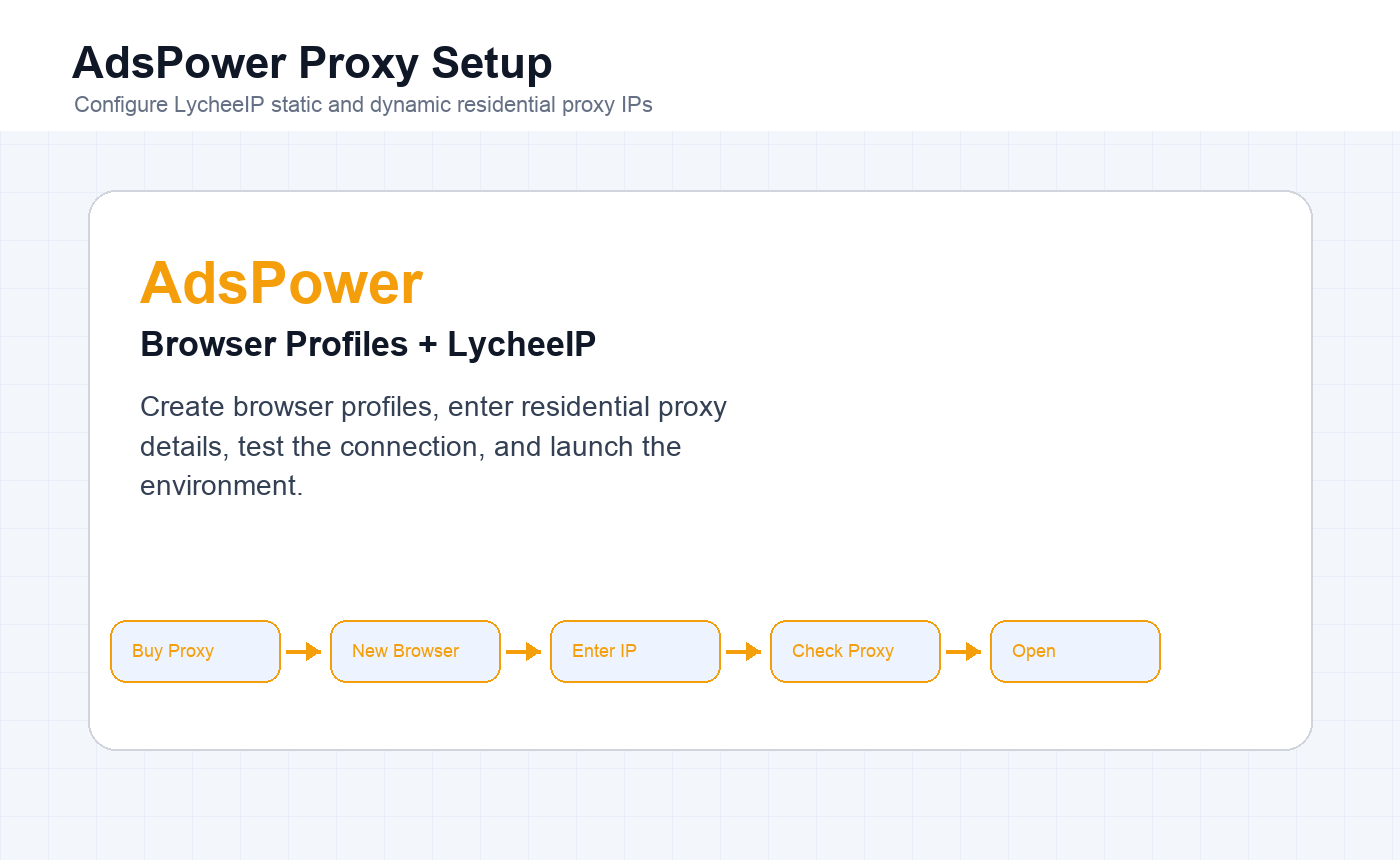
Configure LycheeIP static and dynamic residential proxy IPs in AdsPower Browser, including profile creation, proxy testing, generated dynamic proxy lines, and environment launch.
LycheeIP proxy products need to be used from an overseas network environment. Prepare that base network first, then add the LycheeIP proxy inside AdsPower.
Static Residential Proxy Setup in AdsPower
Step 1: Extract the LycheeIP Static Proxy IP
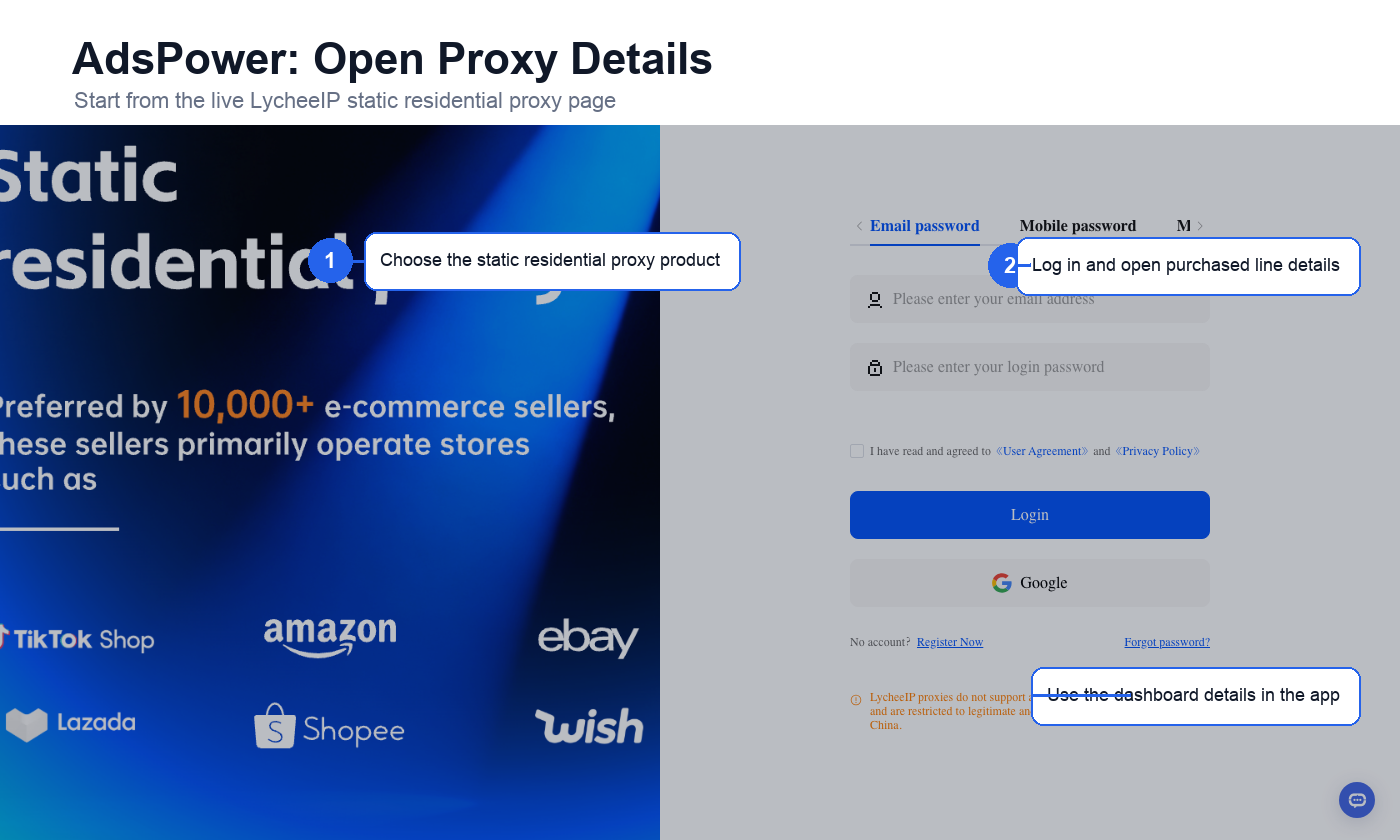
Log in to LycheeIP, purchase a residential proxy, and open the purchased line details from your account dashboard. Copy the proxy host, port, proxy account, proxy password, and supported protocol.
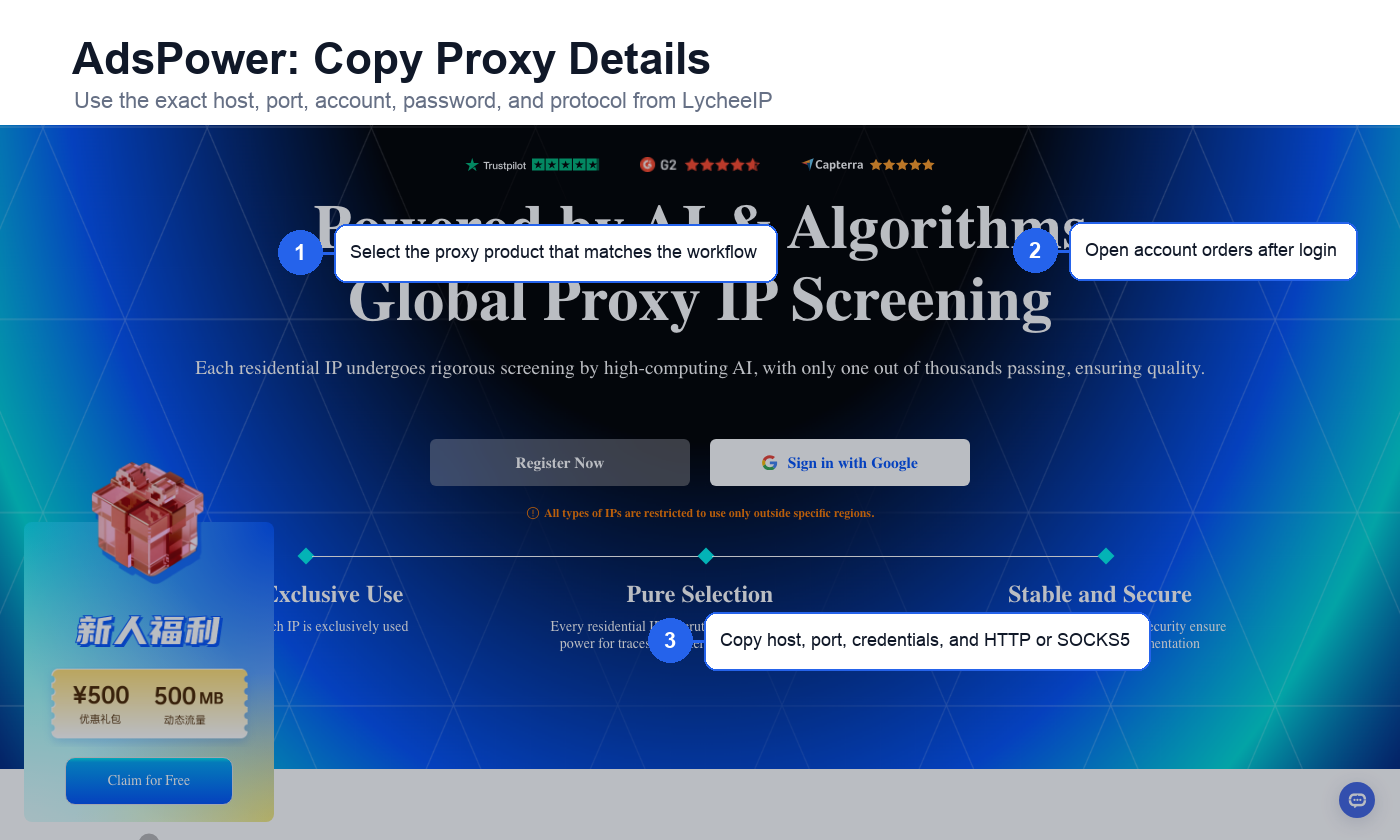
A static residential proxy is usually best when one AdsPower profile needs long-term account continuity. Use dynamic residential proxies when you need generated lines or timed sticky sessions.
Step 2: Create a New Browser Profile
Download and open AdsPower Browser. After registration, click New Browser. AdsPower allows a limited number of free browser profiles, so start with a small test profile before scaling.
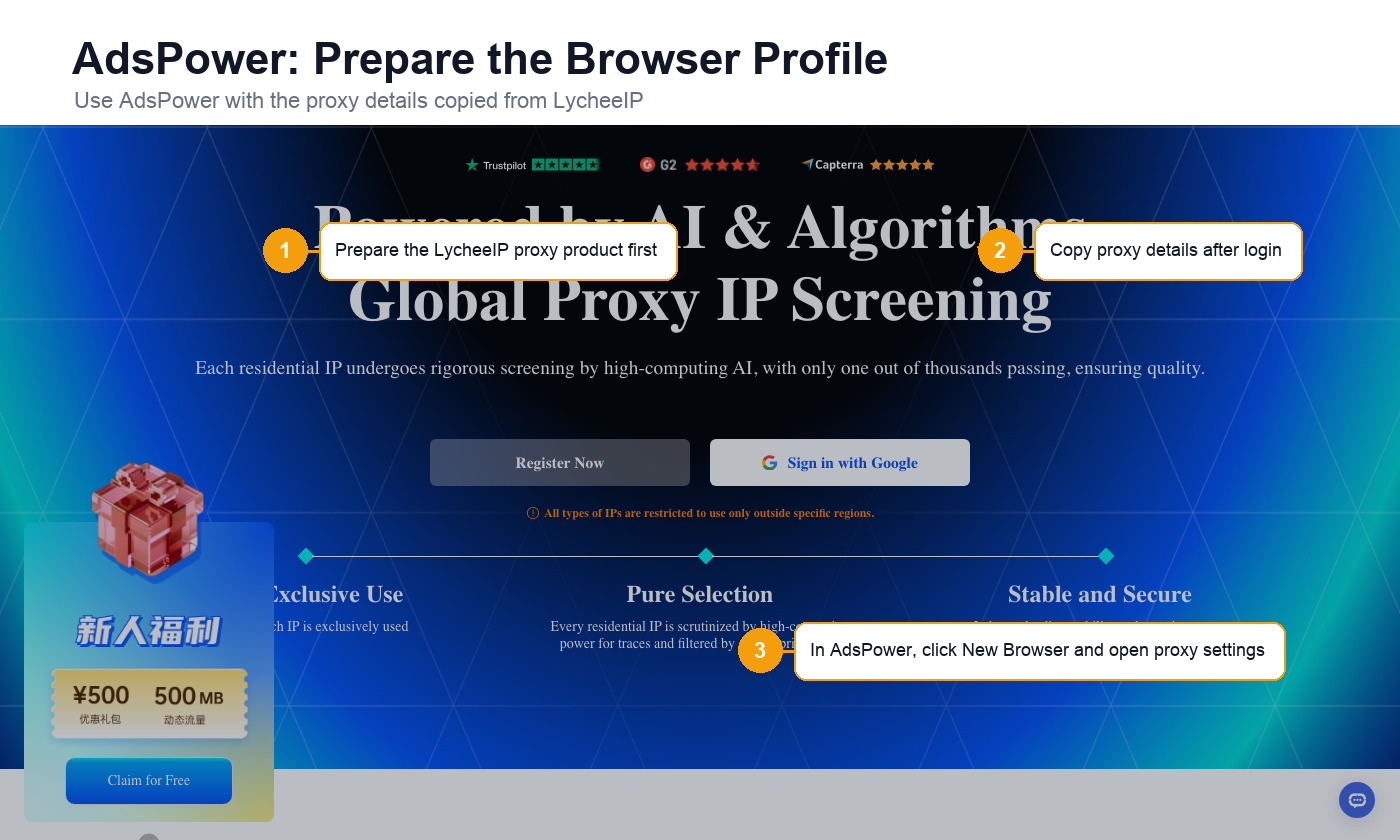
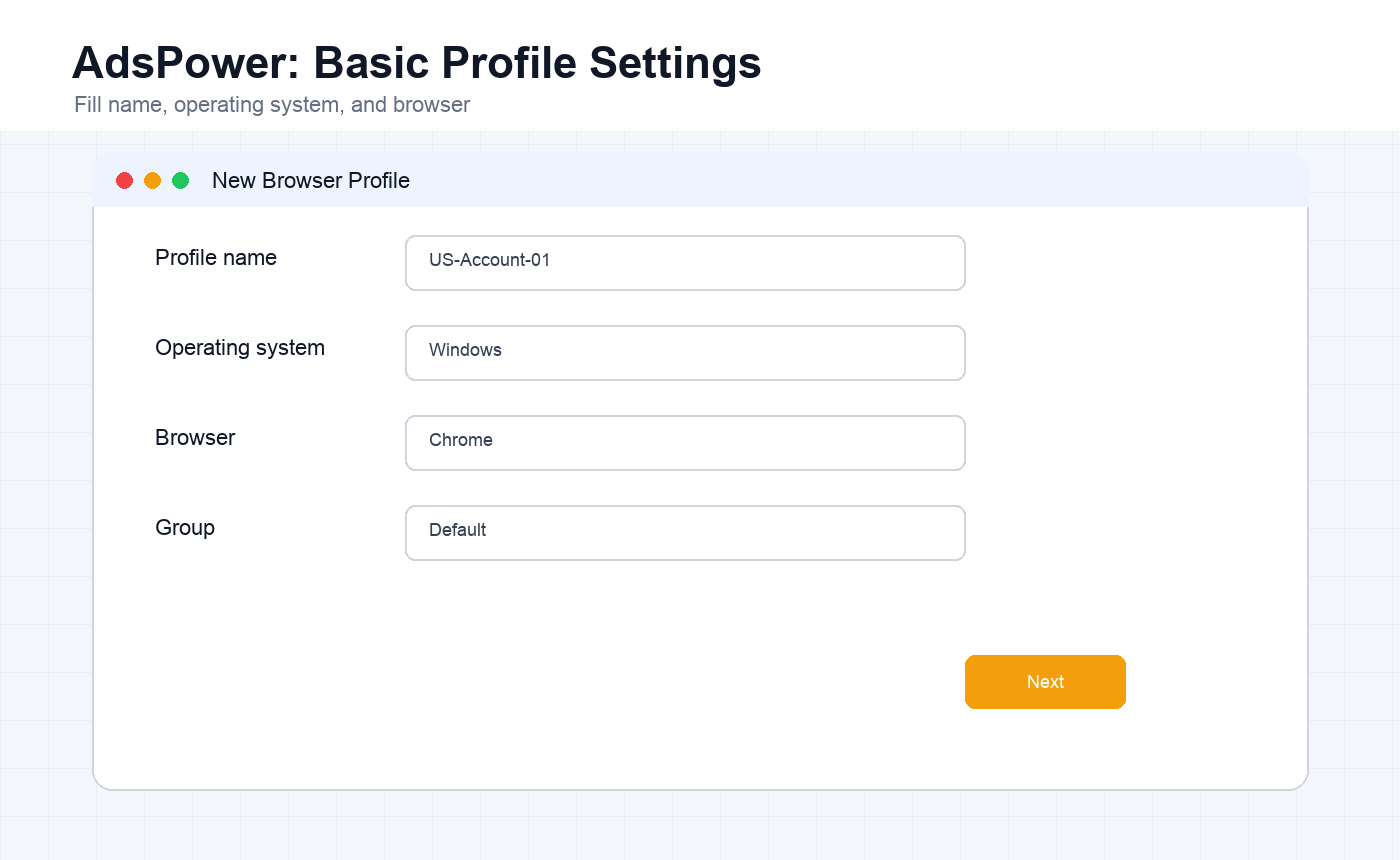
Fill in the profile name, operating system, and browser type. In most cases, the default browser option is fine. Use a profile name that identifies the market or account workflow.
Step 3: Choose the Proxy Type
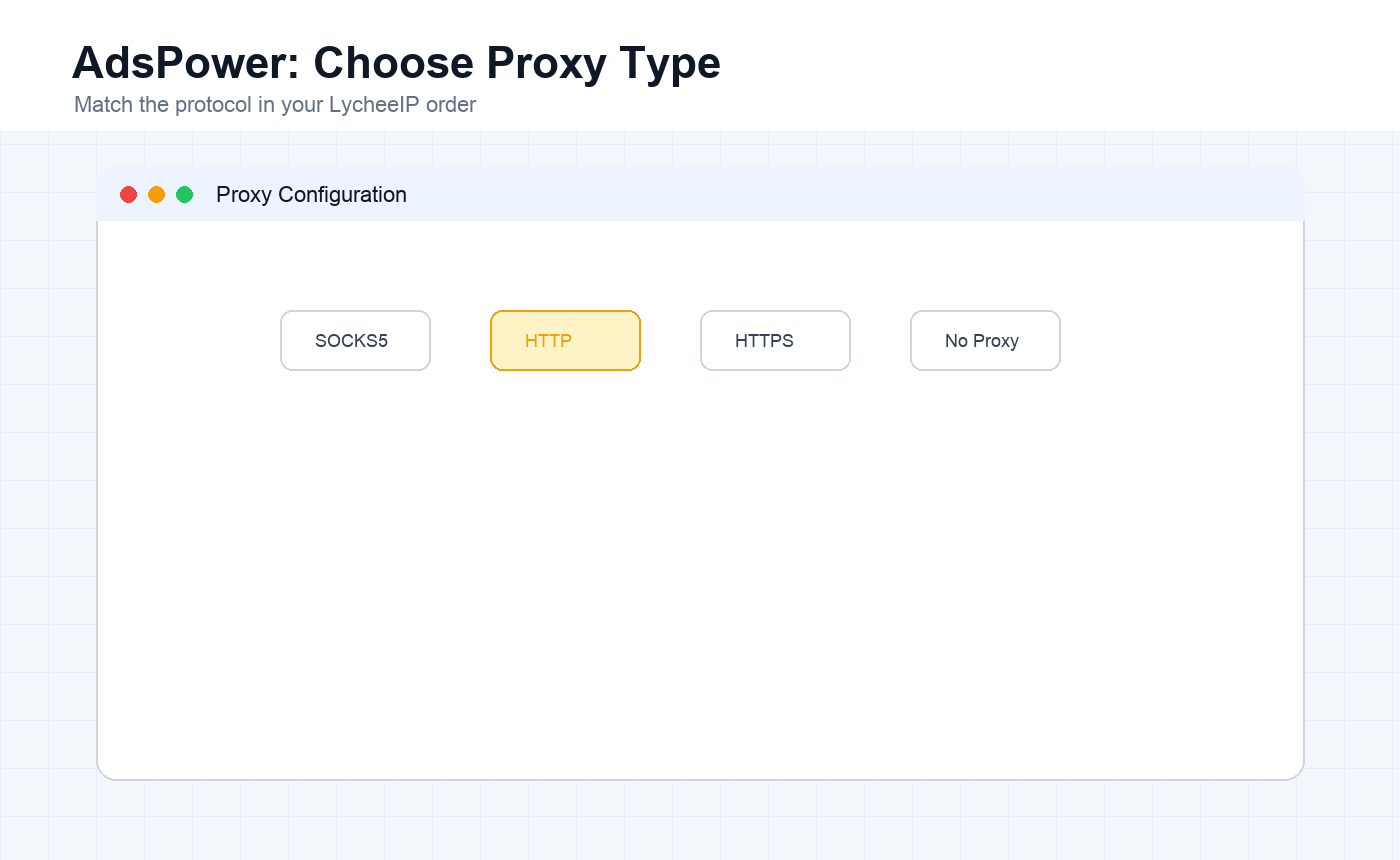
In Proxy Configuration, choose the protocol type that matches your LycheeIP order. Common choices are HTTP, HTTPS, or SOCKS5.
Step 4: Enter Static Proxy Details and Test
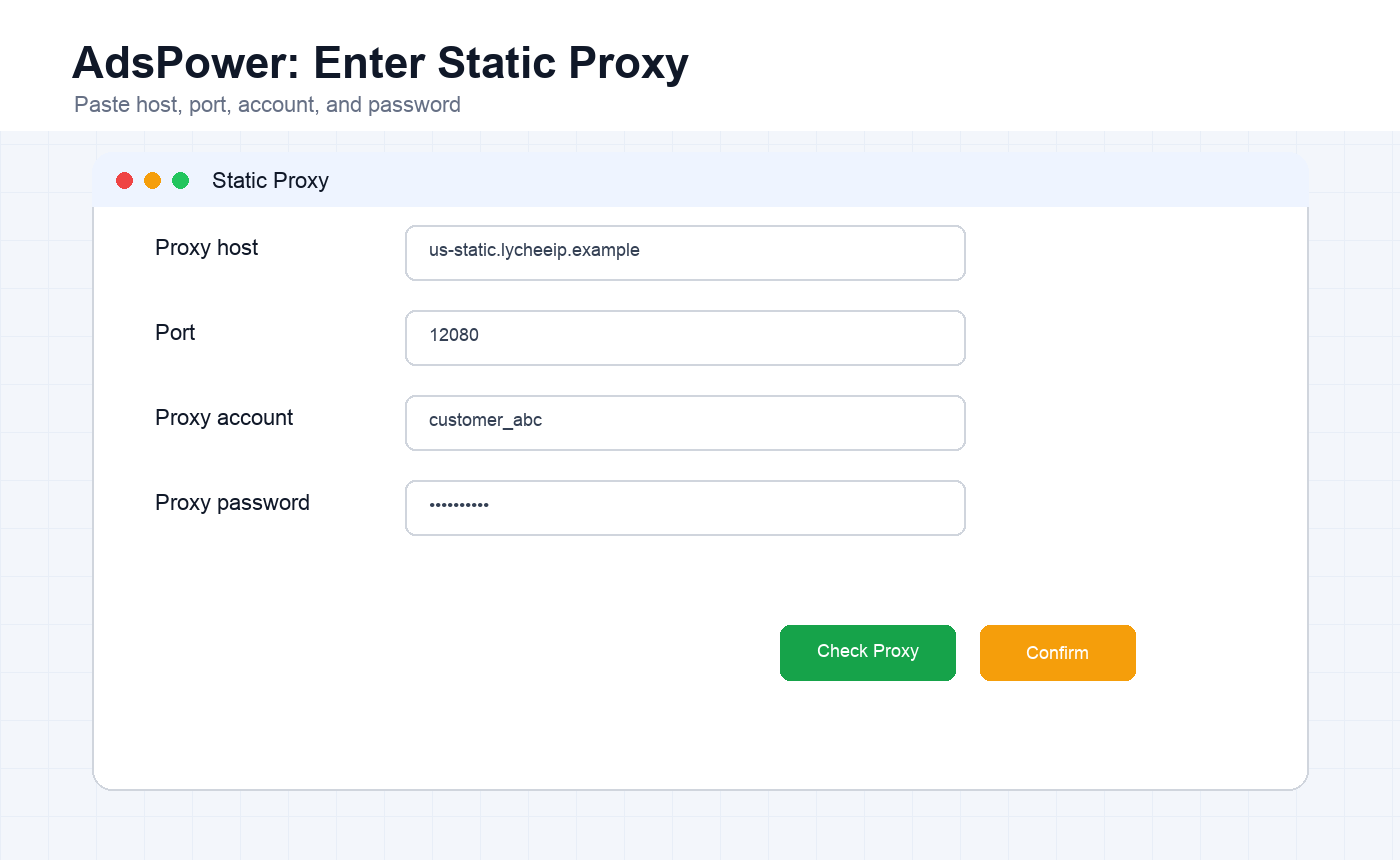
Paste the proxy host, port, proxy account, and proxy password into AdsPower. Click Check Proxy before saving the profile.
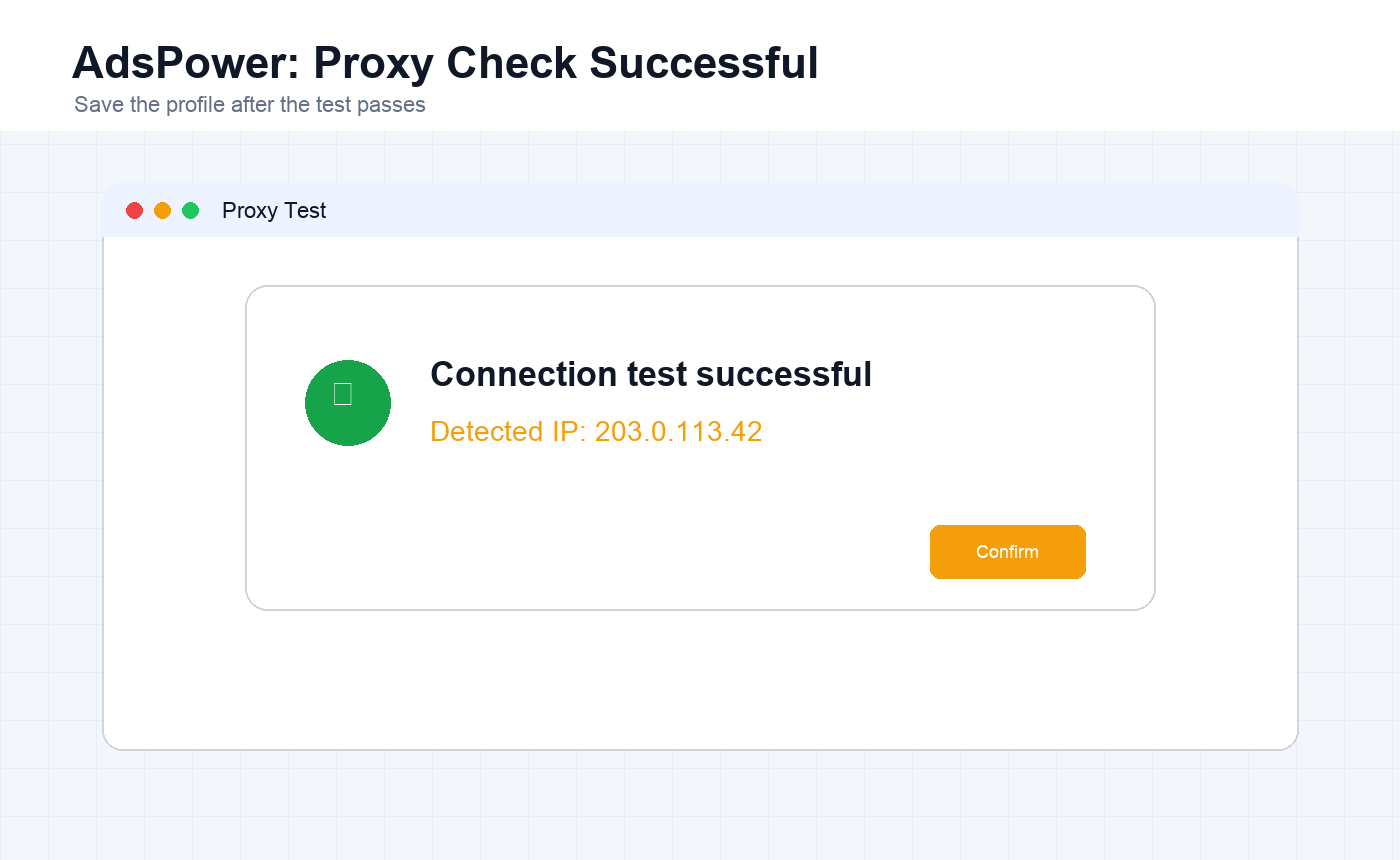
If AdsPower reports that the connection test is successful, click Confirm. If the test fails, recheck the protocol, host, port, username, password, and base network path.
Step 5: Open the Environment
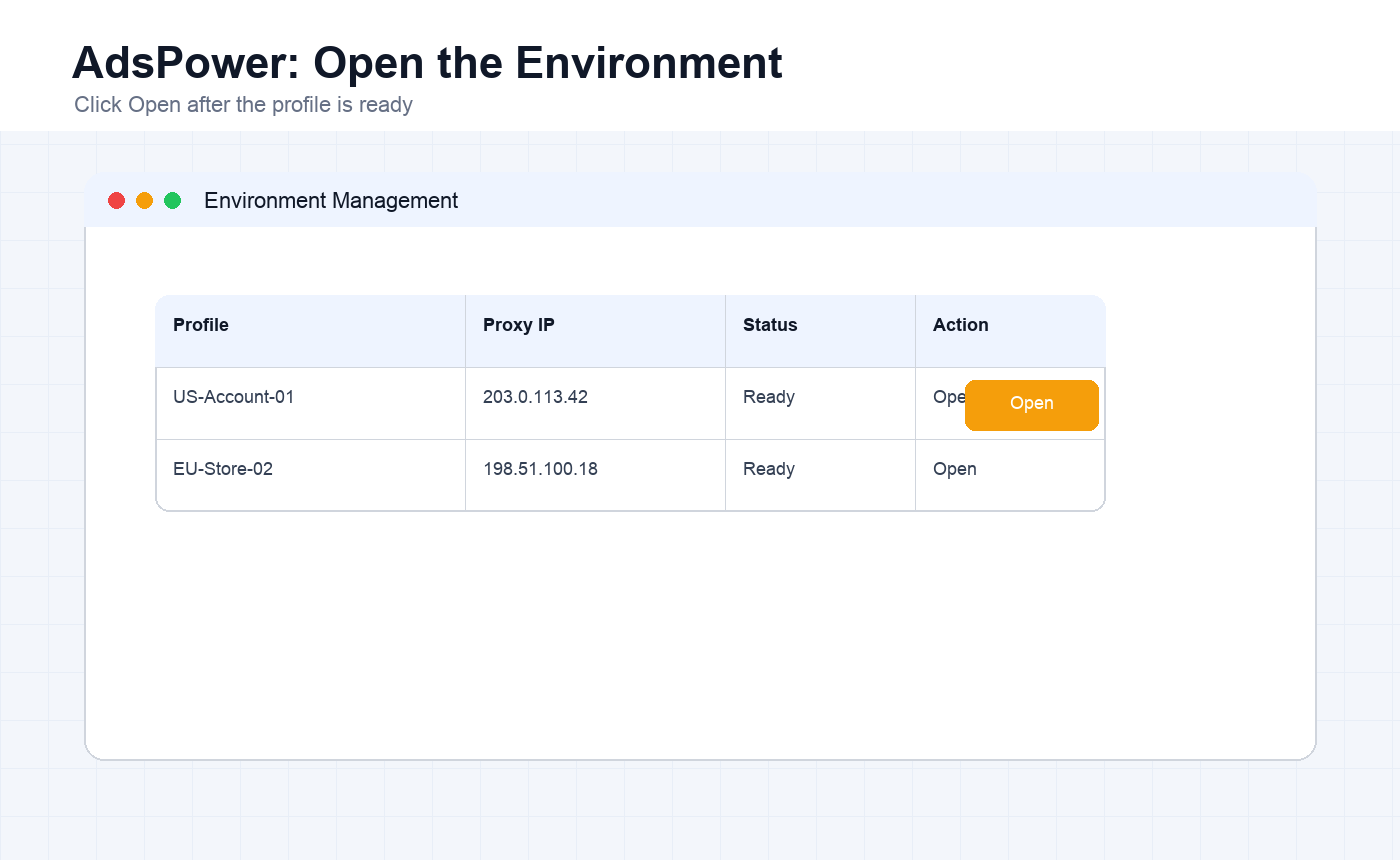
After confirmation, the new profile appears in Environment Management. Click Open to launch the browser with the configured LycheeIP proxy IP.
Dynamic Residential Proxy Setup in AdsPower
Step 1: Configure Dynamic Proxy Parameters
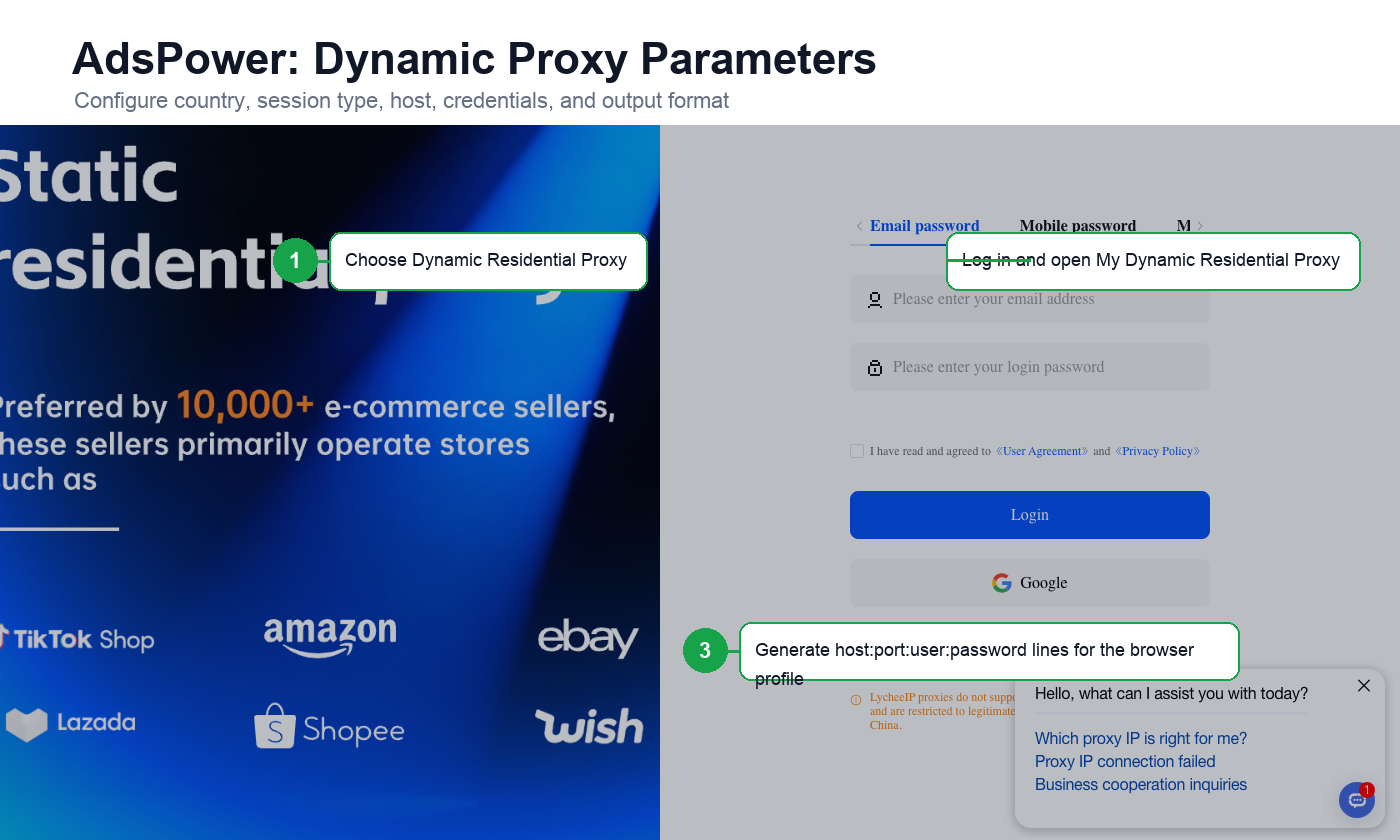
Open LycheeIP Dynamic Residential Proxy after purchase. Choose the source country or region, optional state and city, session type, proxy host, username, password, output format, and quantity.
- Choose the proxy country or use global only when mixed regions are acceptable.
- Choose state or city when the account workflow needs a narrower location.
- Review the dynamic proxy username and password.
- Use Request Rotation for frequent IP changes or Sticky Rotation to keep the same IP for 5 to 180 minutes.
- Choose the proxy host closest to the proxy country.
- Use the command-line test if you want to validate the route before pasting it into AdsPower.
- Generate proxy lines in a format AdsPower can map to host, port, account, and password.
- Copy the generated proxy list or download it as TXT.
Step 2: Generate Proxy Lines
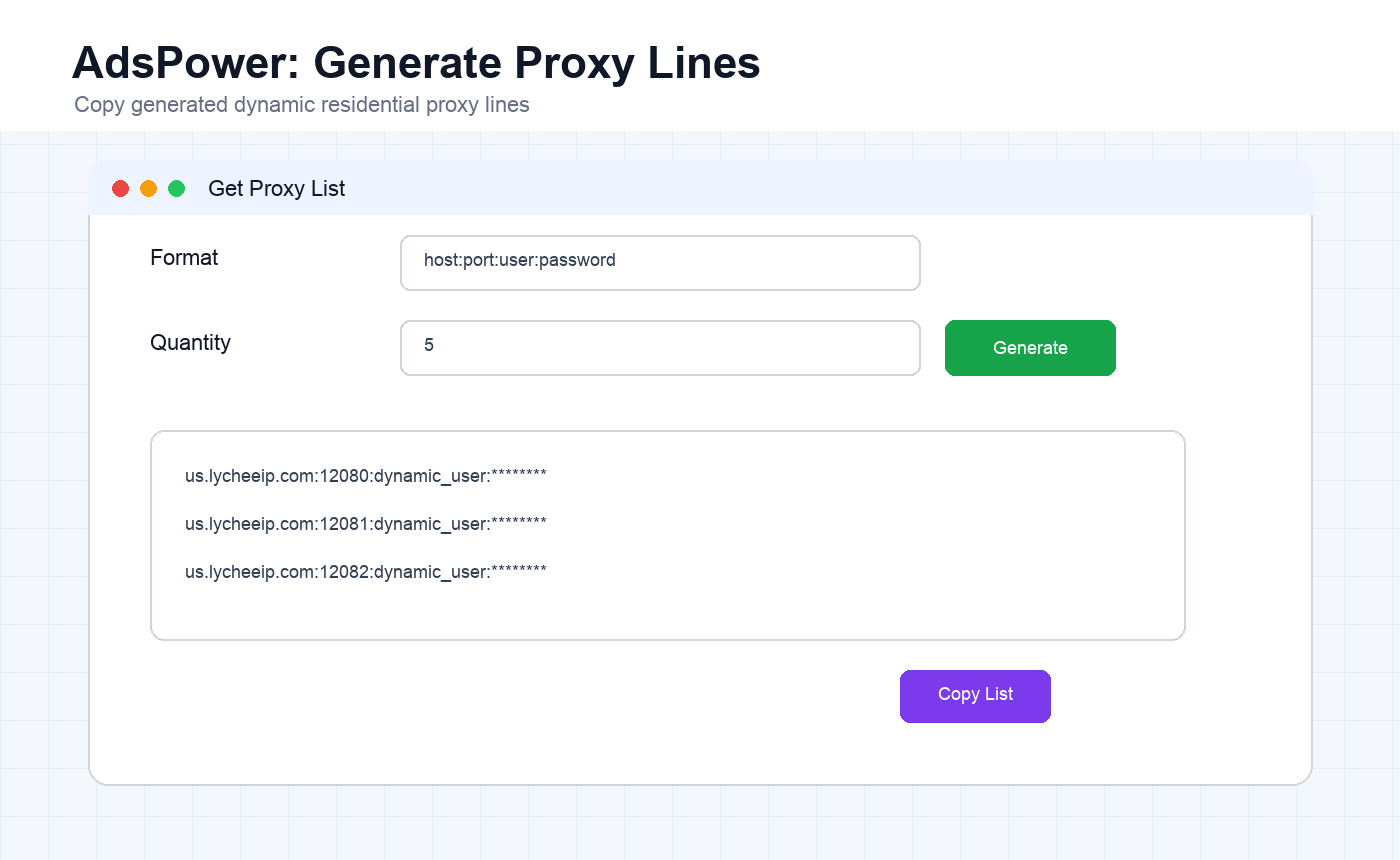
Choose a format such as host:port:user:password, set the quantity, and click Generate. Copy one generated line for the AdsPower profile you are creating.
Step 3: Add the Dynamic Proxy to AdsPower
Create or edit an AdsPower browser profile, choose the proxy type, and paste the generated server, port, proxy account, and proxy password. Run Proxy Check before saving.
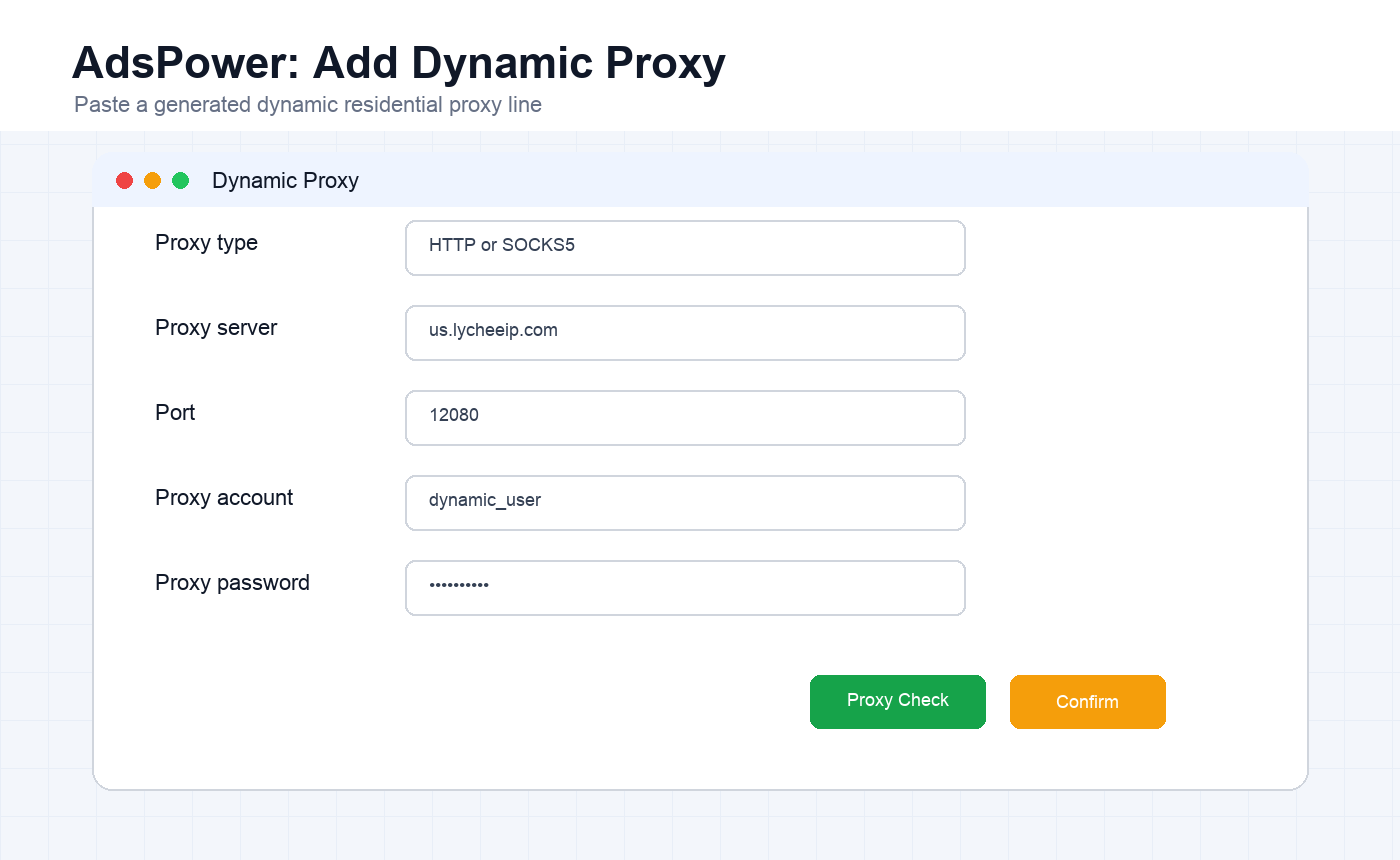
A successful proxy test means AdsPower can connect through the generated proxy line. Open an IP lookup page such as ipinfo.io or ping0.cc inside the launched profile to confirm the visible IP and region.
Generate Dynamic Residential Proxies
Frequently Asked Questions
Should AdsPower use static or dynamic proxies?
Use static residential proxies for profile continuity. Use dynamic residential proxies when generated lines or timed sticky sessions fit the workflow better.
What should I check before opening a profile?
Confirm that AdsPower proxy check succeeds, then verify the visible IP inside the launched browser profile with an IP lookup website.
Can one proxy be reused for many profiles?
Avoid reusing one IP across unrelated accounts. Important profiles should have their own stable proxy identity.
What if the connection test fails?
Check protocol, host, port, account, password, country, session settings, and the base overseas network environment.
Related LycheeIP Articles
Related LycheeIP resources: residential proxies, anonymous proxy servers, mobile proxies, Apple proxy setup, V2rayN PC setup, MoreLogin proxy setup, Instagram proxy management, mobile and residential proxy use cases, private proxy guide, public versus private IP guide.