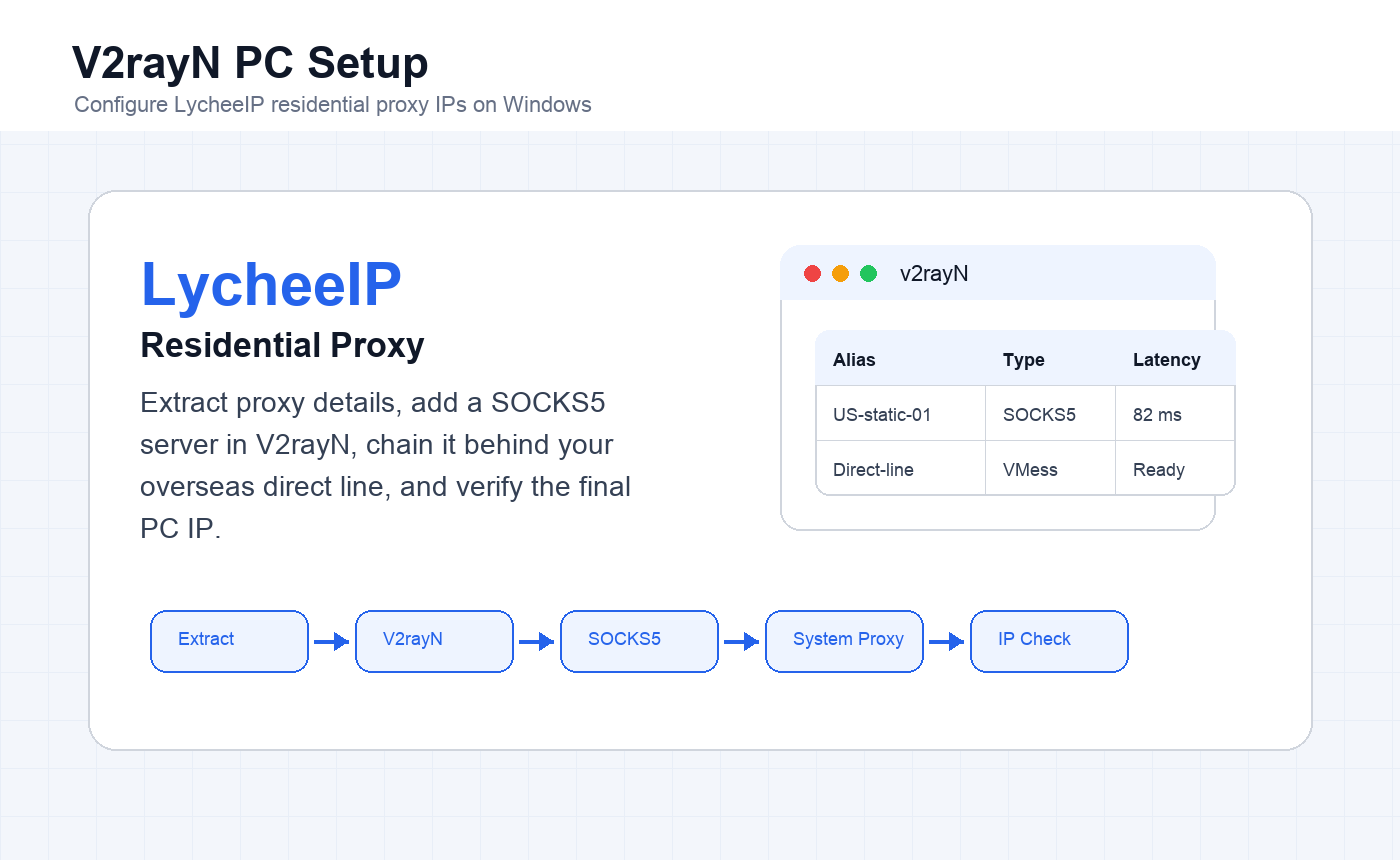
This English tutorial replicates LycheeIP’s PC-side V2rayN setup guide. It shows how to extract a LycheeIP residential proxy, add it to V2rayN as a SOCKS5 server, set up chained proxy routing, enable system proxy mode, and confirm that the computer is using the purchased IP.
LycheeIP proxy products need to be used from an overseas network environment. This tutorial assumes that your first-layer overseas network is already configured and available inside V2rayN before you add the LycheeIP proxy IP.
For background before you start, compare residential proxies, anonymous proxy servers, and mobile proxies. If you need a stable IP for repeated account or browser work, a static residential proxy is usually the best starting point.
V2rayN PC Setup Overview
The workflow has five parts: extract your LycheeIP proxy details, install and prepare V2rayN, create a chained proxy group, add the purchased SOCKS5 proxy, then enable system proxy mode and check the active IP address.
- Prepare a working overseas direct line inside V2rayN before adding the purchased proxy.
- Keep the LycheeIP proxy address, port, username, and password available.
- Use the same target country or region throughout the workflow.
- After setup, verify the final IP in a browser before using the environment for sensitive account work.
For adjacent device workflows, see the LycheeIP guides for Apple device proxy setup, Instagram proxy account management, and mobile and residential proxy use cases.
Step 1: Extract the LycheeIP Proxy IP
Log In and Open Purchased Line Details
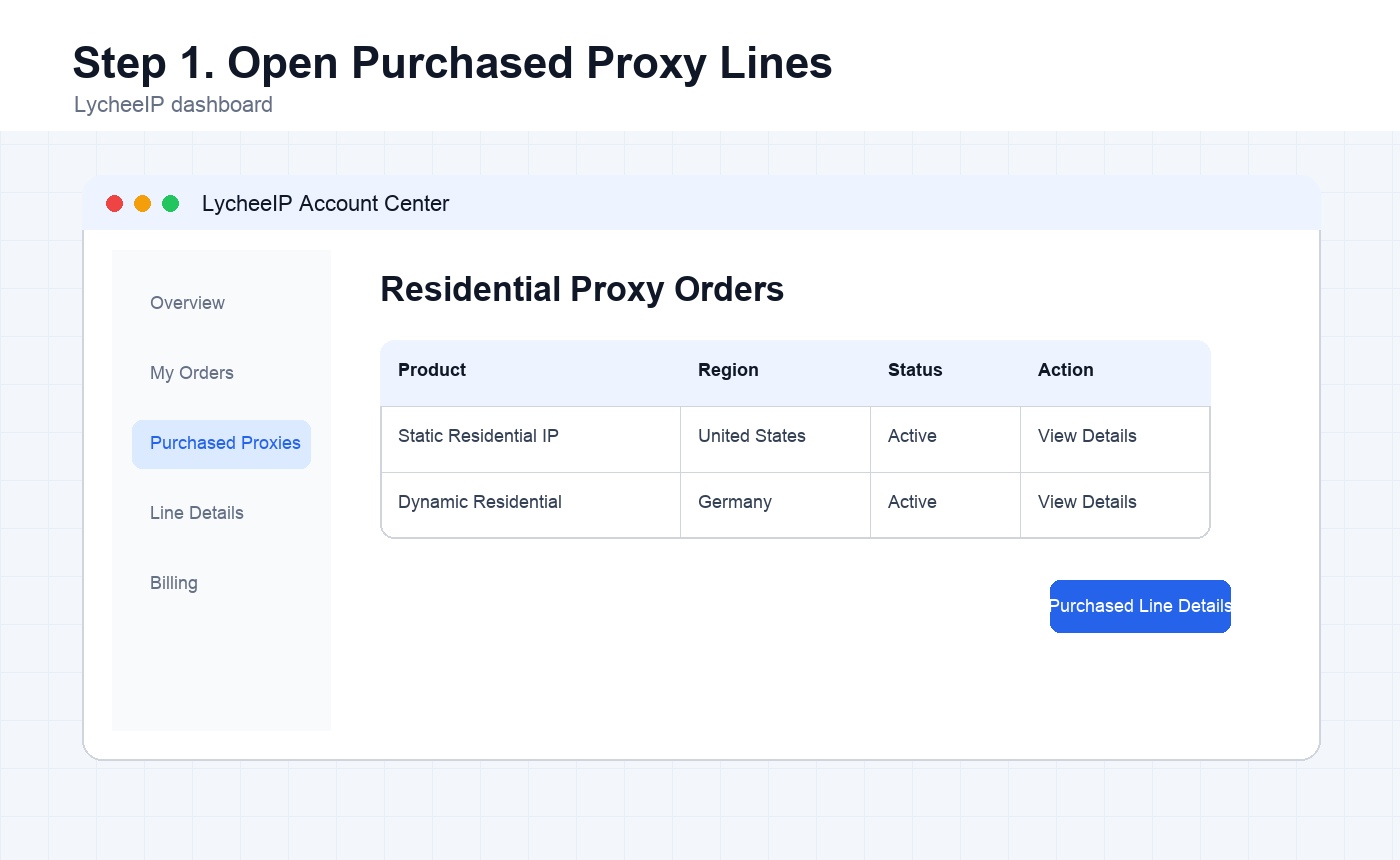
Register or log in to the LycheeIP dashboard, follow the product flow, and purchase the residential proxy product you need. After purchase, click your profile avatar in the upper-right corner, open the purchased proxy order, and choose the purchased line details page.
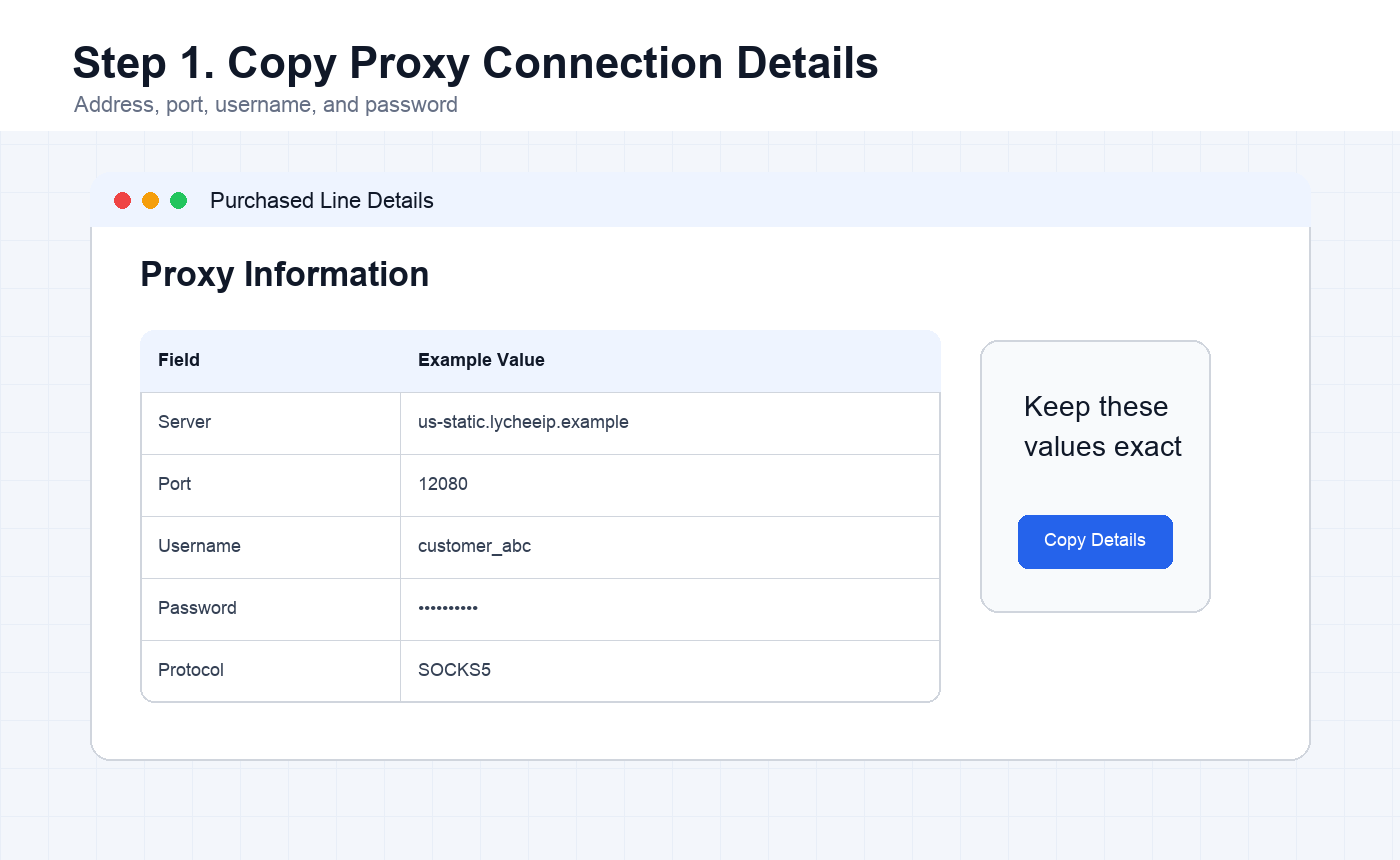
The proxy information is displayed in the center information panel. Keep the address, port, username, and password exactly as shown. These values will be entered into V2rayN later.
If you are deciding between proxy products, review static residential proxies, dynamic residential proxies, and datacenter proxies before generating the final order details.
View LycheeIP Residential Proxies
Step 2: Install V2rayN and Set the Core Type
Download V2rayN on the PC
Download the V2rayN client from the official GitHub release page: 2dust/v2rayN releases. After downloading, extract the archive, open the extracted V2rayN-core folder, and double-click the v2rayN executable file to start the program.
After launch, V2rayN may minimize to the Windows system tray. Look for the blue V icon in the lower-right tray area if the main window does not stay open.
Change the Core Type to Xray Core
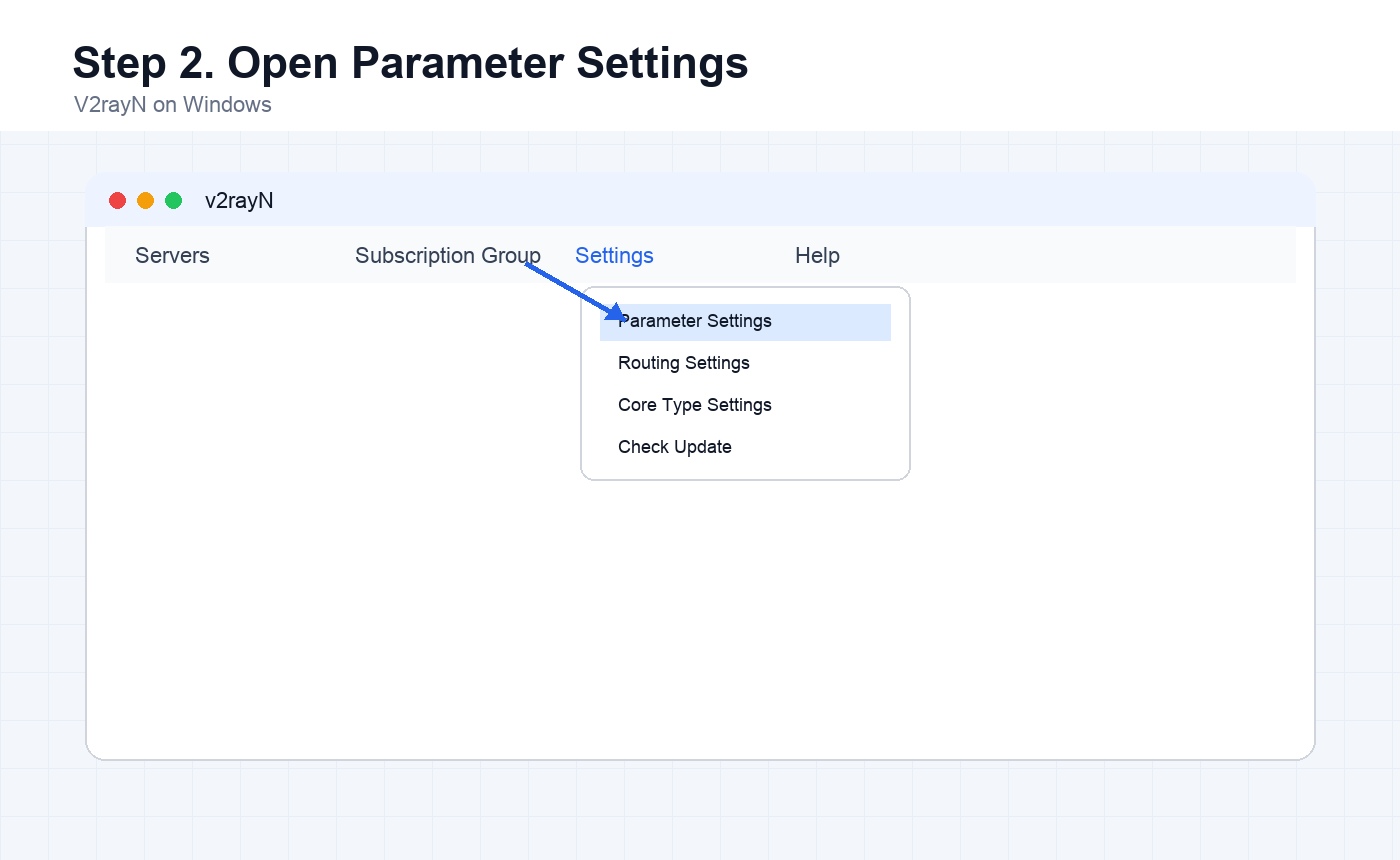
Open V2rayN and go to Settings, then Parameter Settings. Select Core Type Settings, set all available core options to Xray_core, and click Confirm.
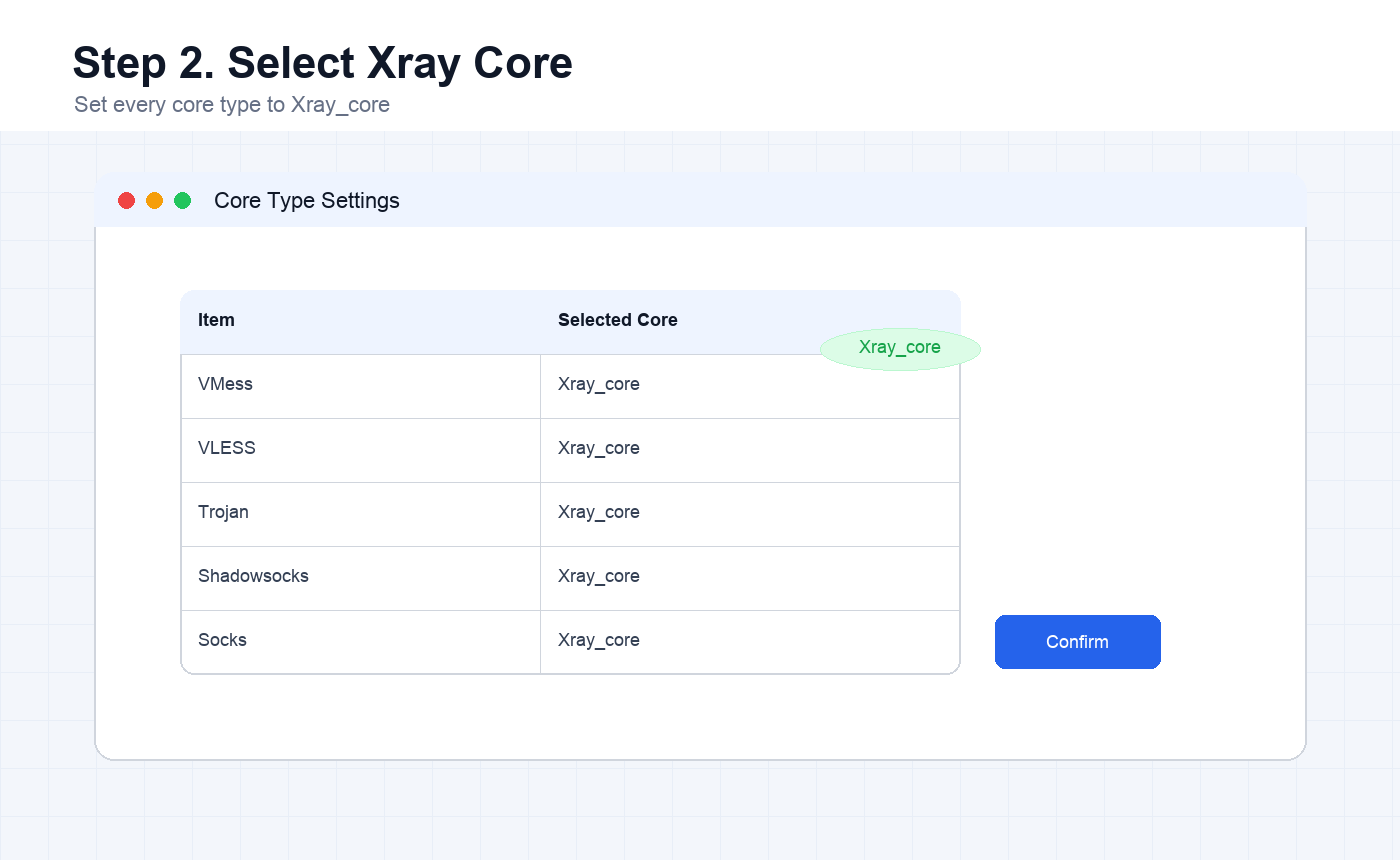
Step 3: Set Up Chained Proxy Routing
Important: before this step, import your own usable overseas direct line into V2rayN. The direct line must exist inside V2rayN itself. It should not be a line from another proxy application, and it is not the LycheeIP proxy IP you just purchased.
Open Subscription Group Settings
Click Subscription Group, then Subscription Group Settings. This is where you create the group that will route traffic through your existing overseas direct line first, then through the LycheeIP SOCKS5 proxy.
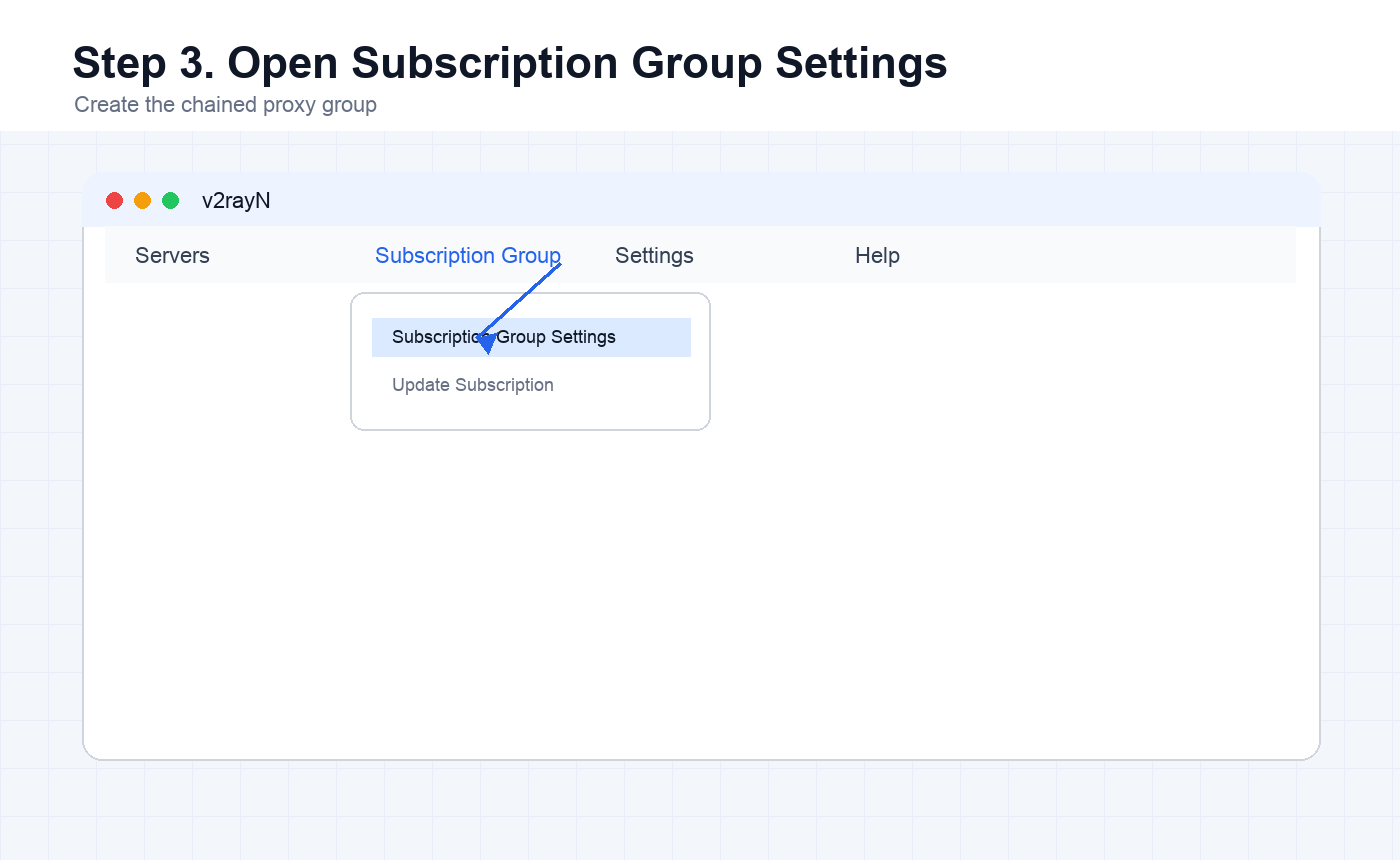
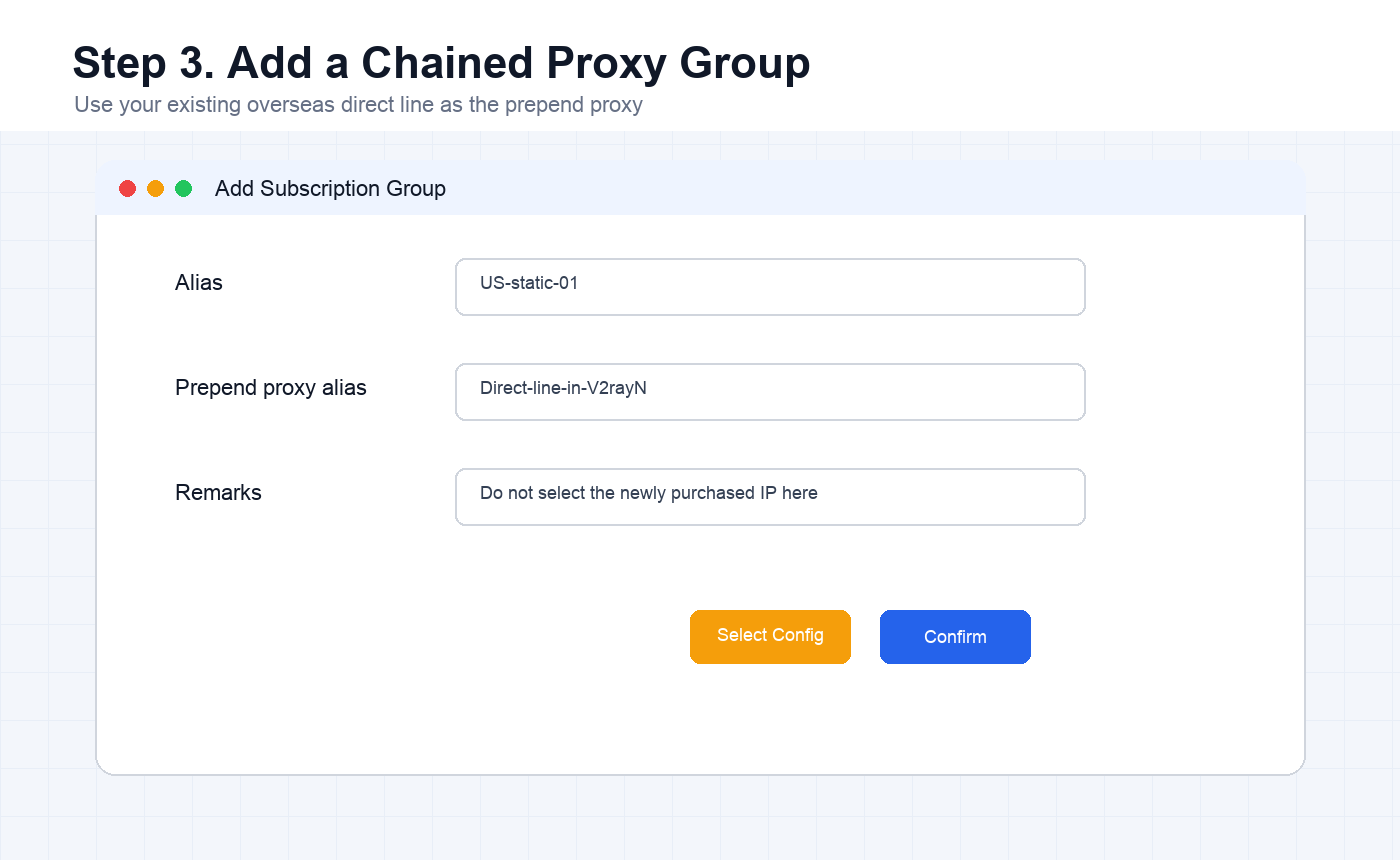
Add a Group and Choose the Prepend Proxy
Click Add, change the alias to the IP address or a clear label, then enter the direct-line name in the prepend proxy configuration alias field. You can also use Select Configuration to choose the direct line from your existing V2rayN entries.
Choose your own usable overseas network environment here. Do not select the newly purchased LycheeIP proxy as the prepend line, and do not select a proxy line that only exists in another application.
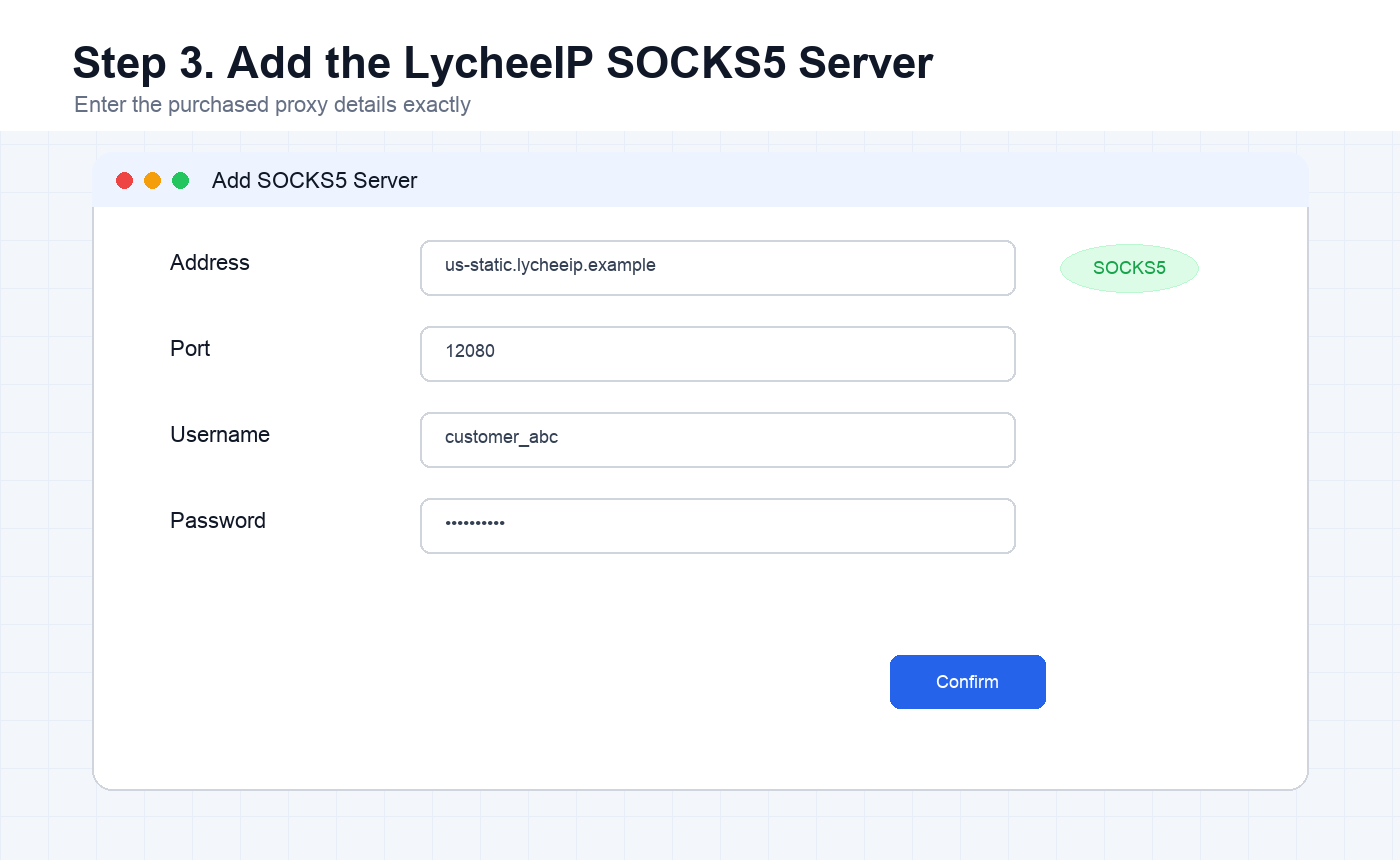
Add the Purchased LycheeIP SOCKS5 Server
Click the group you just created. Under that group, add the purchased proxy IP by opening Configuration or Server, choosing Add SOCKS5 Server, and entering the address, port, username, and password from the LycheeIP dashboard. Click Confirm to save the server.
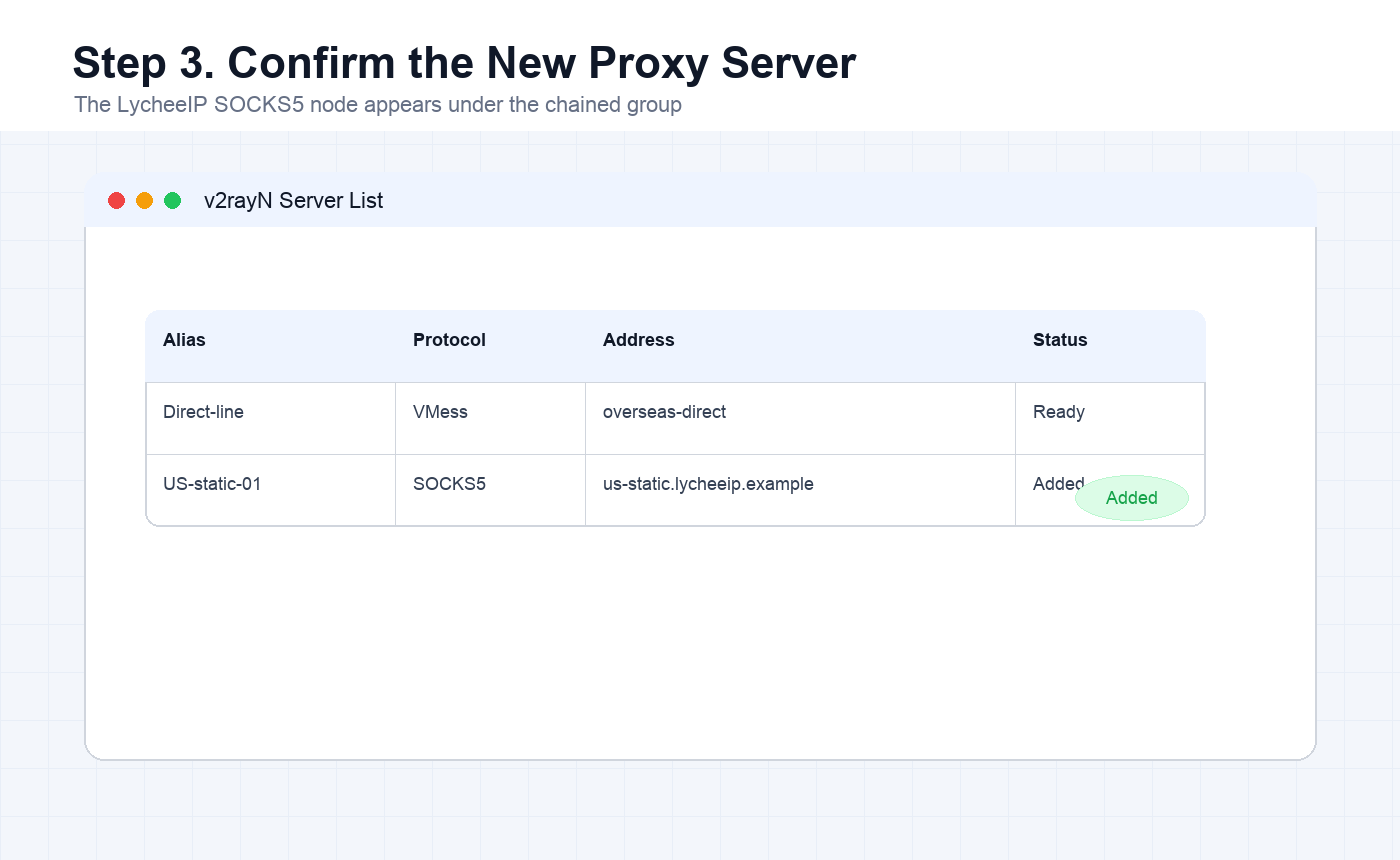
Set the Proxy as Active
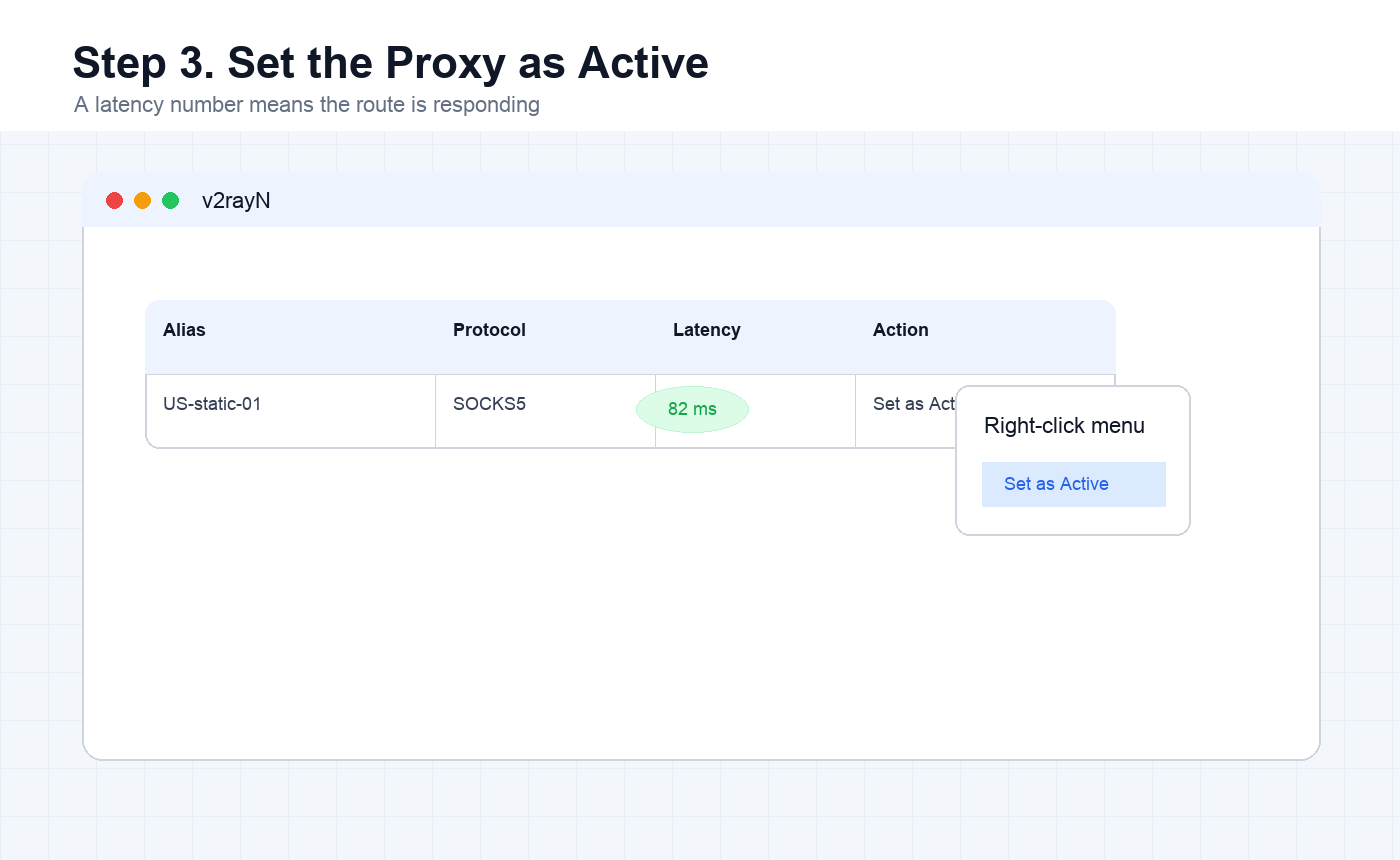
Right-click the imported LycheeIP proxy IP and choose Set as Active. If the lower-right latency indicator shows a number, the proxy has been applied successfully.
For account workflows that depend on continuity, avoid changing IPs casually after this point. LycheeIP’s private proxy guide and residential proxy use-case guide explain why IP stability matters.
Step 4: Enable System Proxy Mode
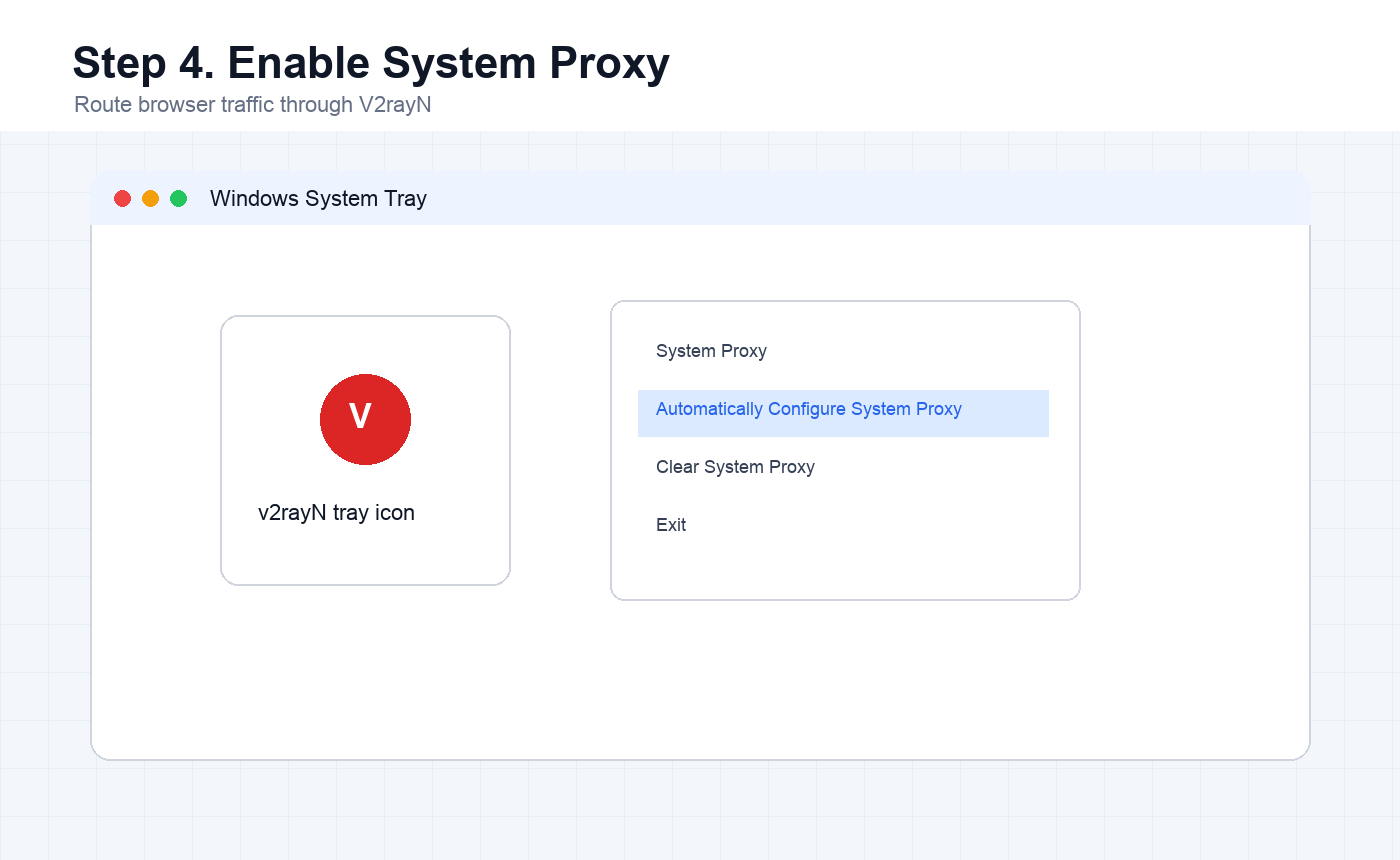
After the proxy IP is configured, enable system proxy mode so the browser can access the internet through the V2rayN routing path. In the Windows tray, right-click the V2rayN icon, open System Proxy, and choose Automatically Configure System Proxy.
When the icon turns red, V2rayN has finished applying system proxy mode. You can now test the browser network path from the same PC.
Get a Stable Static Residential IP
Step 5: Check the Current IP Address
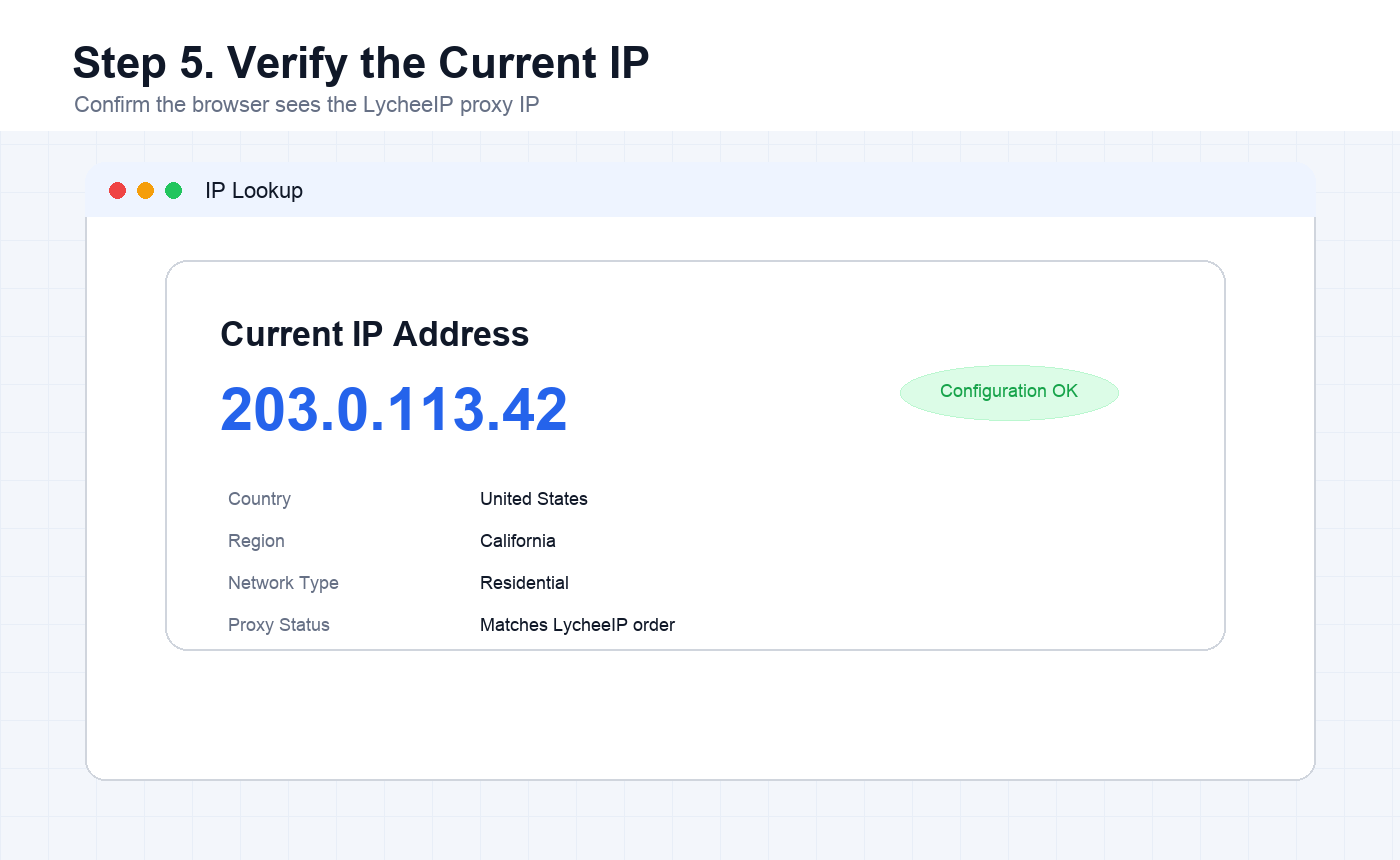
Open a browser and visit an IP lookup website such as ping0.cc, ip111.cn, or ipinfo.io. Check whether the displayed address matches the LycheeIP proxy IP you purchased.
If the lookup result shows the purchased IP, the PC-side V2rayN configuration is working. If it shows a different location, recheck the chain group, active server selection, SOCKS5 credentials, and system proxy mode.
Troubleshooting Checklist
- If V2rayN does not open, check the extracted folder and launch the correct executable file.
- If the proxy cannot connect, re-enter the LycheeIP server, port, username, and password exactly as shown in the dashboard.
- If latency does not appear, confirm that your prepend direct line is working inside V2rayN.
- If the browser still shows the original IP, verify that system proxy mode is set to automatic configuration.
- If the IP country is wrong, generate or purchase a proxy line in the intended target region.
You can also compare this PC workflow with LycheeIP’s public versus private IP guide, anonymous proxy explanation, and mobile proxy guide to understand how different network layers affect browser and account environments.
Frequently Asked Questions
Do I need an overseas direct line before adding the LycheeIP proxy?
Yes. This workflow assumes that a usable overseas direct line has already been imported into V2rayN. The LycheeIP proxy is then added behind that line through chained proxy routing.
Which protocol should I choose in V2rayN?
Use SOCKS5 when adding the purchased LycheeIP proxy server, unless your order details specify a different protocol. Enter the address, port, username, and password exactly as provided.
Why does the tutorial set all core options to Xray_core?
The original setup flow uses Xray_core for compatibility with the demonstrated V2rayN routing workflow. Keeping the core type consistent reduces configuration differences while following the tutorial.
How do I know the setup is successful?
After setting the LycheeIP server as active and enabling system proxy mode, open an IP lookup website. If the displayed IP matches your purchased LycheeIP proxy, the setup is working.
Can I use this same setup for rotating proxies?
You can use the same V2rayN entry pattern with dynamic proxy details, but session behavior matters. For account continuity, choose session settings that do not rotate unexpectedly during important operations.
What should I do if the IP lookup site still shows my original IP?
Check whether the active server is selected, whether system proxy mode is enabled, and whether the browser is using the system proxy. Also confirm that no other VPN or proxy tool is overriding the route.