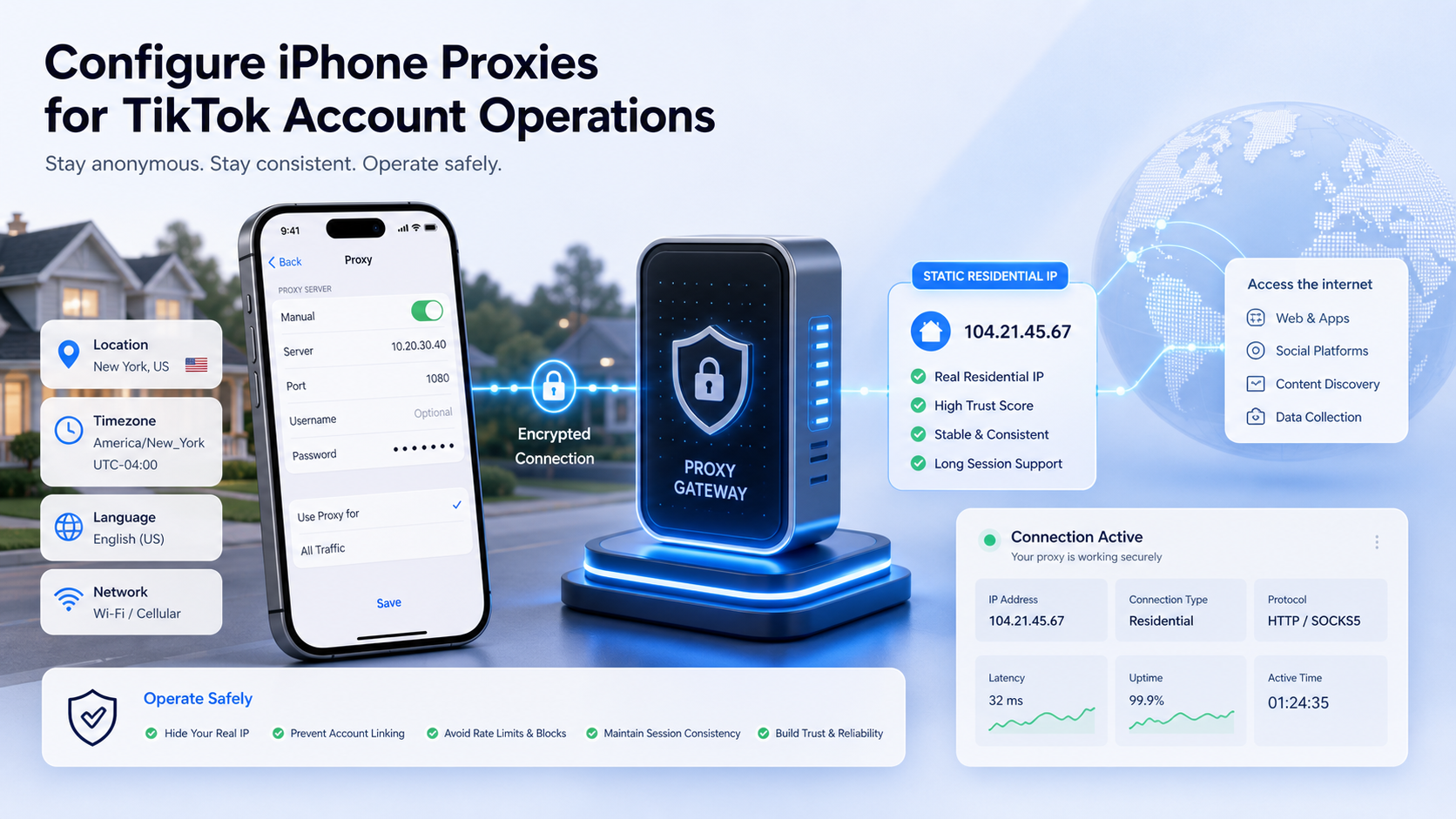
This English tutorial adapts LycheeIP’s Apple-device configuration workflow for users who need a stable iPhone or iPad environment before operating TikTok accounts with proxies. It covers device preparation, privacy settings, region alignment, SOCKS5 proxy setup, and IP quality checks.
The goal is consistency. Your device settings, language, timezone, and proxy IP should point to the same target market so the account environment looks clean and predictable. Before starting, prepare an Apple device, a working first-layer network environment, and the proxy details from your LycheeIP account.
Before You Start: Device and Network Preparation
Hardware Environment
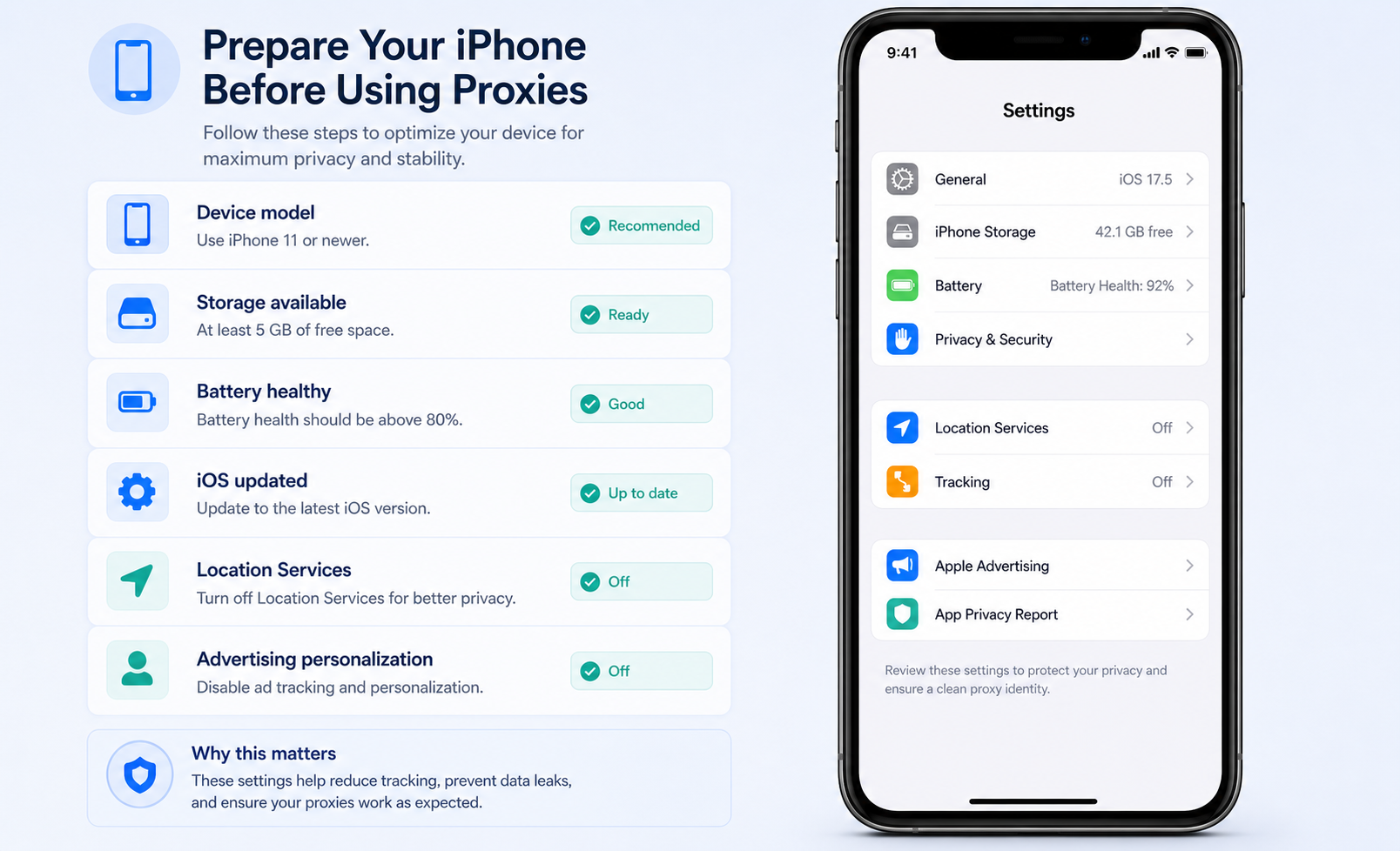
Use a real Apple device rather than an emulator or cloud phone. An iPhone 11 or newer is recommended for better app compatibility and smoother account operations. Older models may still run TikTok, but device quality can affect stability, update support, and long-term usability.
An iPad can also be used, but for TikTok account work an iPhone is usually the safer default because it most closely matches normal mobile-user behavior. Make sure the device has enough storage, healthy battery performance, and an updated iOS version before you begin.
Software and Network Environment
- Use a foreign email account such as Gmail when creating or managing TikTok accounts.
- Turn off Location Services so the app cannot read a physical location that conflicts with the proxy IP.
- On older iOS versions, enable Limit Ad Tracking where available. On newer iOS versions, disable personalized advertising and app tracking prompts where appropriate.
- Use an overseas proxy IP that matches the target country or city. A stable static residential proxy is recommended when account continuity matters.
- Do not change the IP casually after the account environment is established. Frequent IP changes can create risk signals.
- Set the phone language, region, and timezone to match the proxy location.
For background on proxy types, review LycheeIP’s guides to residential proxies, anonymous proxy servers, and mobile proxies.
Explore Static Residential Proxies
Step 1: Turn Off iPhone Location Signals
Open Settings and search for Location Services. Go to Privacy & Security, then Location Services, and switch Location Services off. This prevents the device from exposing a physical location that does not match the proxy IP region.
If the device asks for confirmation, confirm the change. You can later enable location only for trusted apps when needed, but the cleanest setup for proxy-based account operations is to keep location disabled during the account environment setup.
Apple explains the Location Services control in its support documentation. You can compare your device path with Apple’s Location Services guide if your iOS version uses slightly different wording.
Step 2: Match Language, Region, Date, and Time
Go to Settings, General, Date & Time. Disable automatic timezone selection if needed, then choose the timezone that matches your target proxy location. If the proxy IP is in New York, for example, the device timezone should match that market.
Next, open Language & Region. Set the primary language to the language commonly used in the target country, and set the region to the same country as the proxy IP. Avoid leaving the phone in a language or region that conflicts with the account market.
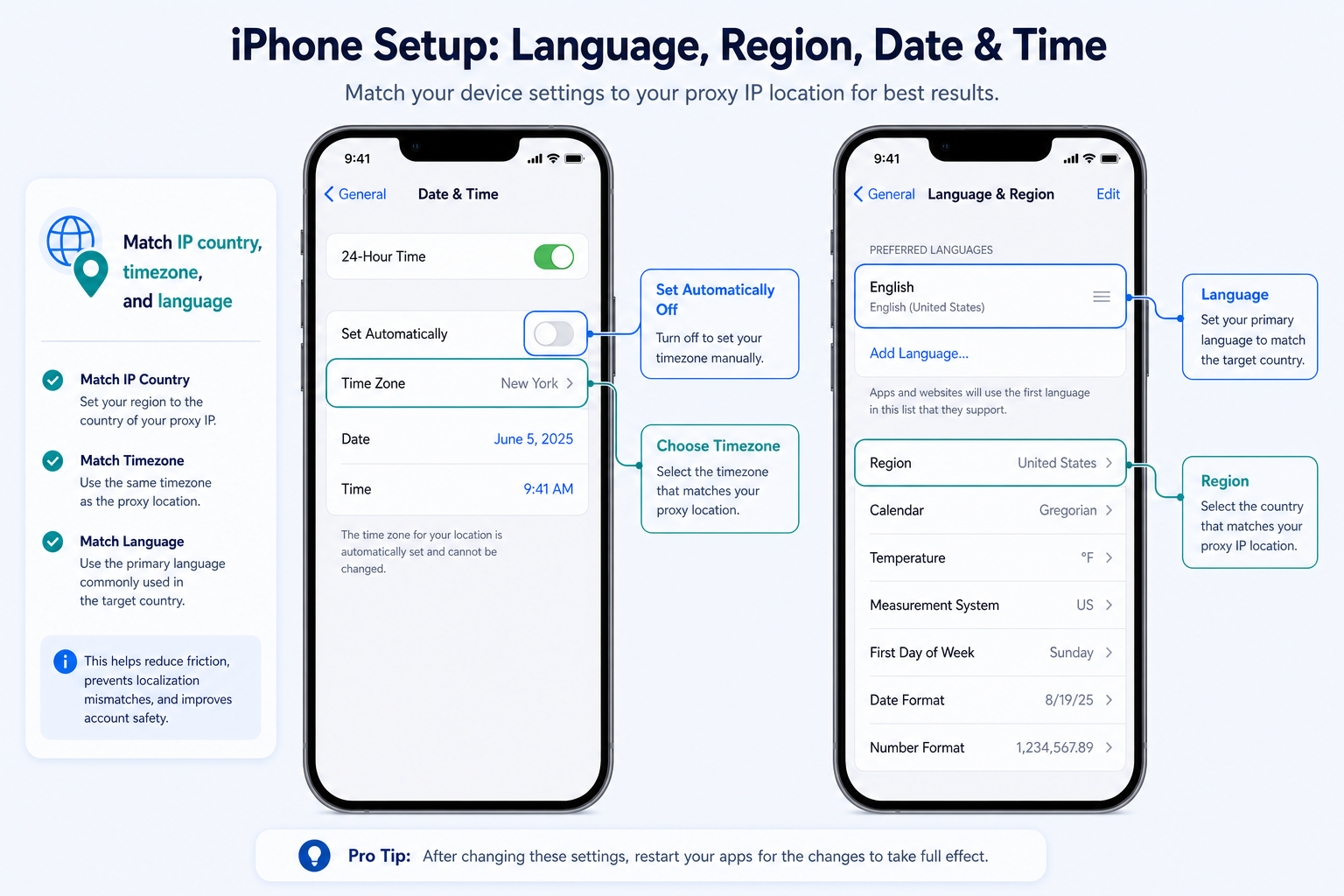
This alignment does not guarantee platform trust by itself, but it reduces obvious mismatches between device signals, network location, and account behavior. For additional infrastructure planning, see LycheeIP’s mobile and residential proxy use cases.
Step 3: Configure the Proxy App
Before this step, install your preferred iOS proxy configuration app and make sure your first-layer overseas network environment is available. You also need the proxy server, port, username, and password from your LycheeIP proxy order.
How Proxy Servers Work
Add a New Proxy
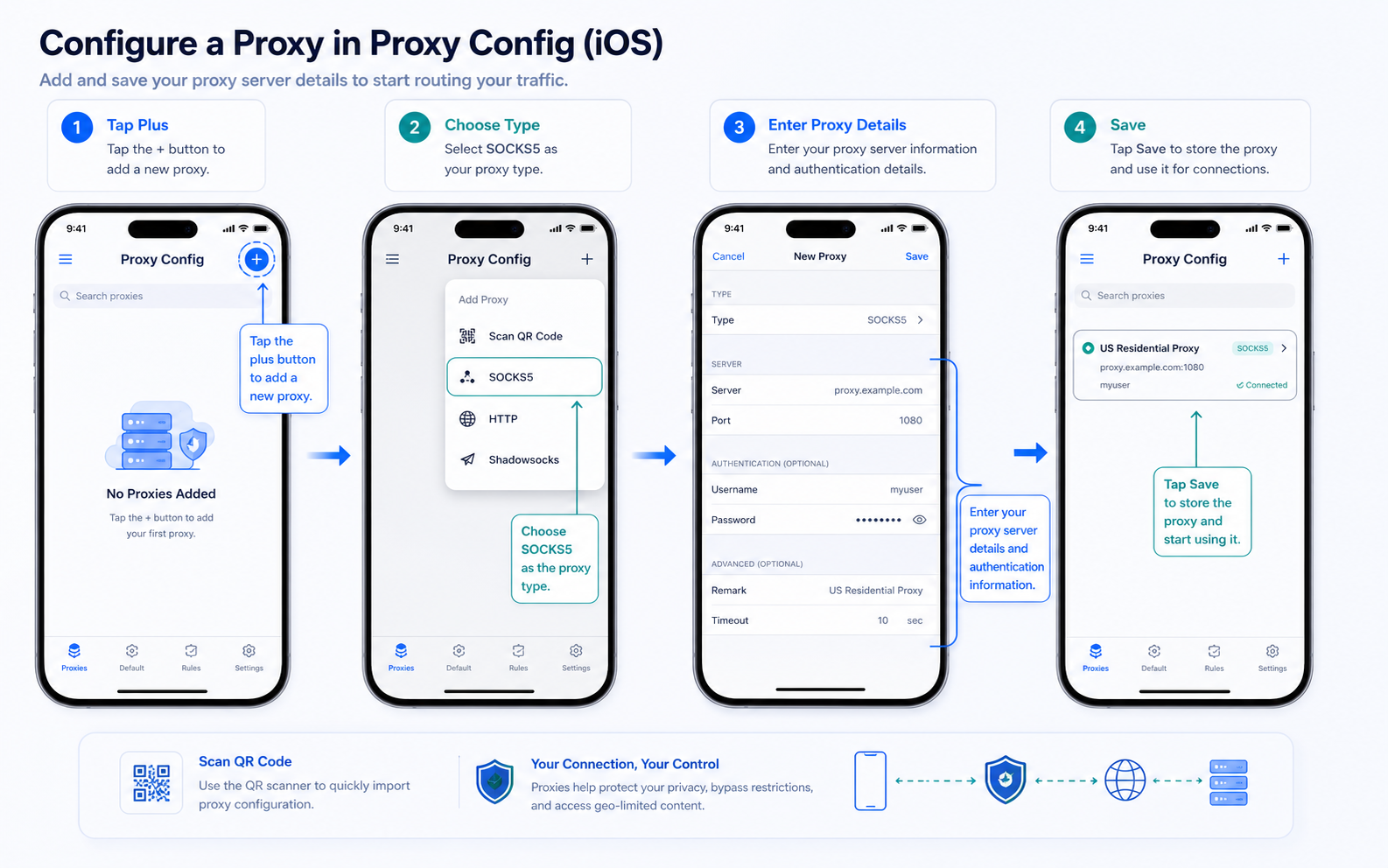
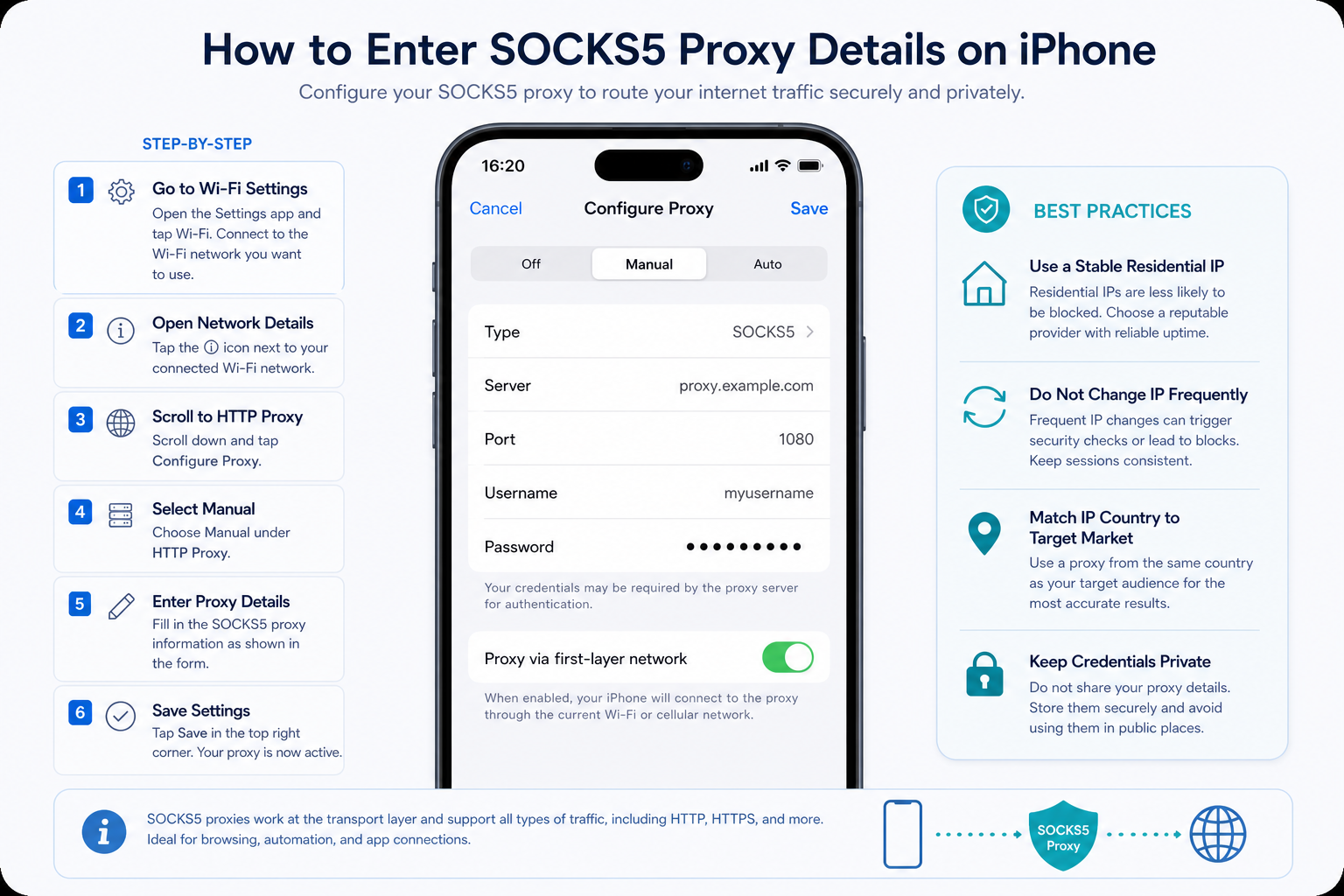
Open the proxy app and tap the plus button to add a new proxy. If your LycheeIP dashboard provides a QR code for the proxy order, you can use the scanner option to import the configuration faster. Otherwise, continue with manual entry.
Choose SOCKS5 as the Protocol
Select SOCKS5 as the proxy type. SOCKS5 is commonly used for mobile app routing because it supports flexible traffic handling and authenticated proxy access. If your order provides both HTTP and SOCKS5 options, use the protocol specified in the order details.
Enter Proxy Order Information
Fill in the server or IP address, port, username, and password exactly as shown in the LycheeIP dashboard. Then save the configuration. If the app includes a routing option, choose the mode that sends the required app traffic through the proxy.
Dynamic Residential Proxy Setup
For dynamic residential proxies, generate the routing details from LycheeIP Dynamic Residential Proxies and enter those details into the app. Keep the session settings consistent with the account workflow so the IP does not rotate unexpectedly during sensitive actions.
Check Whether the Connection Works
Turn on the proxy connection in the app and confirm that the app reports a connected state. If the connection fails, recheck the server, port, protocol, username, password, and first-layer network path before moving on.
For broader proxy setup context, compare static residential proxies, rotating residential proxies, and datacenter proxies before choosing infrastructure for ongoing account work.
Step 4: Check IP Quality
Open an IP Lookup Website
After the proxy is connected, open Safari or another browser and visit ipinfo.io. This gives you a quick view of the IP address, country, city, organization, and network type that websites may see.
Confirm the IP Looks Residential
Check that the detected IP country matches your target country and that the network appears suitable for the account workflow. Residential IPs generally look more natural for mobile account operations than obvious hosting-provider or datacenter ranges.
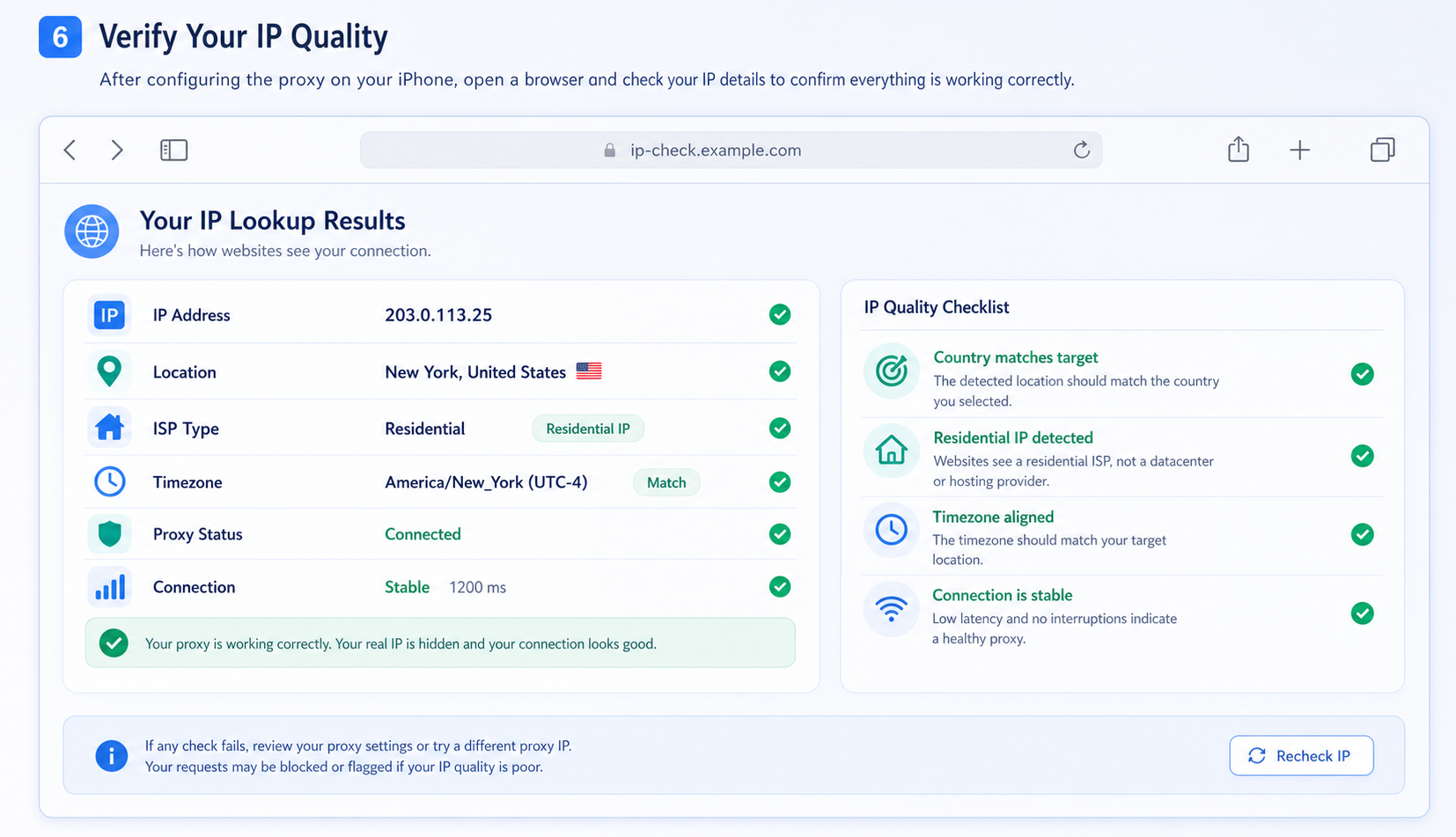
An IP lookup website is not the same as TikTok’s internal risk evaluation, but it is a useful first check. If the IP location, timezone, or network type looks wrong, fix the proxy setup before logging into or creating accounts.
Final Readiness Checklist
- The Apple device is a real iPhone or iPad with a recent iOS version.
- Location Services and ad personalization signals are reduced or disabled.
- Language, region, timezone, and proxy IP country are aligned.
- The SOCKS5 proxy is connected and stable.
- The IP lookup result shows the expected target location.
- The account will not be moved across unrelated IP regions without a clear reason.
Related LycheeIP Guides
For adjacent setup and proxy planning guides, read how to use Instagram proxies safely, private proxies for SEO, and mobile and residential proxies for SEO.
If you are configuring other devices, you can also reference the original LycheeIP tutorials for desktop setup and Android setup.
Frequently Asked Questions
Do I need a real iPhone for this setup?
A real iPhone is strongly recommended. Emulators and cloud phones can create device-quality and fingerprinting issues that make account operations less stable.
Why should Location Services be turned off?
Location Services can expose a physical region that conflicts with the proxy IP. Turning it off reduces the chance of a location mismatch between device signals and network signals.
Why should language, region, and timezone match the IP?
Consistent settings make the device environment look more natural. If the IP is in the United States but the device language, region, and timezone point elsewhere, the account environment may look inconsistent.
Which proxy type is best for iOS TikTok operations?
A stable residential proxy is usually the best fit when account continuity matters. Static residential IPs are useful when the same account should keep returning from the same network identity.
Can I change the proxy IP after setup?
Avoid changing IPs casually. If you must change IPs, keep the replacement in the same target market and update device timezone and region settings if needed.
How do I know whether the proxy is working?
After connecting, open an IP lookup website such as ipinfo.io. Confirm that the displayed IP address, country, and network information match the proxy details you selected.
What if the proxy app cannot connect?
Check the protocol, server, port, username, password, and first-layer network path. A single incorrect character in the credentials can prevent connection.
Can I use the same guidance for Android or desktop?
The environment-matching principles are similar, but the settings path is different. Use LycheeIP’s Android or desktop setup guide when configuring those devices.