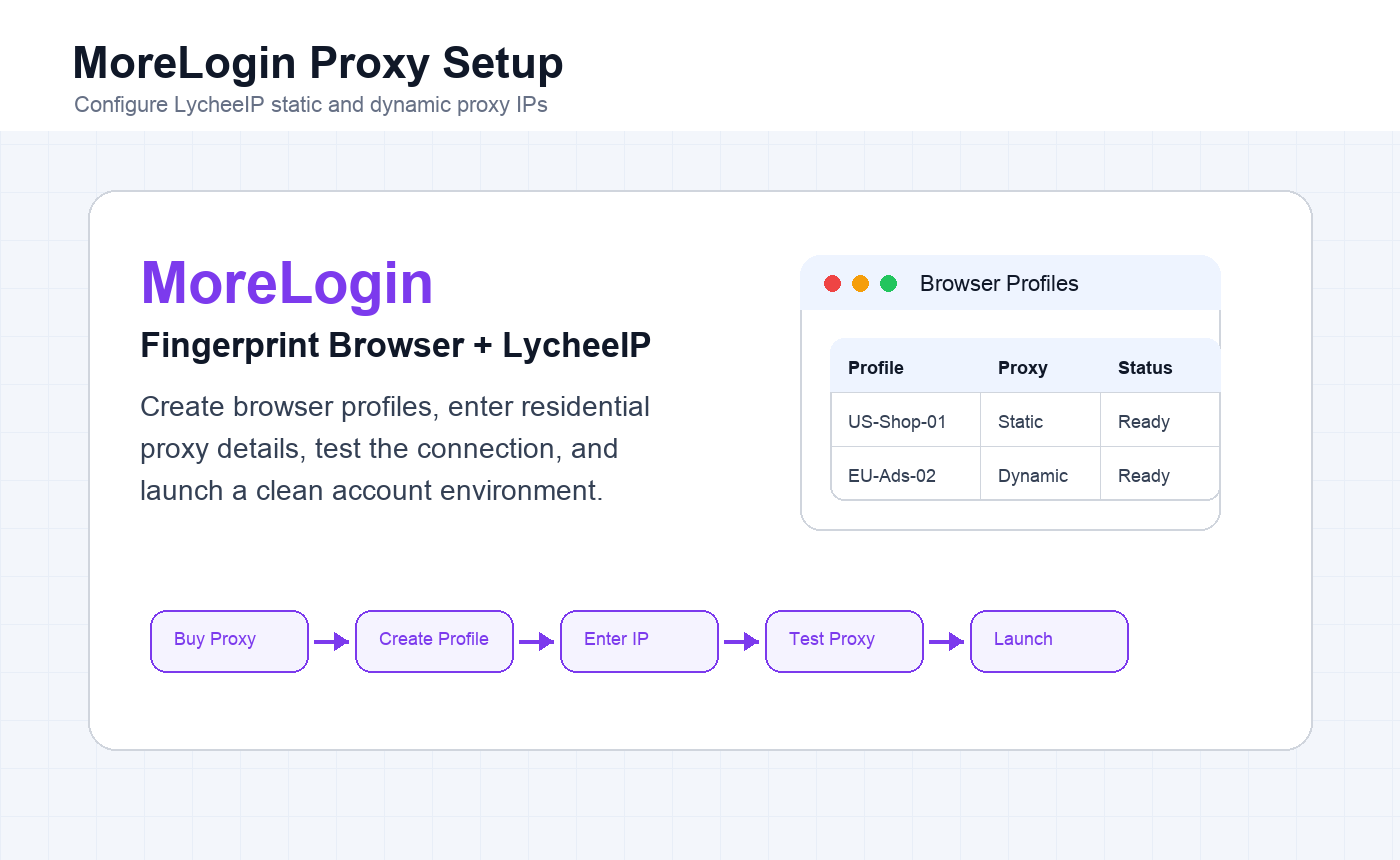
This English guide recreates LycheeIP’s MoreLogin fingerprint browser tutorial. It covers both static residential proxy setup and dynamic residential proxy setup, from extracting proxy details in the LycheeIP dashboard to testing the proxy and launching the MoreLogin browser environment.
LycheeIP proxy products need to be used from an overseas network environment. This tutorial assumes your base overseas network path is already available before you configure the LycheeIP proxy inside MoreLogin.
MoreLogin is an anti-detect browser used to create separate browser environments for different accounts. LycheeIP supplies the residential proxy layer that helps each browser profile use the correct network identity. Before starting, prepare your MoreLogin account, your LycheeIP proxy order, and the target country or region for the account environment.
For broader proxy planning, compare LycheeIP guides on residential proxies, anonymous proxy servers, and mobile and residential proxy use cases.
MoreLogin and LycheeIP Setup Overview
The setup has two common paths. Use a static residential proxy when you want the same browser profile to keep returning from the same IP. Use a dynamic residential proxy when you need generated proxy lines, rotating sessions, or sticky sessions for a controlled time window.
- Static setup: buy or open a static residential proxy, copy the host, port, username, and password, then enter them into a MoreLogin profile.
- Dynamic setup: buy a dynamic residential plan, configure country, session, host, and output format, generate proxy lines, then paste one line into MoreLogin.
- In both workflows, always run MoreLogin’s proxy check before launching the profile.
- Keep browser fingerprint settings, proxy country, language, and account target market consistent.
If you are also configuring devices or other tools, see LycheeIP’s guides for Apple device proxy setup, V2rayN PC setup, and Instagram proxy account management.
Static Residential Proxy Setup in MoreLogin
Step 1: Extract the LycheeIP Static Proxy IP
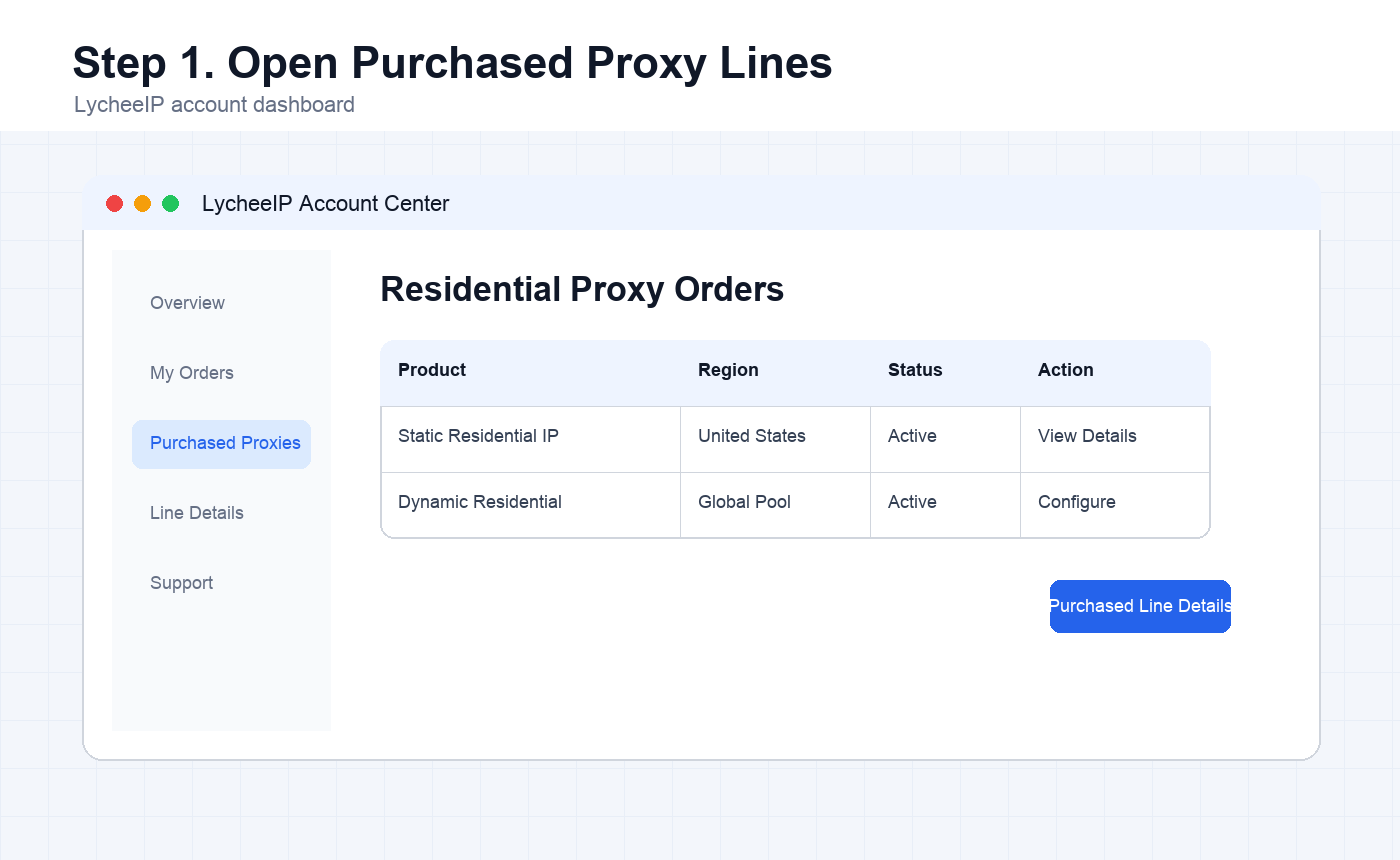
Log in to the LycheeIP dashboard, follow the purchase flow, and buy the residential proxy product that matches your target market. After purchase, click the profile avatar in the upper-right corner, open the purchased proxy order, and go to the purchased line details page.
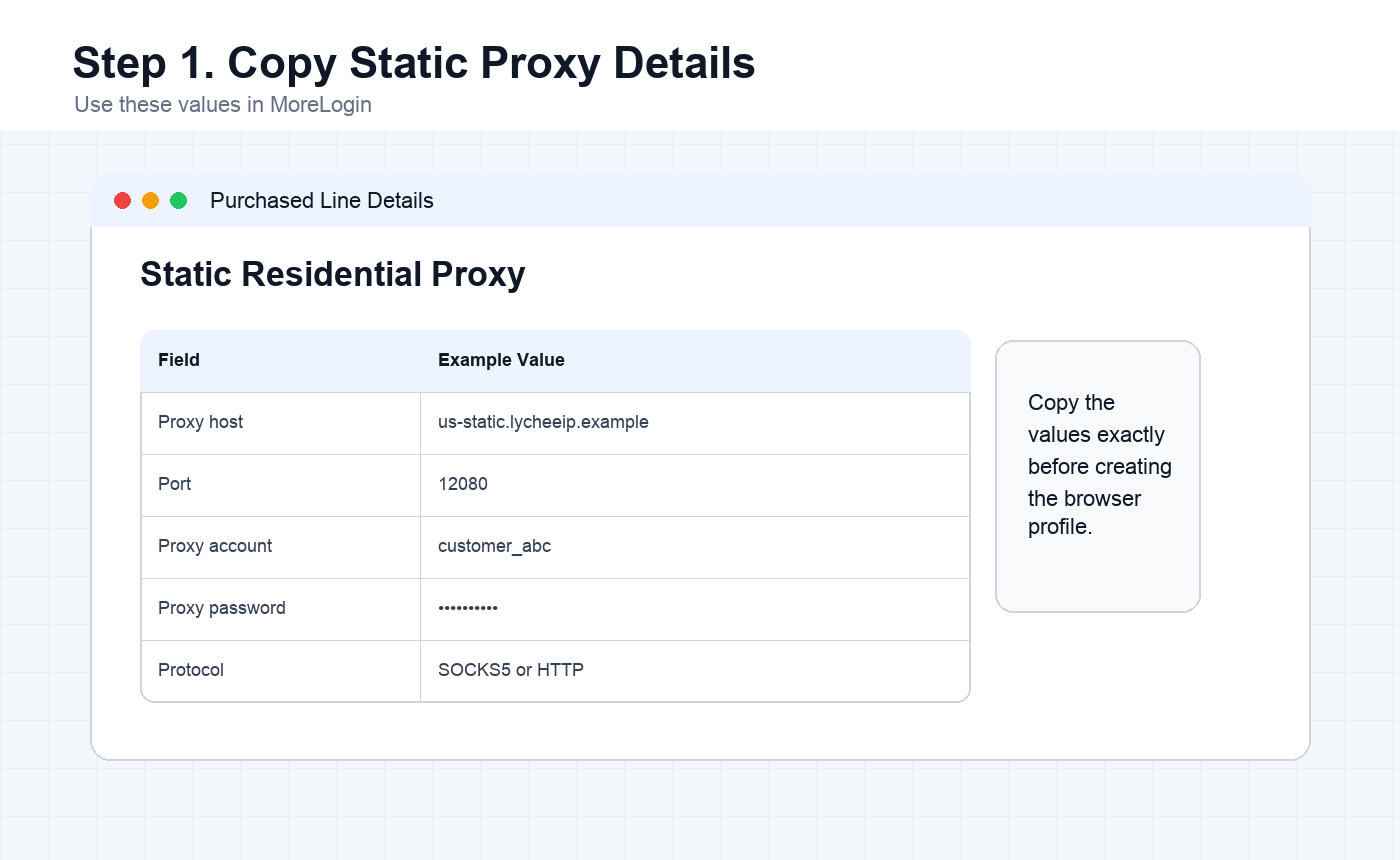
The line details panel shows the proxy host, port, proxy account, proxy password, and supported protocol. Copy these values exactly because MoreLogin will reject the connection if even one character is incorrect.
For stable account environments, a static residential proxy is usually the safest default. If your workflow requires fresh lines or timed sessions, use dynamic residential proxies instead.
View LycheeIP Residential Proxy Plans
Step 2: Create a New MoreLogin Profile
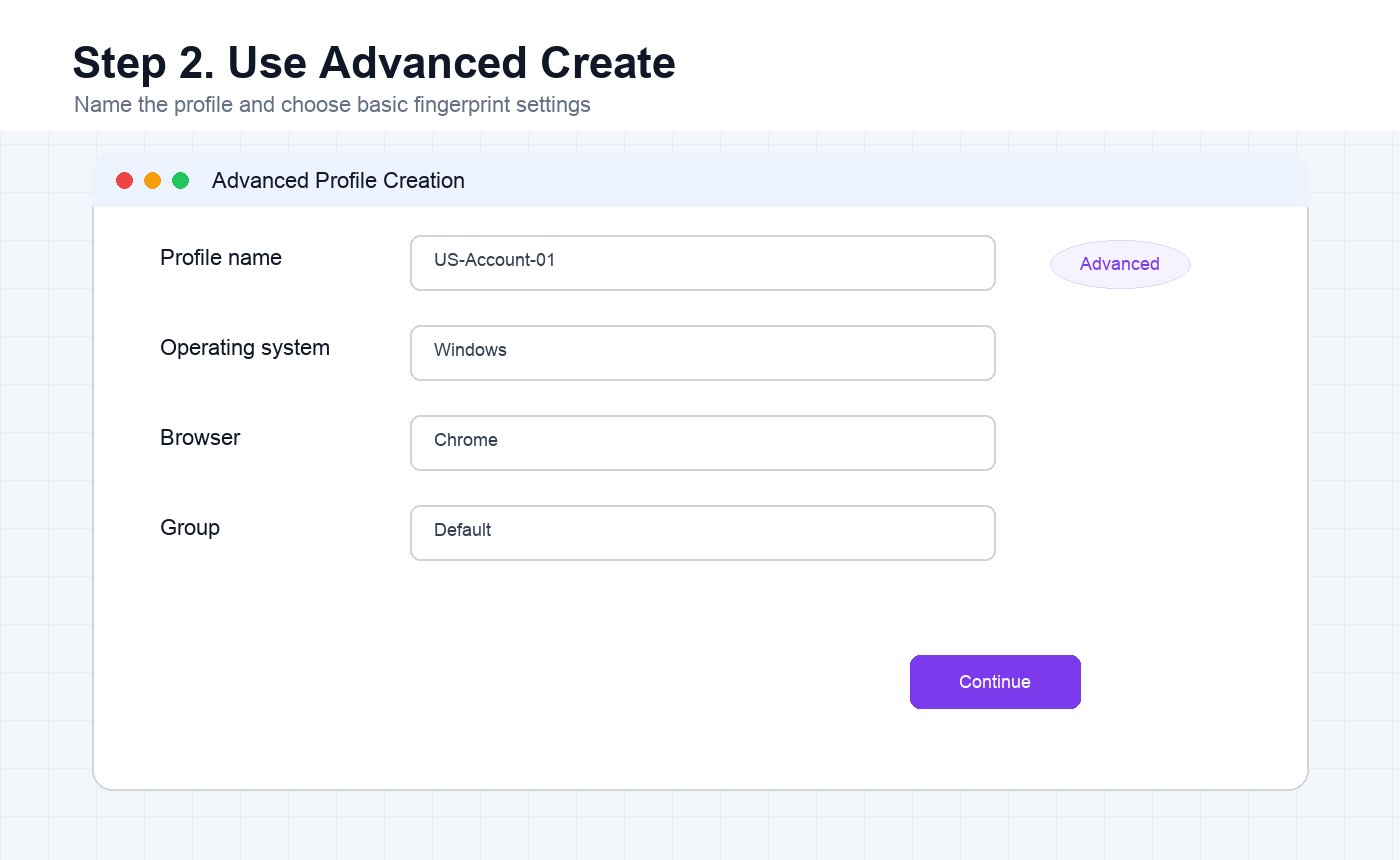
Download and open the MoreLogin fingerprint browser. After registering or logging in, click New Profile or New Window from the profile list. If MoreLogin offers a basic and advanced creation mode, choose Advanced Create so you can control the proxy settings.
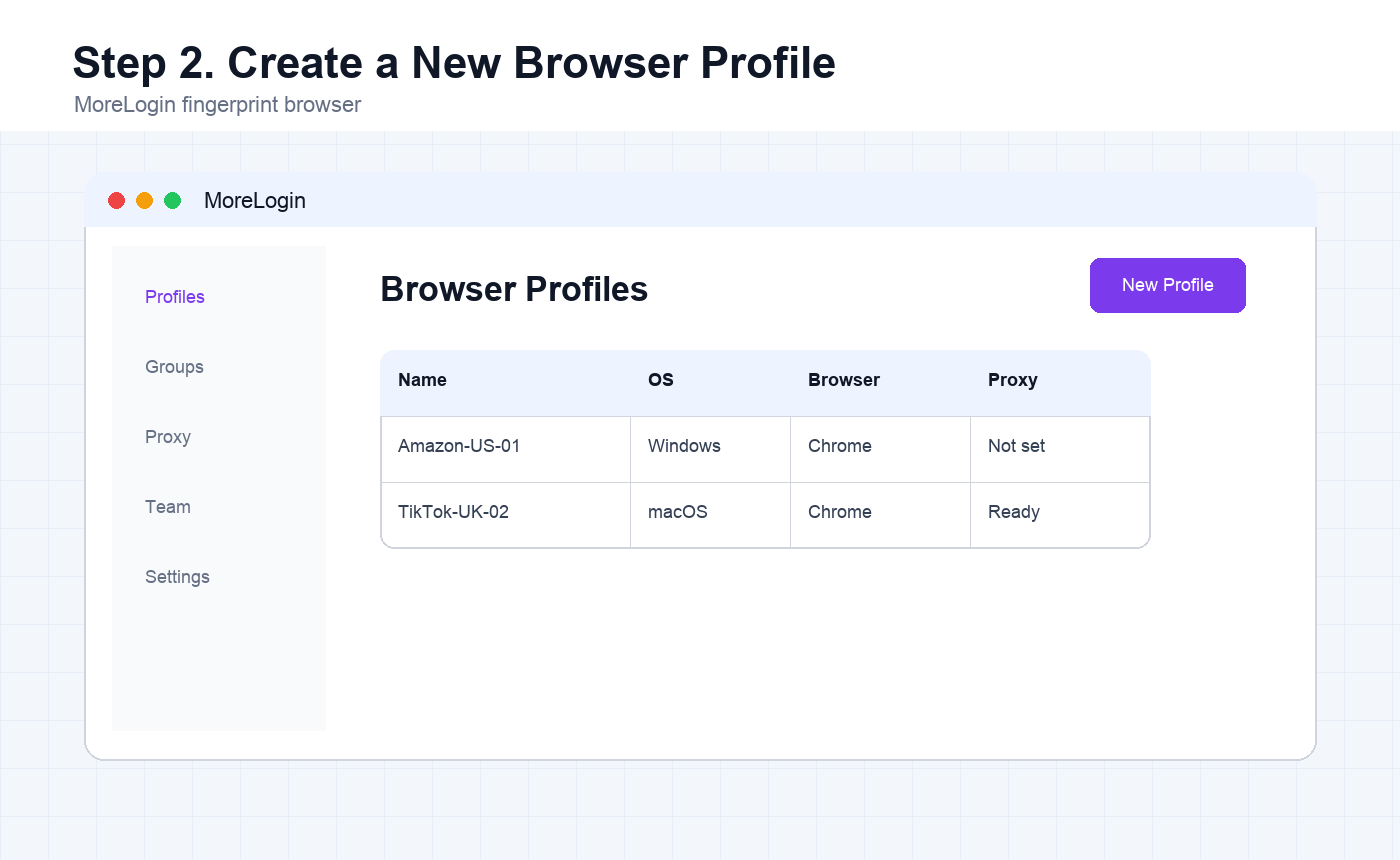
Fill in a clear profile name, operating system, and browser type. In most cases, the default browser option is fine. Use names that describe the account market or workflow, such as US-Account-01 or UK-Shop-02, so profiles are easier to audit later.
Step 3: Choose the Proxy Protocol
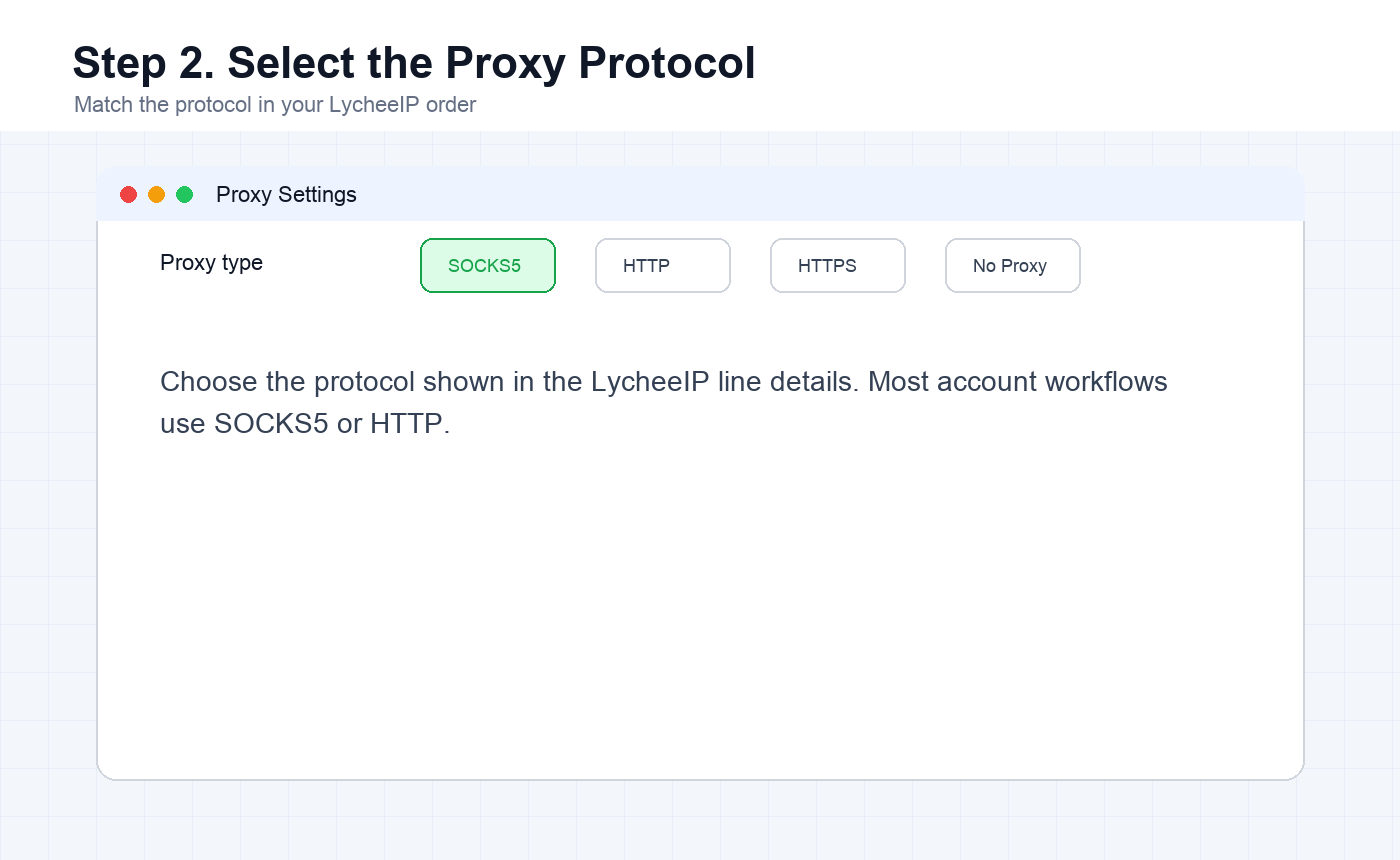
Scroll to the proxy section and choose the protocol type shown in your LycheeIP order. Most workflows use SOCKS5 or HTTP. The important part is to keep the MoreLogin protocol selection consistent with the protocol provided in the LycheeIP line details.
Step 4: Enter the Static Proxy Details
Paste the LycheeIP proxy host, port, proxy account, and proxy password into the matching MoreLogin fields. Do not add extra spaces before or after the values. If the profile is for a specific country, make sure the proxy country matches the account market.
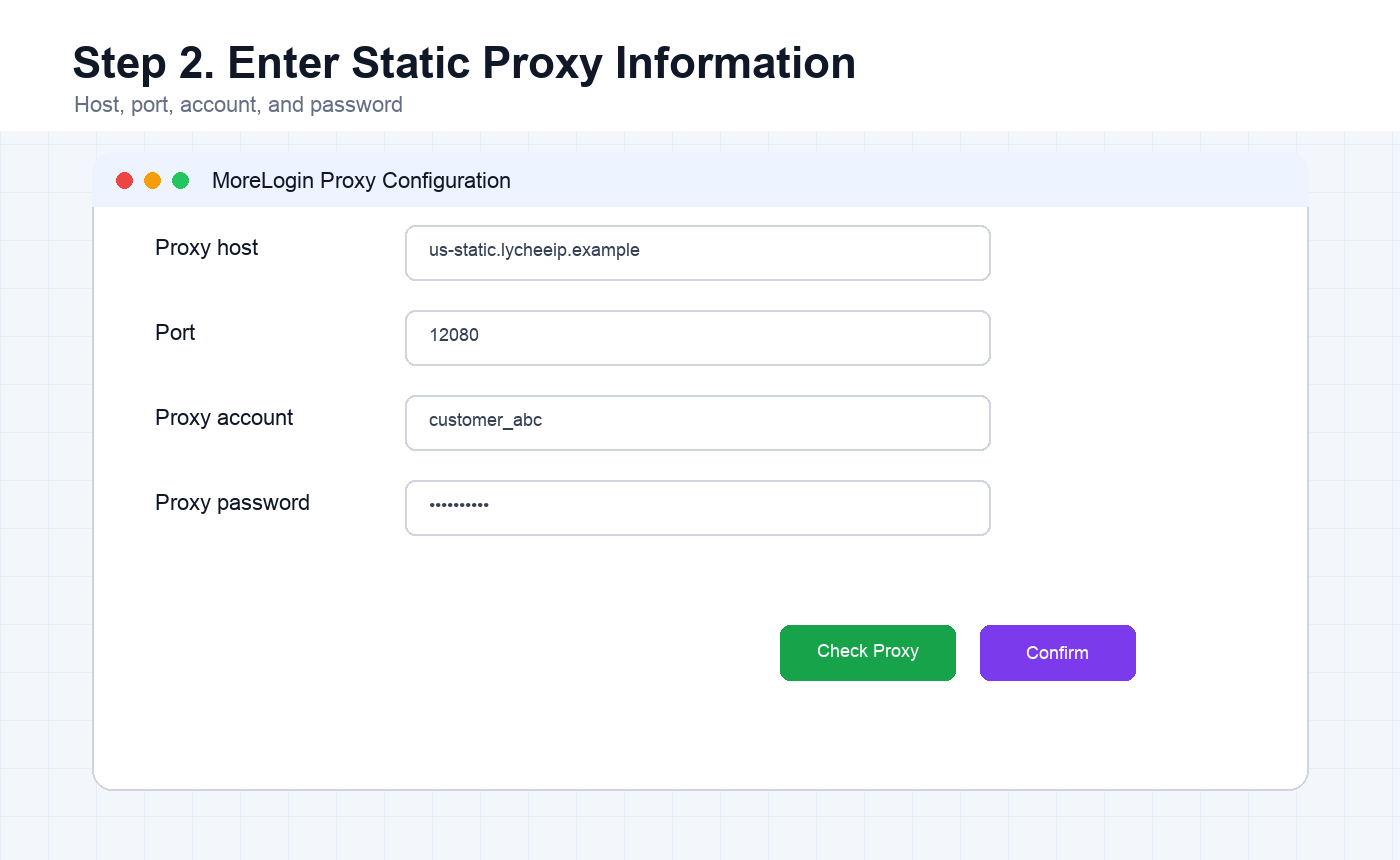
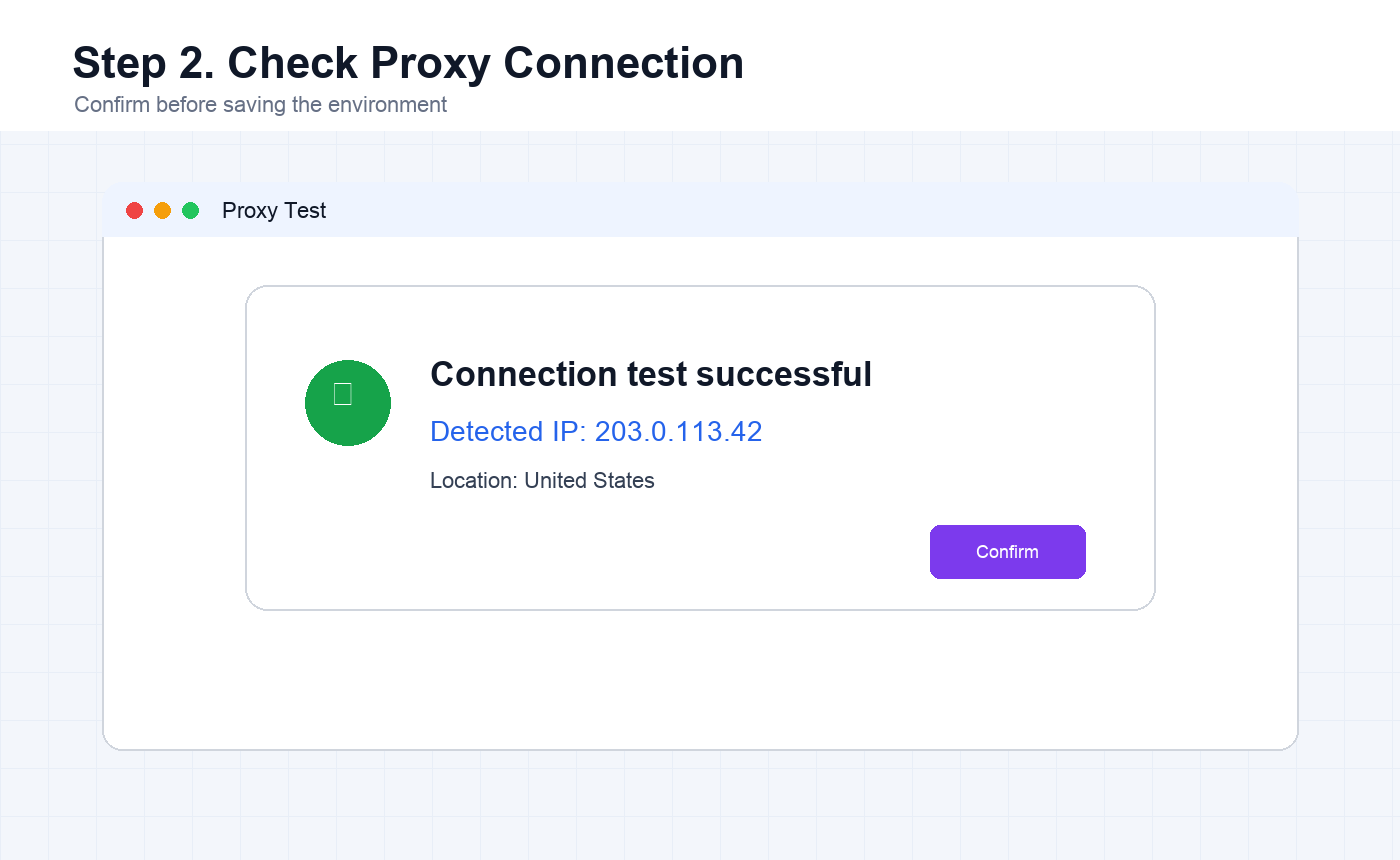
After filling the fields, click Check Proxy. If MoreLogin reports that the connection test is successful, click Confirm to save the profile. If the test fails, recheck the host, port, protocol, username, password, and base network environment before continuing.
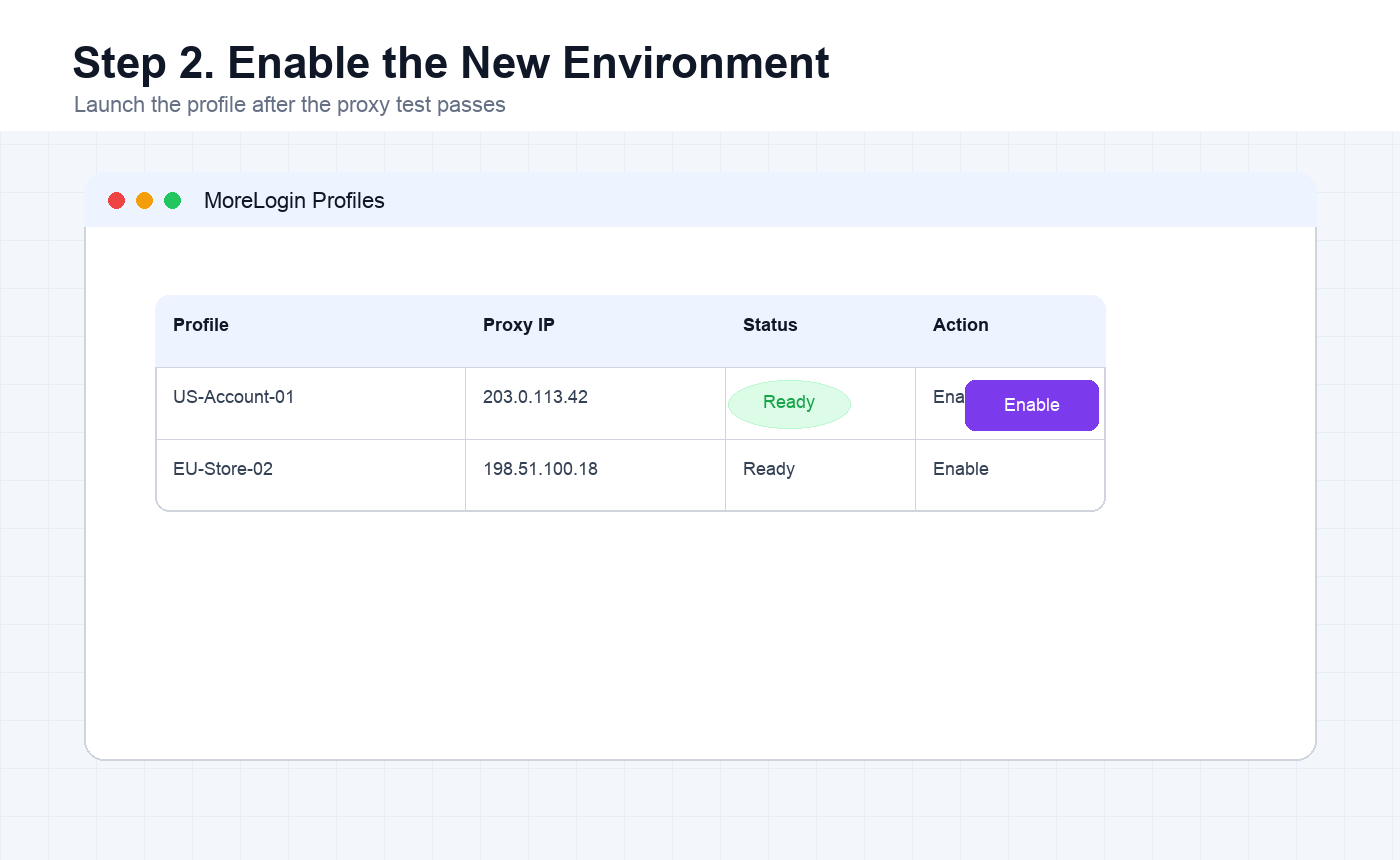
Finally, return to the Environment or Profile list. The newly created profile should now appear in the list. Click Enable or Start to launch the browser environment with the configured LycheeIP proxy.
Dynamic Residential Proxy Setup in MoreLogin
Step 1: Buy a Dynamic Residential Proxy Plan
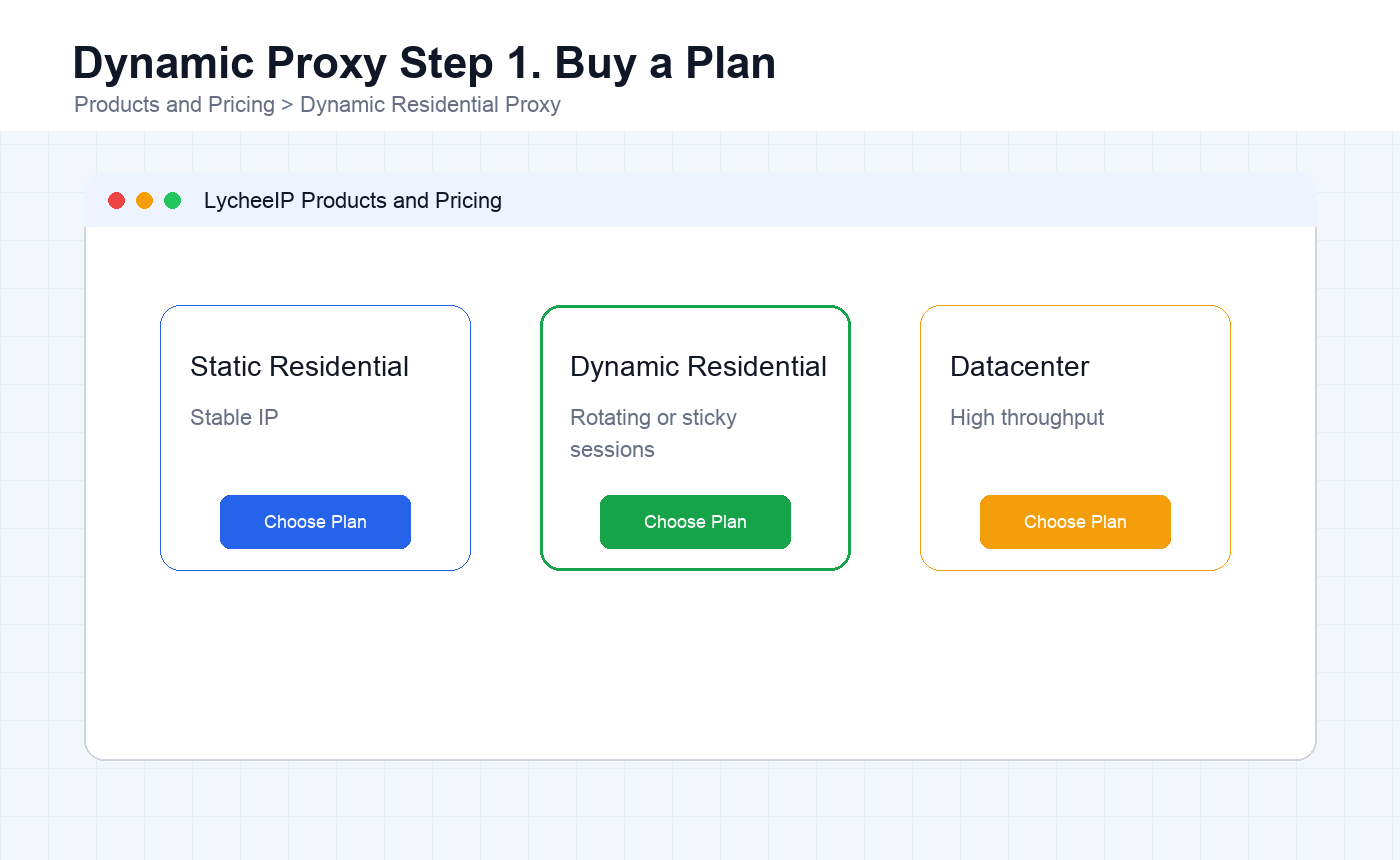
Open LycheeIP Products and Pricing, choose Dynamic Residential Proxy, and purchase the dynamic proxy package that fits your target countries, traffic requirements, and session needs. Dynamic residential proxies are useful when you need generated proxy lines rather than one fixed IP.
Step 2: Configure Dynamic Proxy Access Parameters
After purchase, click your profile avatar and open My Dynamic Residential Proxy. Configure the access parameters for the proxy line before generating the list.
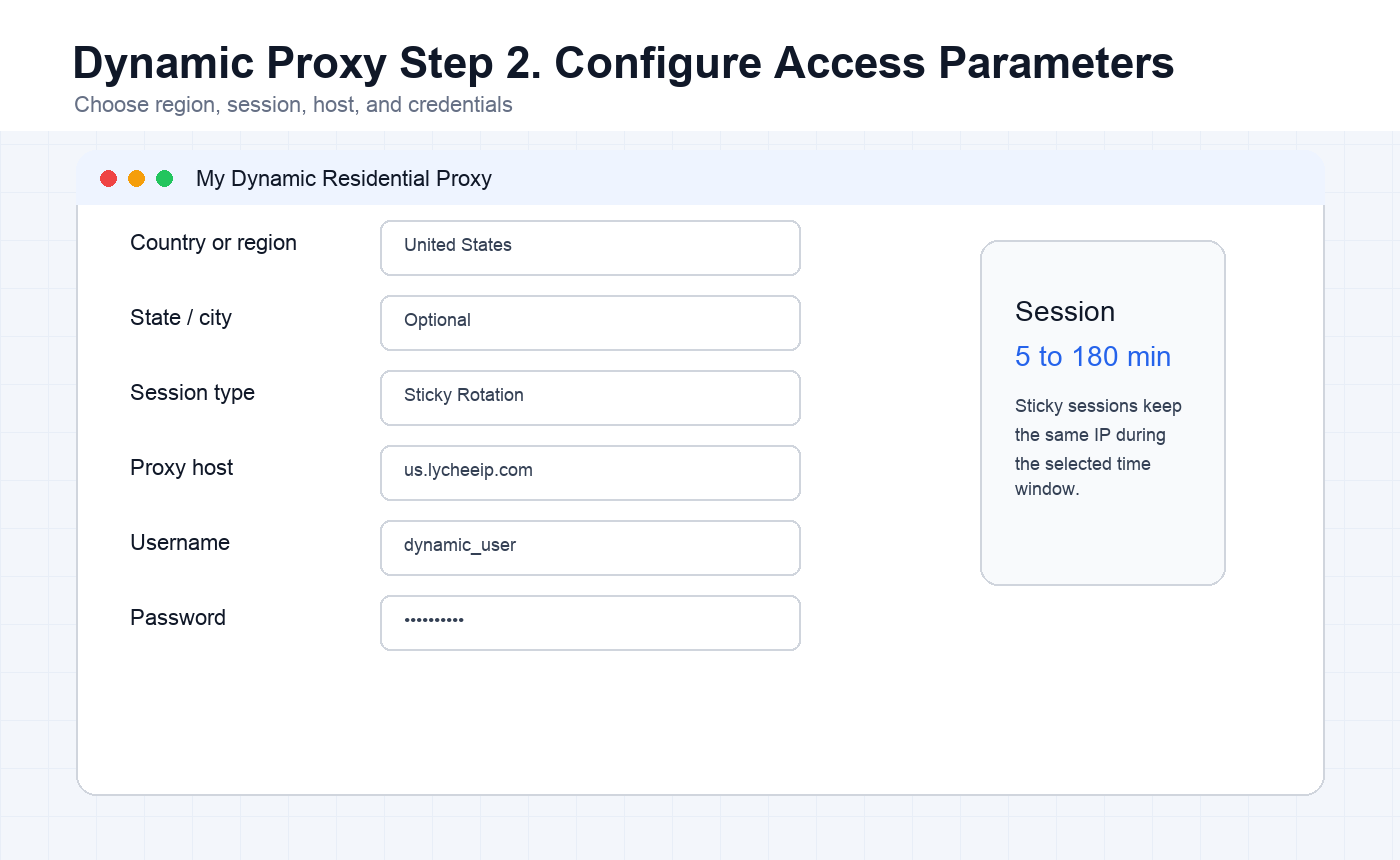
- Choose the proxy source country or region. Use global only when the workflow truly accepts mixed regions.
- Choose state or city if the workflow requires a narrower location.
- Review the username and password fields because they are the authentication credentials for proxy access.
- Choose the session type. Request Rotation changes IPs with new requests, while Sticky Rotation keeps the same IP for a selected duration such as 5 to 180 minutes.
- Choose the proxy host closest to the proxy country. For example, a United States workflow should usually use a North America host, while Singapore should use an Asia host.
- Use the test command if you want to validate the proxy quickly from a command line before putting it into MoreLogin.
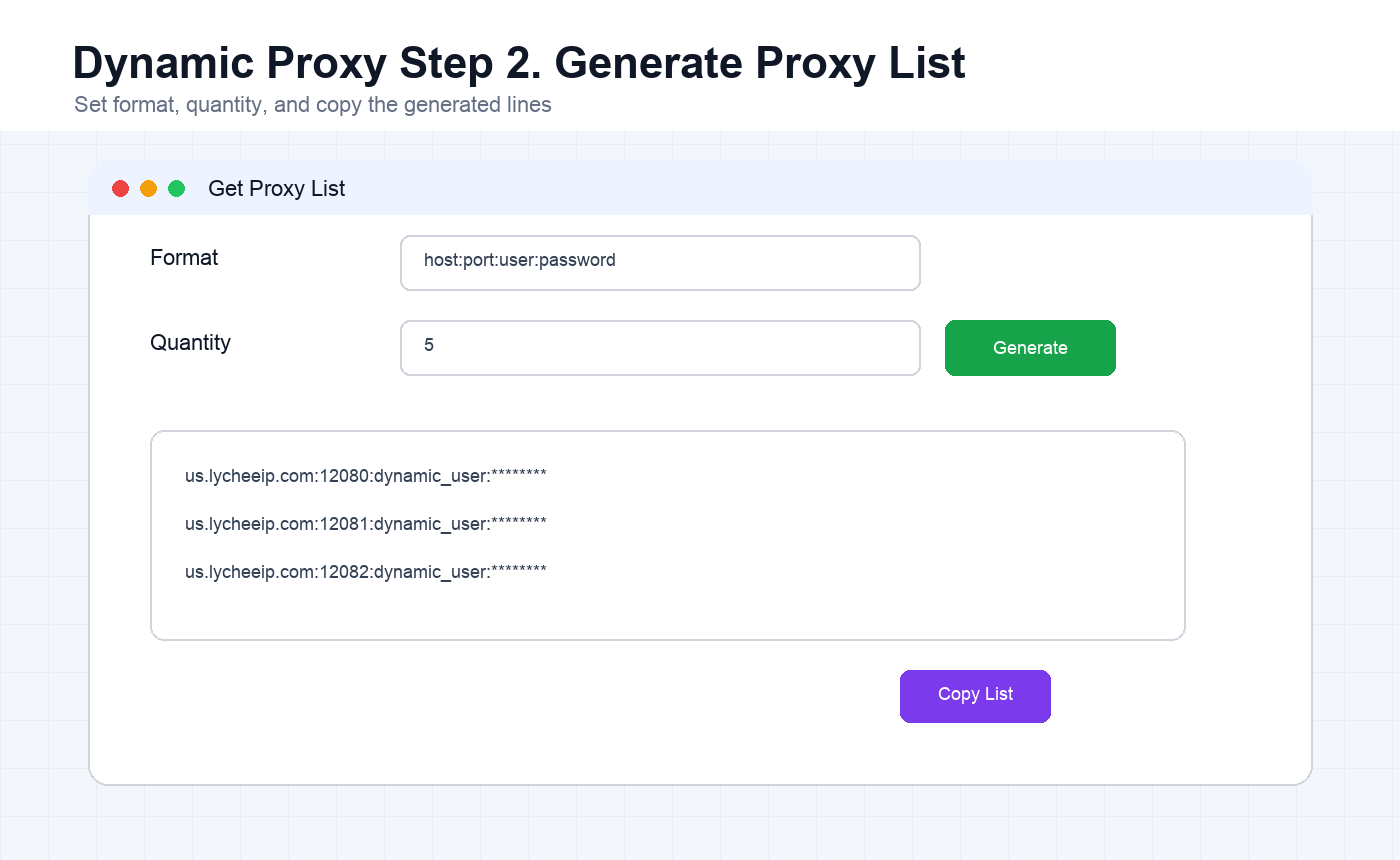
- In Get Proxy List, select the right output format and quantity, then click Generate.
- Copy the generated proxy list or download it as a TXT file for later use.
Step 3: Generate and Copy the Proxy List
Choose a format that MoreLogin can map cleanly into host, port, proxy account, and proxy password fields. A common format is host:port:user:password. Generate only the quantity you need for the profiles you are creating.
Step 4: Add the Dynamic Proxy to MoreLogin
In MoreLogin, create a new environment or edit an existing one. Choose the proxy type, then enter the generated proxy server, port, proxy account, and proxy password. Click Proxy Check before saving.
If MoreLogin shows Connection Test Successful, the dynamic proxy information is valid. Open the browser profile and confirm that websites can be accessed normally. If the connection test fails, contact LycheeIP support or regenerate the proxy line with corrected country, host, session, or credential settings.
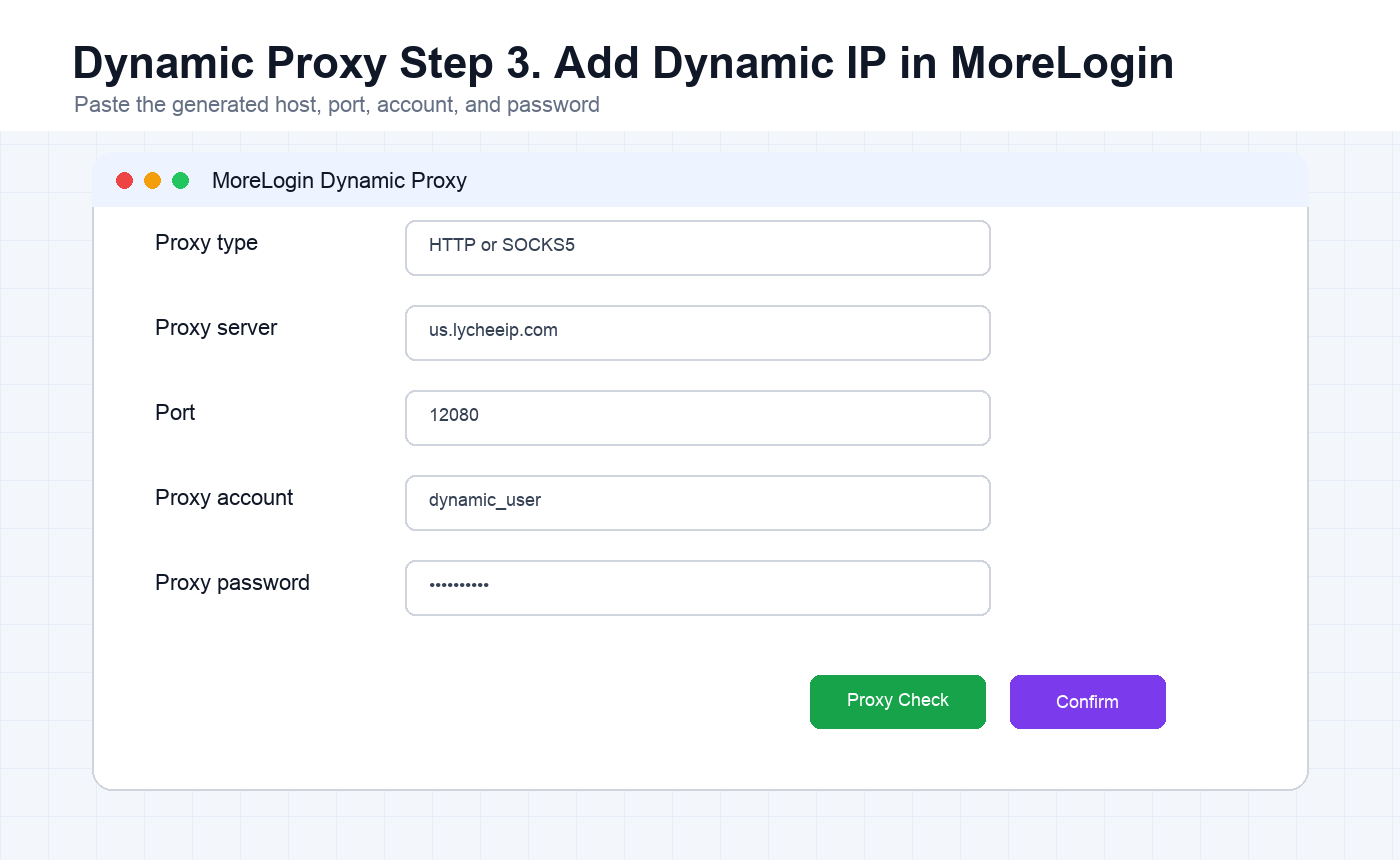
After the proxy check succeeds, click Confirm to create or save the environment. For sensitive workflows, use sticky sessions when you need the same IP to remain stable during login, verification, or account warming steps.
Generate Dynamic Residential Proxies
Quality Checks Before Using the Profile
- The MoreLogin profile country, language, timezone, and proxy country should point to the same target market.
- The proxy check should show success before you open the profile.
- For static proxies, keep the same IP attached to the same profile unless there is a clear reason to change it.
- For dynamic proxies, use sticky sessions when continuity matters and avoid unexpected rotation during important account actions.
- Open an IP lookup website such as ipinfo.io or ping0.cc inside the profile to confirm the visible IP and location.
For more proxy strategy context, review LycheeIP’s private proxy guide, public versus private IP guide, and mobile proxy explanation.
Frequently Asked Questions
Should I use a static or dynamic proxy in MoreLogin?
Use a static residential proxy when one browser profile needs long-term IP continuity. Use a dynamic residential proxy when you need generated lines, rotating access, or sticky sessions for a controlled period.
Which proxy protocol should I choose?
Choose the protocol shown in your LycheeIP order or generated proxy details. SOCKS5 and HTTP are the most common options for MoreLogin profile configuration.
What does a successful proxy check mean?
It means MoreLogin can connect through the proxy details you entered. You should still open an IP lookup site inside the launched profile to confirm the visible IP, country, and network type.
Can I use one proxy for many browser profiles?
It is better to avoid reusing the same proxy across unrelated accounts. Keep each important profile tied to its own stable proxy identity whenever account continuity matters.
Why does the base overseas network matter?
LycheeIP proxy products are designed to work from an overseas network environment. If the base network path is not ready, MoreLogin may fail to connect even when the proxy details are correct.
What should I do if the proxy test fails?
Check the protocol, host, port, proxy account, proxy password, country selection, and session settings. If all details look correct but the connection still fails, regenerate the dynamic line or contact LycheeIP support.