Which Android proxy method should you use?
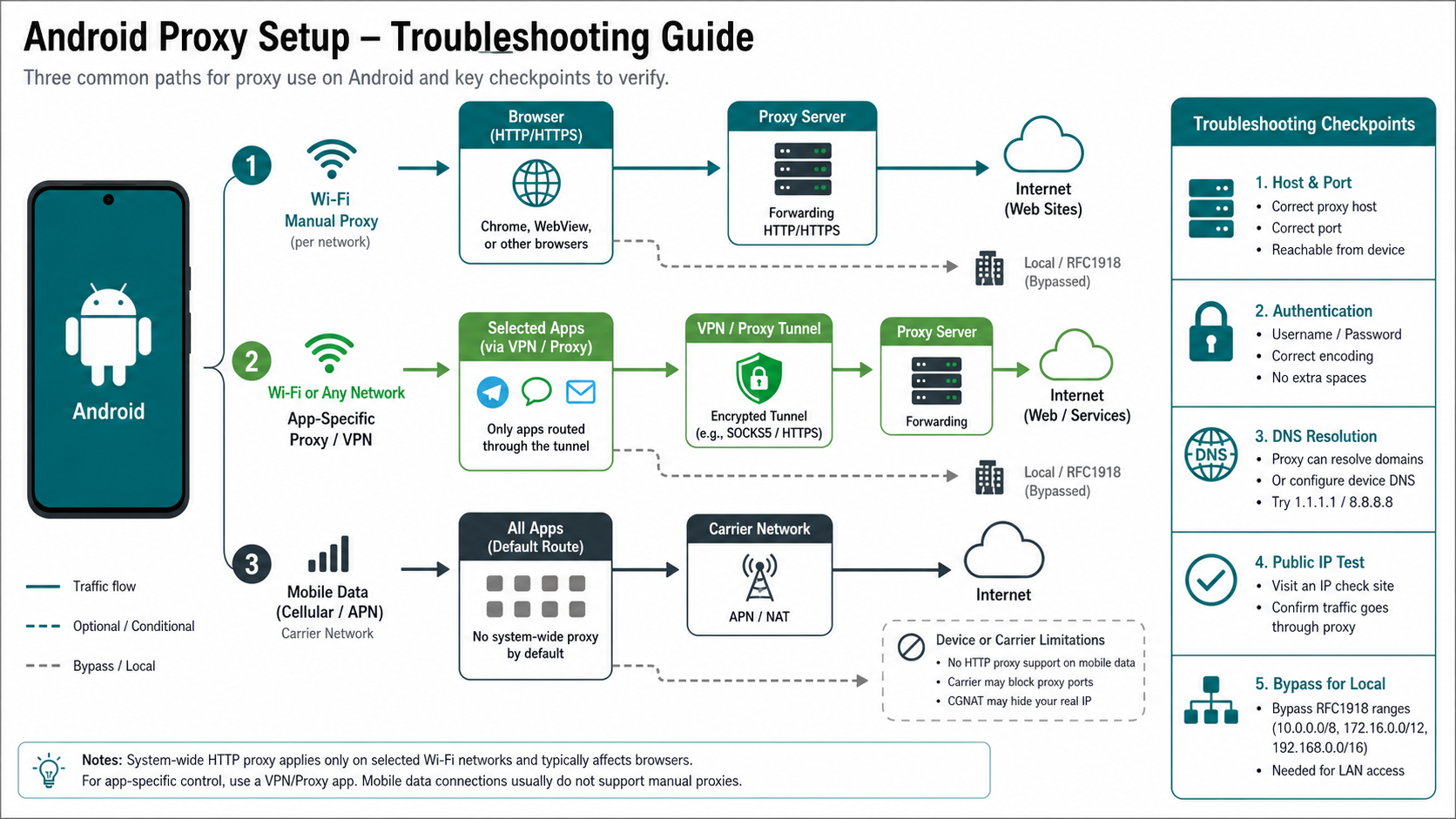
| Method | Typical scope | Best for | Main limitation |
|---|---|---|---|
| Wi-Fi manual proxy | Supporting apps on one Wi-Fi network | Browser and HTTP/HTTPS testing | Many apps can ignore it |
| App-specific proxy client | Selected apps or a local VPN interface | SOCKS5 and controlled routing | Trust the client and review battery impact |
| APN proxy | Carrier-dependent mobile data | Managed carrier configurations | Often unavailable or ignored |
| Device VPN | Broad device traffic | Encrypted device-level routing | Different trust and routing model |
Android's Network Security Configuration documentation explains app trust configuration, while IETF RFC 1928 defines SOCKS5. Neither means every Android app honors the system Wi-Fi proxy.
Set up an HTTP or HTTPS proxy on Android Wi-Fi
- Open Settings and select Network and Internet or Connections.
- Open Wi-Fi and edit the connected network.
- Expand Advanced options and change Proxy from None to Manual.
- Enter the proxy hostname or IP and port.
- Add bypass hosts only when required, then save.
- Open a browser and verify the expected public address and region.
Menu names vary by Android version and vendor. If the network uses a PAC file, select the automatic configuration option and use only an approved URL. Do not place usernames and passwords in a PAC URL or screenshot.
Authentication limitations
The Android Wi-Fi proxy fields usually store host and port, not credentials. A supporting browser or app may prompt for username and password. Other apps may fail silently. When a provider supports IP allowlisting, use it only on a trusted, stable source network and remove stale entries. Do not expose credentials in URLs.
Compare SOCKS5 endpoint behavior, static proxy setup, and desktop application routing to understand why authentication support differs by client.
Use SOCKS5 on Android without root
Android does not expose a universal SOCKS5 field in the standard Wi-Fi proxy screen. Use a reputable app that explicitly supports SOCKS5 and documents whether it creates a local VPN interface, routes selected apps, handles DNS remotely, and stores credentials. Review permissions and publisher identity before installing it.
Configure one endpoint first. Exclude local networks if LAN access must remain available, then test a hostname and a direct IP. For location-sensitive QA, compare residential proxies, ISP proxy sessions, and mobile proxy routing based on the authorized test, not a promise of invisibility.
Proxy use on mobile data
Manual Wi-Fi settings do not apply when the phone switches to cellular data. Some carriers expose APN proxy fields, but changing APNs can break data, MMS, IMS, or carrier provisioning. Record the original values and do not edit a managed APN without carrier guidance. An app using Android's VPN service is usually more predictable for selected or broad mobile-data routing.
Private DNS, WebView, and app behavior
Private DNS controls resolver transport and is not the same as a proxy. It can interact with the chosen route, but disabling it permanently is not a general fix. Android WebView and browser traffic may honor system settings while native sockets, QUIC, custom DNS clients, and apps with their own networking stack may not.
Use the VPN versus proxy decision guide when broad device traffic must be covered. For Chrome-only workflows, the Chrome proxy extension guide describes profile-based routing.
Verify the Android proxy
- Confirm the phone remains on the Wi-Fi network you edited.
- Check the public address in a supporting browser before and after setup.
- Test an IP and a hostname to isolate DNS.
- Review the proxy client's connection log without exposing credentials.
- Test the exact app; do not assume the browser result applies to every app.
- Confirm local-network access and bypass rules.
- Switch the proxy back to None and confirm direct connectivity returns.
Troubleshoot no connection after proxy setup
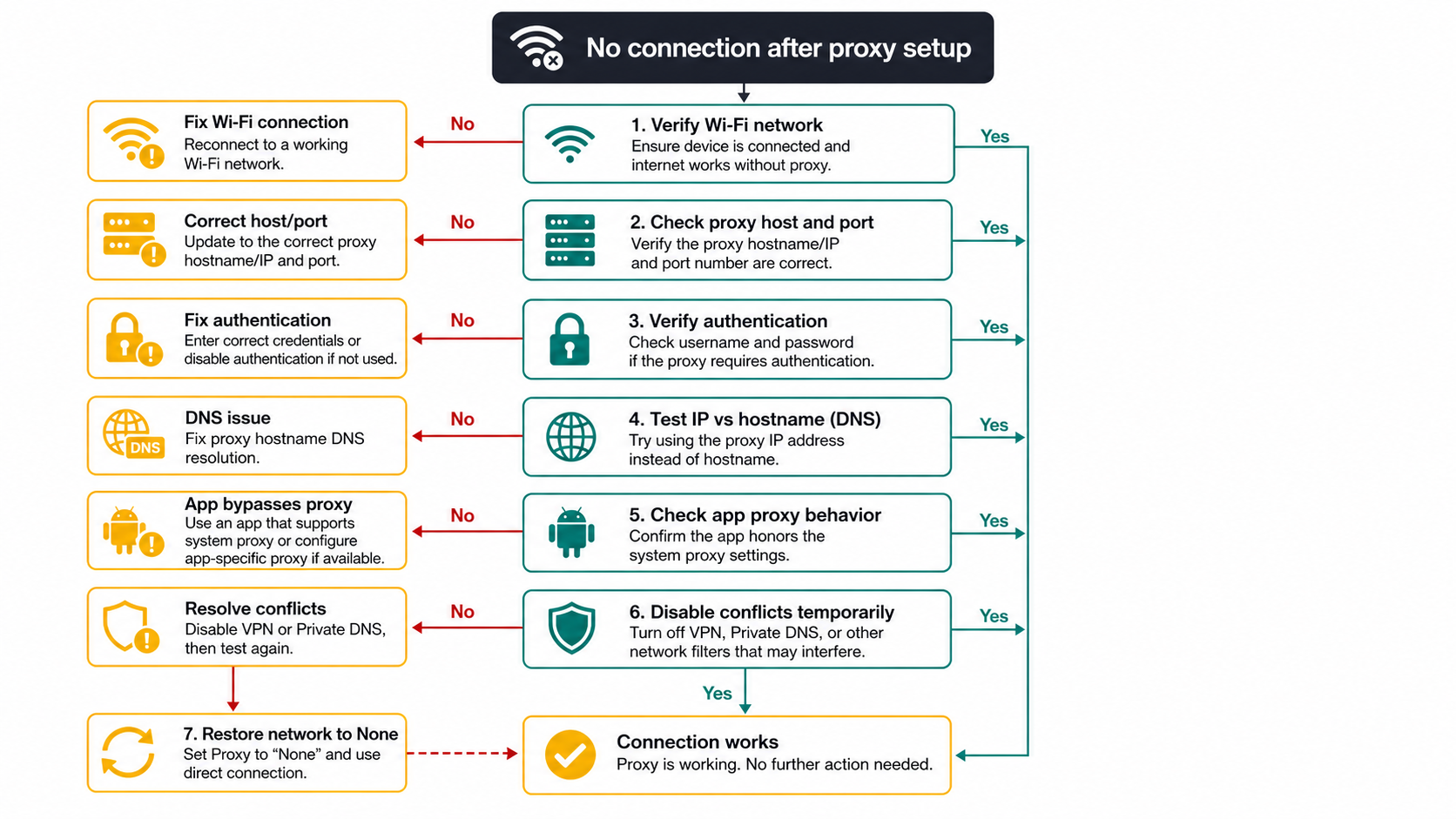
Nothing loads
Set Proxy to None to confirm the base Wi-Fi connection. Recheck host, port, protocol, firewall, and endpoint reachability. A SOCKS5 endpoint will not work in a field expecting an HTTP proxy.
Browser works but an app does not
The app probably ignores the system proxy or uses unsupported transport. Use an app-specific client only when the application and policy permit it.
IP works but hostnames fail
Investigate DNS handling. Confirm whether the client resolves locally or through the proxy and whether Private DNS or a filtering app is conflicting.
Authentication repeats
Verify credential encoding, account status, authentication method, and whether the app supports authenticated proxies. Remove spaces introduced by copy and paste.
Wrong region appears
Check the proxy endpoint, DNS resolver, account settings, device location permission, and cached application state with the region-mismatch workflow.
Privacy and security boundaries
The proxy operator can observe destination and connection metadata according to protocol and encryption. HTTPS still protects application content end to end when certificate validation remains intact. Never install an unknown root certificate merely to make a proxy work. The proxy does not hide account identity, device fingerprint, GPS, cookies, or app telemetry.
Operational checklist for teams
Keep credentials in an approved secret manager, create separate endpoints for test environments, document which apps are routed, and remove access after the project. The browser fingerprinting guide explains non-network signals; the automation workflow covers repeatable browser testing.
Manual proxy configuration by Android version
On many devices the path is Settings, Network and Internet, Internet, the selected Wi-Fi network, Edit, Advanced options, Proxy, then Manual. Samsung and other vendors use different labels. The setting belongs to that saved Wi-Fi network; joining another network requires separate configuration. Managed devices may lock the field through enterprise policy.
Enter only the hostname and port supplied by the administrator or provider. Do not include a scheme unless the field explicitly requests a URL. A bypass list normally contains hostnames or domains separated according to the device UI. Add localhost and private resources only when the use case needs direct access.
PAC files and managed devices
A proxy auto-configuration file can choose Direct or a proxy based on the requested URL. Use PAC only from an approved HTTPS location, version the file, and test failure behavior when it is unavailable. Enterprise mobility management may configure Wi-Fi, certificates, VPNs, and proxy rules centrally; local screenshots may not represent the effective policy.
Certificate warnings are not a proxy setup step
A standard forward proxy for HTTPS uses the browser's CONNECT method and should not require installing a new certificate authority. TLS inspection products are different: they decrypt and re-encrypt traffic and require an organization-controlled CA on managed devices. Do not install a certificate from an unknown proxy service or dismiss hostname errors.
Battery, performance, and background restrictions
App-based routing can maintain a local VPN service and background connection. Android battery optimization may stop it, while exempting it can increase battery use. Test sleep, wake, roaming, and long idle periods. Record whether the client reconnects and whether applications retry safely rather than assuming a foreground test represents normal operation.
WhatsApp and apps with their own proxy settings
Some applications expose a dedicated proxy feature that is separate from Android Wi-Fi settings. Follow that application's official documentation and understand which traffic the feature covers. Do not assume credentials, protocol, or bypass behavior can be shared across unrelated clients.
Testing DNS and route scope
Use a controlled hostname whose expected address you know, then compare it with a direct IP request. If the IP succeeds and hostname fails, inspect resolver selection and client DNS mode. If the browser changes address but another app does not, the route is application-scoped. If local devices become unreachable, review private-subnet bypass rather than disabling security controls permanently.
For repeatable team tests, record Android version, vendor build, Wi-Fi name, proxy client version, endpoint protocol, DNS mode, app under test, and effective public address. That evidence lets another engineer reproduce the result without sharing credentials.
Choosing a proxy endpoint for Android
Match protocol and session behavior to the client. HTTP/HTTPS endpoints fit the system Wi-Fi setting when the app honors it. SOCKS5 requires a compatible client. Sticky sessions help an authenticated app retain network continuity; rotation is for independent, authorized requests. Check the provider evaluation framework and do not accept unverifiable guarantees about anonymity or bans.
Frequently Asked Questions
Can Android use a proxy without an app?
Yes, Android can configure an HTTP-style proxy per Wi-Fi network, but only supporting apps use it and it does not normally cover mobile data.
Can Android use SOCKS5 natively?
The standard Wi-Fi screen does not provide a universal SOCKS5 setting. Use a trusted client that explicitly supports SOCKS5 and documents DNS and app scope.
Why does the proxy work in Chrome but not another app?
The other app may ignore the system proxy, use native sockets, QUIC, or its own DNS and networking stack.
How do I proxy mobile data?
Carrier APN proxy support is inconsistent. A trusted client using Android's VPN service is often more predictable, but review its routing scope.
Does a proxy hide my Android fingerprint?
No. It changes the network route. Apps and sites can still observe device, browser, storage, account, location, and behavior signals.
How do I remove the proxy?
Edit the Wi-Fi network, set Proxy to None, save, and verify direct connectivity. Remove or disable any app-specific client separately.