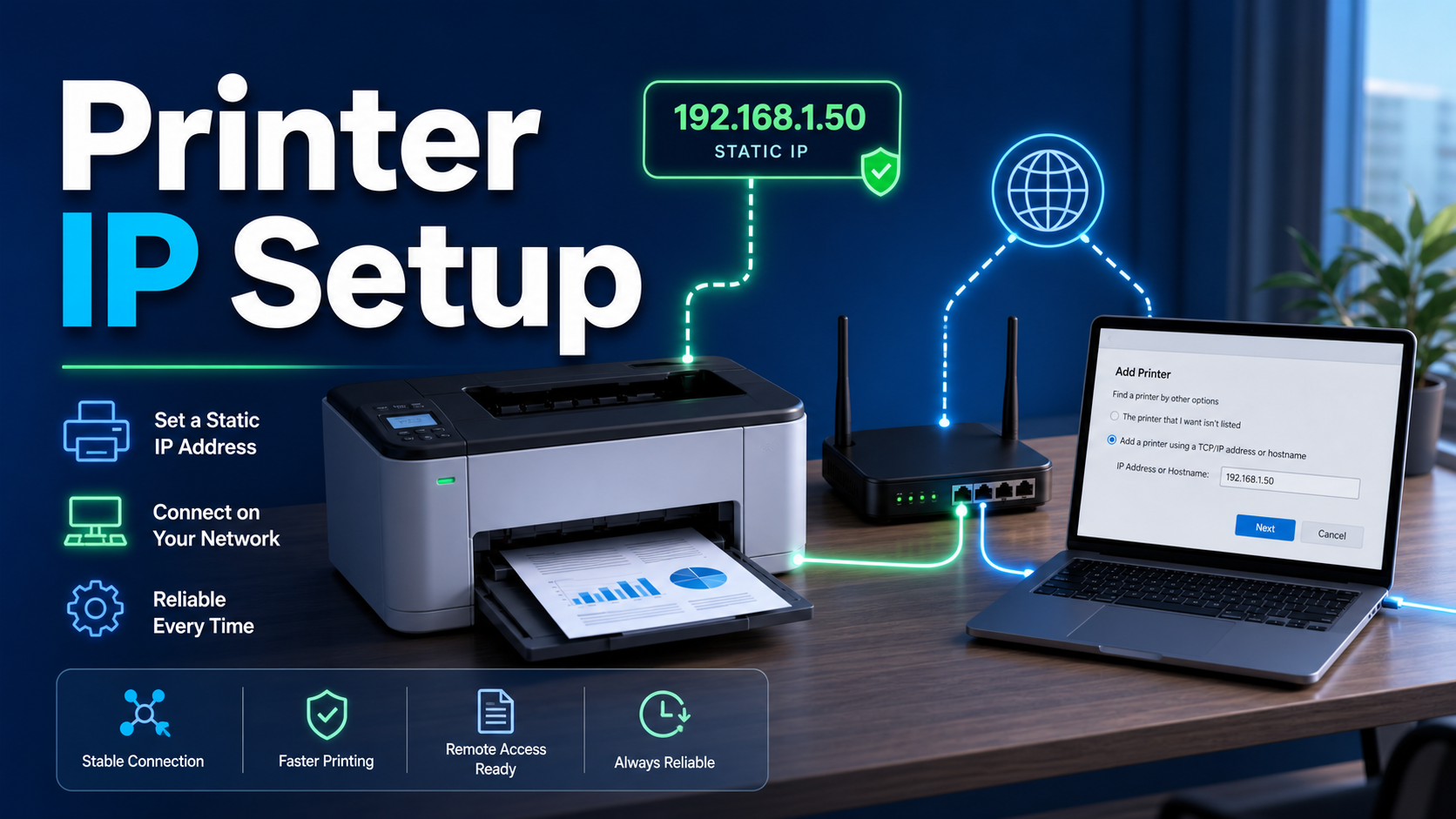
Your printer keeps disappearing from Windows 11? In many cases, the permanent fix is to give the printer a stable IP address and add it manually by TCP/IP.
This is one of the most common and quietly frustrating problems for Windows 11 users with networked printers. You set up the printer, everything works, then after a router reboot or power outage Windows cannot find it. Print jobs queue up, but nothing prints.
The root cause is usually simple: the printer is using a dynamic IP address assigned by the router. When that address changes, Windows keeps looking for the old address. A static IP or DHCP reservation gives the printer a predictable network identity, just as stable IP planning matters in broader networking workflows using LycheeIP.
Why Dynamic IPs Break Printer Connections
How Your Router Assigns IP Addresses
Most home and small office routers use DHCP, or Dynamic Host Configuration Protocol. When a device joins the network, the router automatically assigns an IP address, subnet mask, gateway, and DNS settings. RFC 2131 defines DHCP as a network configuration protocol for automatically supplying hosts with configuration parameters, and you can review the protocol details in the official DHCP RFC.
Automatic addressing is convenient for laptops and phones. It is less convenient for printers, cameras, local servers, and other devices that Windows or other machines need to find again later.
Why Wireless Printers Are Especially Vulnerable
A USB printer does not depend on a network address. A Wi-Fi or Ethernet printer does. If the printer moves from 192.168.1.104 to 192.168.1.118, Windows may still point to the old port. The printer looks offline even though it is powered on and connected.
Microsoft recommends checking Windows printer connectivity and printer troubleshooting steps when devices stop printing, and its official Windows printer troubleshooting guide is useful when you need to rule out drivers, queues, and system-level issues. But when the failure repeats after router restarts, IP addressing is the first place to look.
Two Reliable Ways to Give a Printer a Static Address
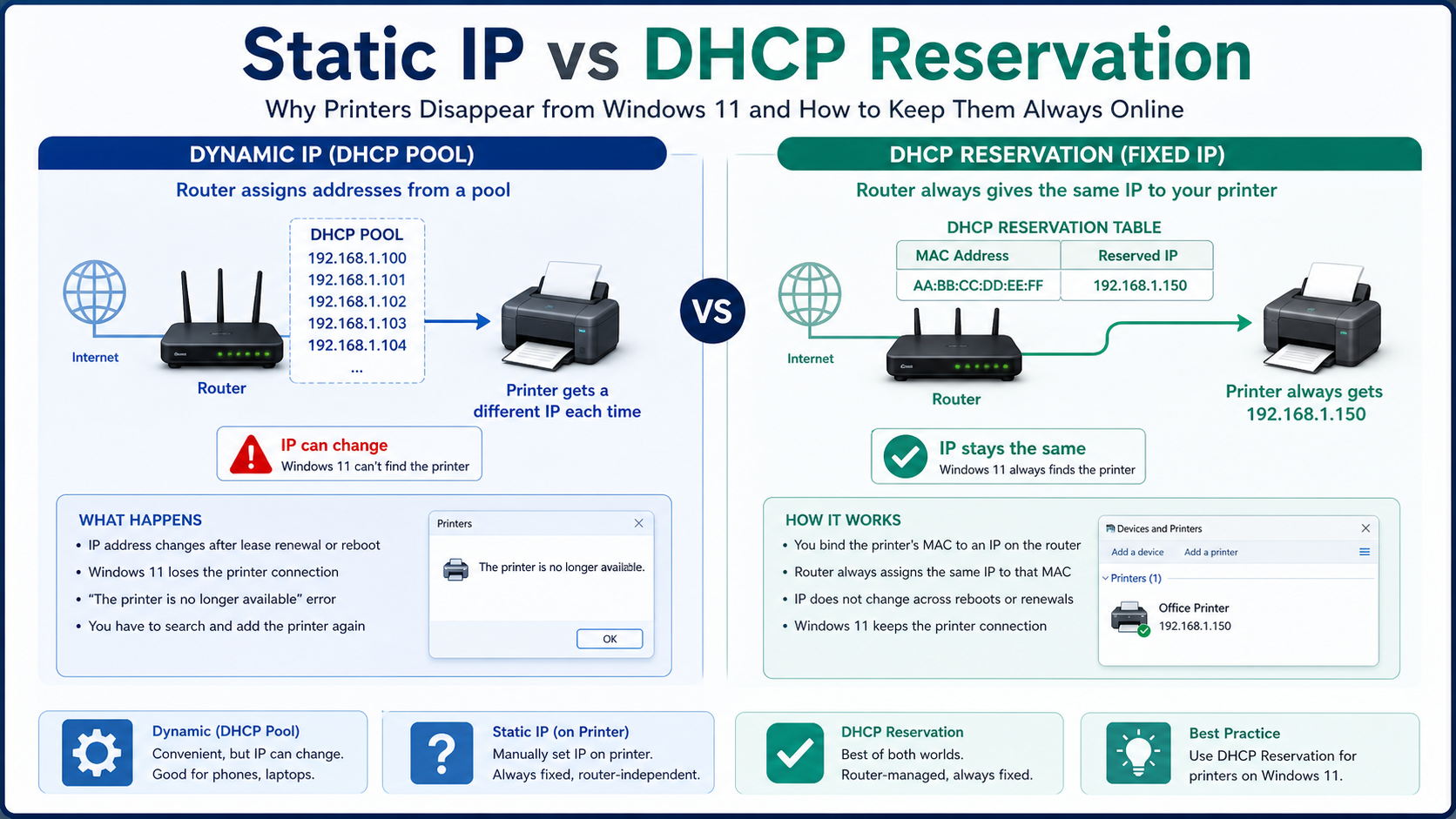
Method 1: Set a Static IP Directly on the Printer
Most modern network printers have a built-in web interface. You open the printer current IP address in a browser, find the network settings, switch from automatic or DHCP to manual, and enter a fixed IP address. The printer then stops asking the router for a new address and uses the one you configured.
Method 2: Use DHCP Reservation on the Router
DHCP reservation keeps the printer on automatic configuration but tells the router to always assign the same IP to that specific printer. The router identifies the printer by MAC address and binds it to a chosen IP.
Both methods work. DHCP reservation is often easier for homes and small offices because all assignments live in the router. This mirrors a broader network operations lesson: choose the right IP behavior for the job. For example, static proxy IPs are useful when a workflow needs continuity, while dynamic IP options support workflows where rotation is the point.
Step-by-Step: Add a Printer by IP Address in Windows 11
Step 1: Find the Printer Current IP Address
Before assigning a fixed address, find the printer current address. Print a network configuration page from the printer, check the router connected-device list, or open Command Prompt and run arp -a to see devices on your local network.
Step 2: Access the Printer Web Interface
Open a browser on a device connected to the same network. Type the printer current IP into the address bar and press Enter. Look for sections named Network Settings, TCP/IP, Wireless Settings, or IP Configuration.
Choose an address in the local router range, often 192.168.1.x or 192.168.0.x, but avoid conflicts. If the router hands out addresses from .100 to .200, choose something outside that range, such as .50 or .250.
Step 3: Set Up DHCP Reservation Instead, If Preferred
- Log into the router admin panel, usually by entering the gateway IP in a browser.
- Open DHCP, LAN settings, address binding, or static leases.
- Find the printer MAC address on the printer configuration page or label.
- Create a reservation tying that MAC address to the chosen printer IP.
- Save the setting, then restart the printer or reconnect it to the network.
Step 4: Add the Printer in Windows 11 by TCP/IP
- Open Settings with Windows key + I.
- Go to Bluetooth and devices, then Printers and scanners.
- Select Add device.
- Wait for the manual option to appear, then choose Add manually.
- Select Add a printer using a TCP/IP address or hostname.
- Keep Device type as TCP/IP Device.
- Enter the static printer IP address.
- Leave Query the printer and automatically select the driver checked when available.
- Finish the driver prompts and complete setup.
Once Windows is connected to the fixed address, the printer should remain reachable after router restarts. If this is your main printer, set it as the default and consider disabling automatic default-printer management.
Quick Reference: Which Method Should You Use?
| Situation | Recommended Method |
|---|---|
| Printer has a web interface | Set static IP on the printer directly |
| Printer does not support manual IP | Use DHCP reservation on the router |
| Managing multiple office printers | DHCP reservation for each device |
| Home setup with one printer | Either method works |
| Router does not support DHCP reservation | Set static IP on the printer directly |
Why This Fix Works Long-Term
The reason printers disappear from Windows is not always a Windows bug or a printer fault. It is usually a mismatch between the address Windows stored and the address the network assigned. Windows connects to the port it knows. If that address becomes stale, printing fails.
By assigning a static IP or DHCP reservation, you remove that variable. The printer lives at one address. Windows connects to that address. Router restarts no longer break the relationship.
For office environments, document each printer reserved IP in a simple spreadsheet. The same discipline applies to larger IP-dependent workflows. Teams managing data collection, ad verification, or geo-testing often use datacenter proxies, static IP infrastructure, and LycheeIP proxy services to make access behavior predictable across regions.
Suggested Video: Add a Network Printer by IP
If you want a quick visual companion, this walkthrough shows the same basic Windows flow: choose the manual printer option, select TCP/IP address or hostname, enter the printer IP, and complete driver setup.
What to Check If the Printer Still Drops
- Print a fresh configuration page and confirm the printer saved the static IP.
- Check that no other device is using the same IP address.
- Make sure the printer IP is outside the router DHCP pool unless it is managed by reservation.
- Verify that Windows Printer Properties > Ports still points to the correct IP.
- Restart the printer after changing network settings.
- Install the manufacturer driver if Windows cannot detect the correct one automatically.
For teams thinking beyond printers, the principle is the same: know when a workflow needs a fixed network identity and when it benefits from rotation. Dynamic residential proxies are helpful for distributed requests, while static residential proxies are better for session continuity.
Common Mistakes to Avoid
Using an IP Inside the DHCP Range
If you manually assign an IP that the router also hands out dynamically, another device can receive the same address. That creates an IP conflict and both devices may fail.
Forgetting to Update the Windows Printer Port
If you later change the printer IP, Windows will still try the old address. Update the printer port under Printer Properties > Ports.
Using Hostname Without Reliable Local DNS
Windows can add a printer by hostname, but local hostname resolution is inconsistent on many home routers. A direct IP address is usually more reliable.
Skipping Documentation
For small offices, document each printer name, MAC address, reserved IP, location, and driver. If you are also running location-aware web workflows, start from LycheeIP and select the IP model that matches your stability needs.
Conclusion
Printers disappearing from Windows 11 is usually a network configuration issue. Dynamic IP addresses change, Windows keeps the old printer port, and the connection fails.
The fix is to give the printer a stable address. Use a static IP on the printer or a DHCP reservation on the router, then add the printer manually in Windows 11 using the TCP/IP address option. The setup takes a few minutes and prevents the same printer from vanishing after every router restart.
Stable addressing is a foundation of reliable networking. Whether you are managing a home printer, office devices, or proxy-backed automation with LycheeIP datacenter IPs, the principle is consistent: predictable addresses produce reliable connections.
Frequently Asked Questions
Why does my printer keep disappearing from Windows 11?
The most common cause is a dynamic IP address. The router assigns the printer a new address, while Windows still points to the old one.
How do I find my printer current IP address?
Print a network configuration page, check the router connected-device list, or run arp -a in Windows Command Prompt.
What is the difference between static IP and DHCP reservation?
A static IP is configured on the printer. A DHCP reservation is configured on the router and tells the router to always give the printer the same IP.
How do I add a printer by IP address in Windows 11?
Go to Settings > Bluetooth and devices > Printers and scanners > Add device > Add manually, then choose Add a printer using a TCP/IP address or hostname.
What IP address should I assign to my printer?
Use an address in your local network range but outside the DHCP pool, unless the router is managing the fixed address through DHCP reservation.
What if my printer does not have a web interface?
Use DHCP reservation on the router. You only need the printer MAC address and the IP you want to reserve.
Do I need to reinstall the printer driver?
Not always. Windows may detect it automatically, but it is wise to download the correct manufacturer driver first.
Can I connect by hostname instead of IP address?
Yes, but only if your router reliably resolves local hostnames. Direct IP setup is usually more dependable.
Does this work for Wi-Fi and wired printers?
Yes. Any network printer connected by Wi-Fi or Ethernet can use this method. USB printers do not use IP addresses.
How does this relate to proxy IPs?
Both printer networking and proxy infrastructure depend on choosing the right IP behavior. Fixed addresses help session continuity; rotating addresses help distributed access and public data workflows.